
Preparing Active Directory for a Remote Desktop Services 2012 VDI collection, covering the organisational unit and permissions the deployment expects.
Just a quick post to show you how to configure Active Directory for VDI in RDS 2012/R2.
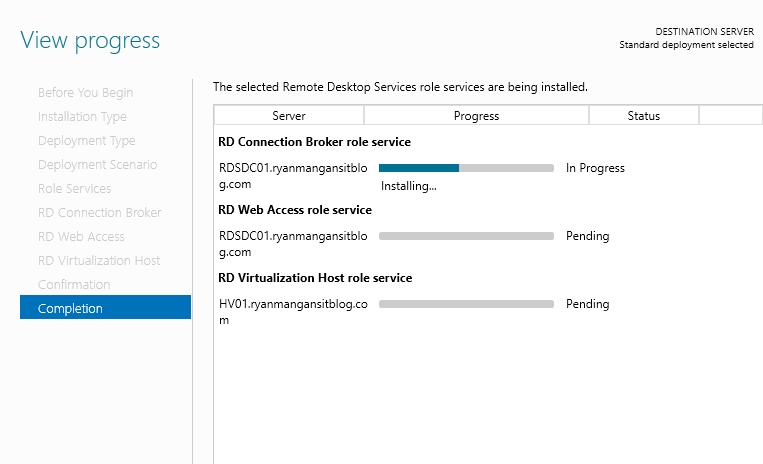
So in the demo, I have two servers, the DC which also has RDS installed and the Hyper-V Server named HV01.
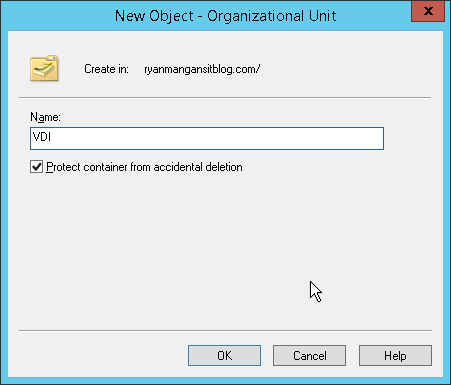
Before we start, its a good idea to create the Organisational Unit required for the VDI Collection.
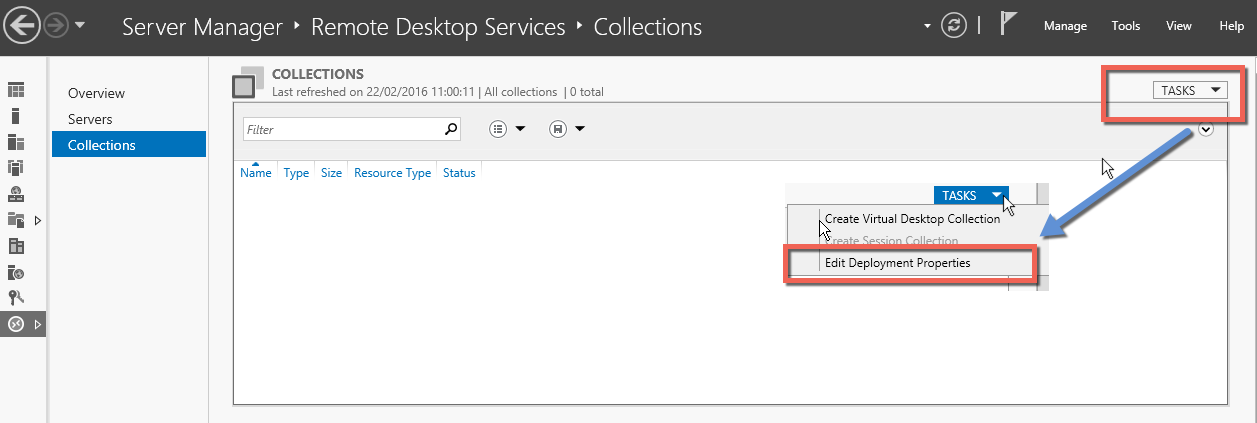
Getting started - Open up the RDMA console and navigate to collections. Select tasks and then as shown select Edit Deployment Properties.
You will now be presented with the configure the deployment window.
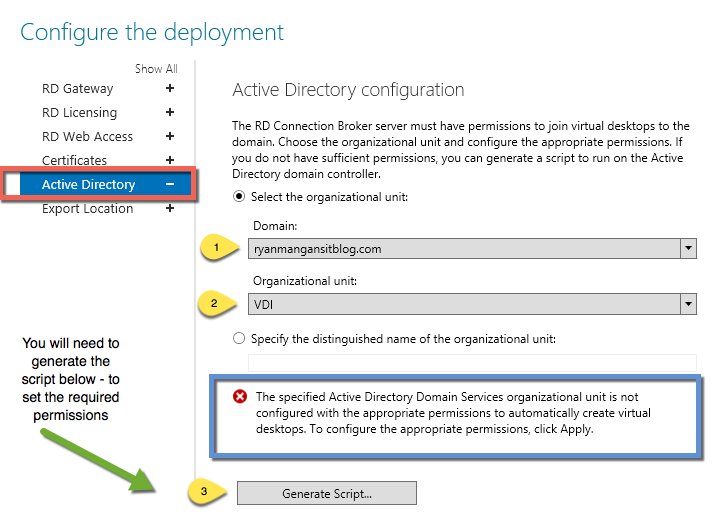
Select the Active Directory Tab.
1, select the domain you want configuring - usually this is on and it will be shown automatically. 2, Select the Organisational unit - the one we created at the beginning. 3, you will notice the message with a red x highlighted in blue. The organisational Unit requires permissions delegating. Click the Generate Script... button:
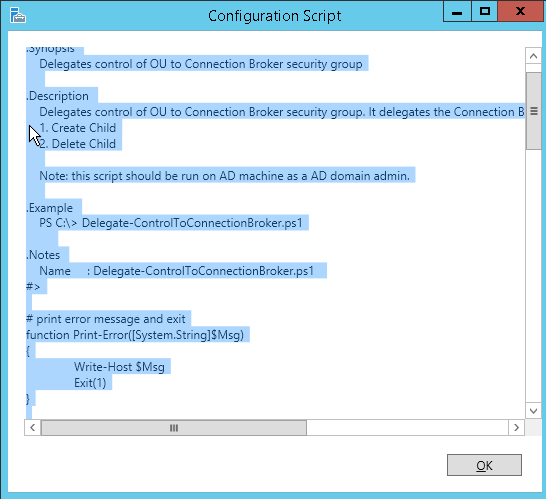
Copy the script into a text file and save the file as Delegate-ControlToConnectionBroker.ps1
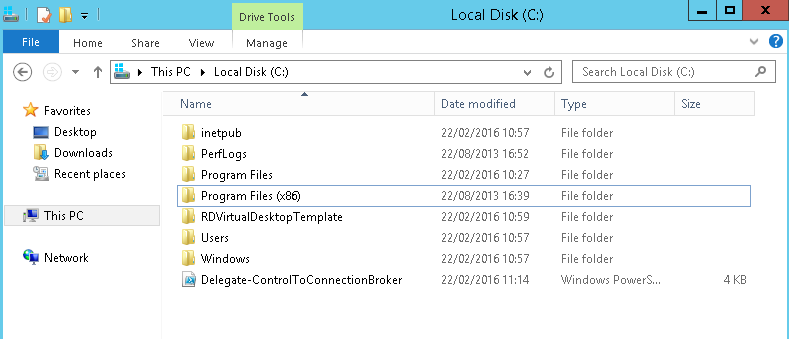
Then run the script as shown below.

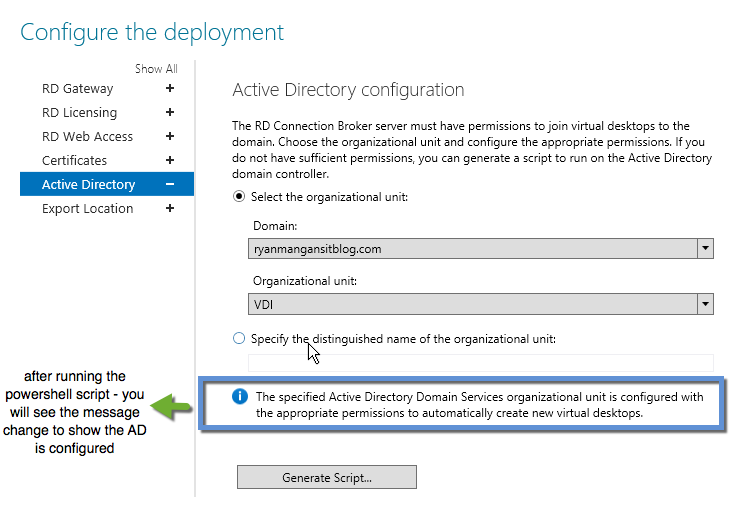
You will now see the message has changed to state that Active Directory is now configured for VDI.
You can also view the permissions under Advanced security settings for the OU.
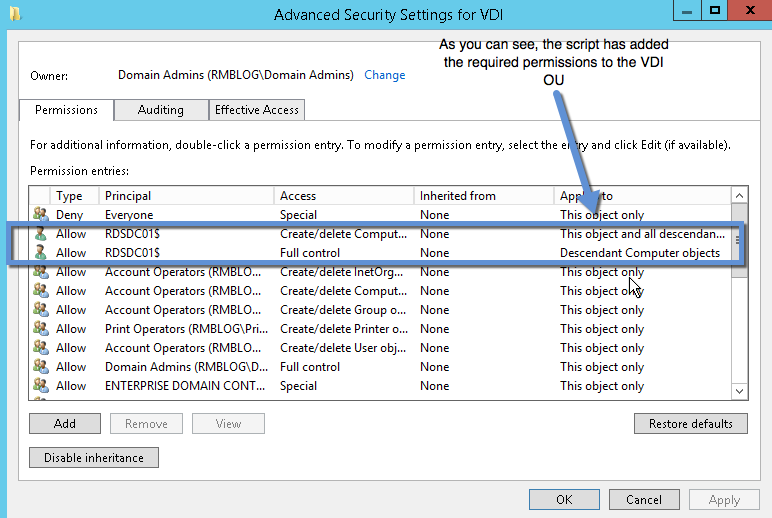
There you have it... Active Directory configured for VDI.