Part 2 of the Kemp LoadMaster and VMware Log Insight series, walking through adding worker nodes to an existing Log Insight master to form a cluster for linear ingestion scaling, faster queries, and high availability across the appliances.
This Post will show you how to add Worker Nodes to create a Cluster.
Log Insight can scale out by using multiple virtual Appliance's. This enables what we call Linear Scaling of ingestion throughput, increases query performance and allows for ingestion high availability. In a cluster mode, Log Insight provides two types of Node, Master and Worker. Both the Master and the worker nodes are responsible for a subset of data but the Master nodes can query all subsets of data and aggregate the results.
Getting Started
Like with the Master Node, you will see the Same Screen.
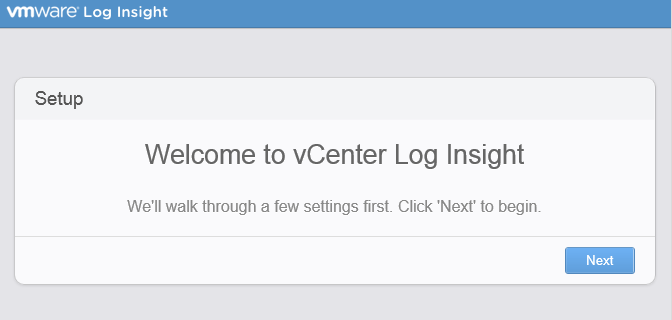
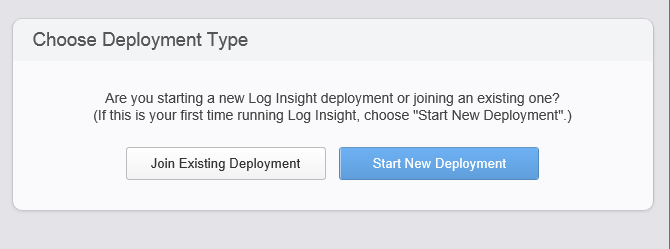
This time you will need to select "Join Existing Deployment"
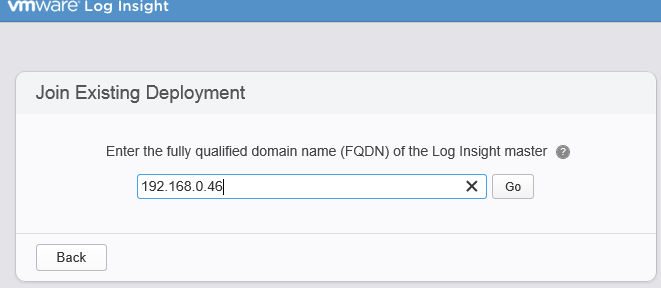
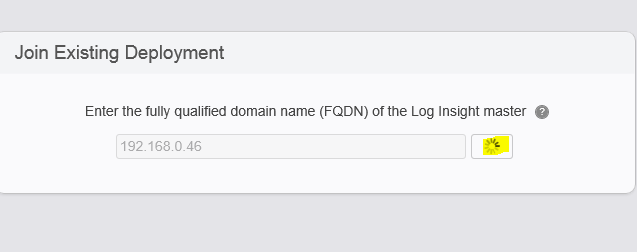
Enter the IP or FQDN of the Master Node and click "Go".
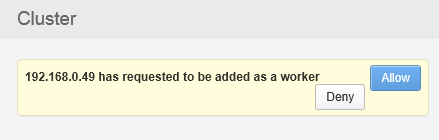
Once Joined, you will then need to access the Cluster Management Page on the master and authorise the worker to join.
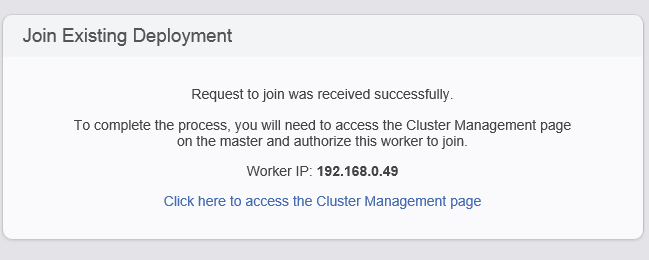
Click "Click here to access the Cluster Management Page"
You will then be directed back to the Master Node's Login Screen as show in the screenshot below.
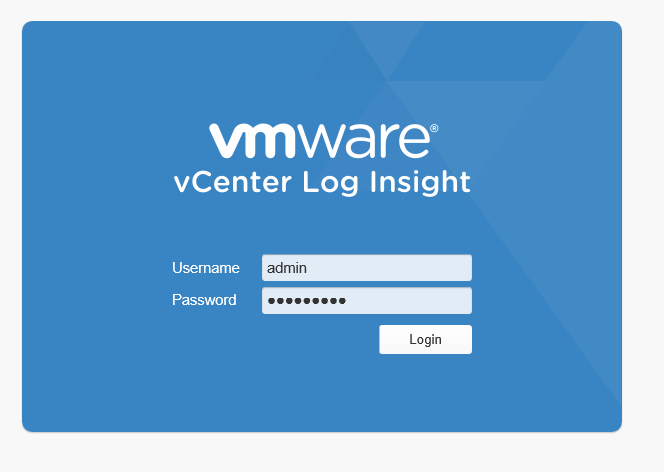
Once Logged in, you will need to allow the new Worker Node.
Once Joined you then see the Master and the workers broken down into two different sections, as shown in the screenshot provided below.
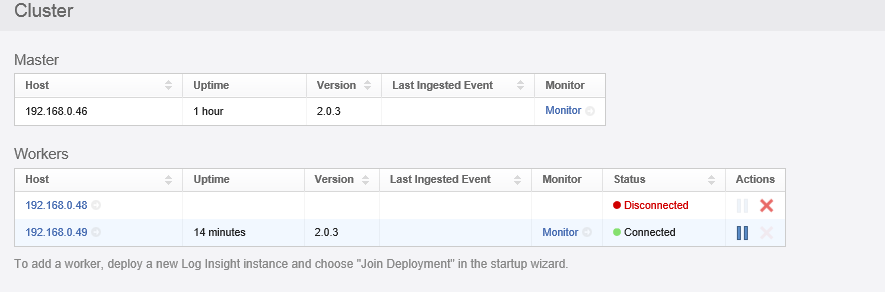
There you have it, We have created a Cluster with a Master Node and a Worker Node.
Look Forward to Part 3, Where we look at Load Balancing these Nodes using KEMP's Load Master.