Preparing a SQL Server instance for Remote Desktop Services 2012, covering the security permissions and static port configuration required.
Installing SQL for RDS 2012 - RD HA Mode
For this example i am using SQL Express 2012 and a single instance.
For more information on high available SQL Solutions please see the following link: http://msdn.microsoft.com/en-us/library/ms190202.aspx
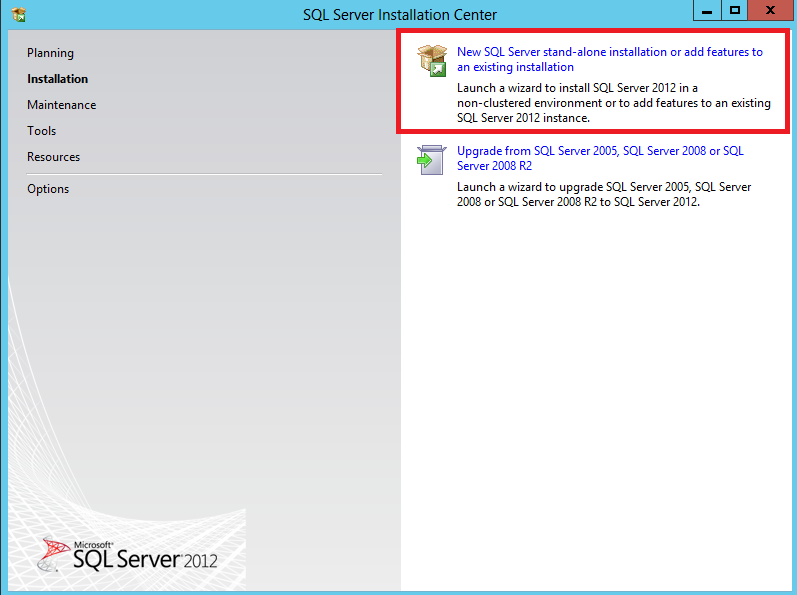
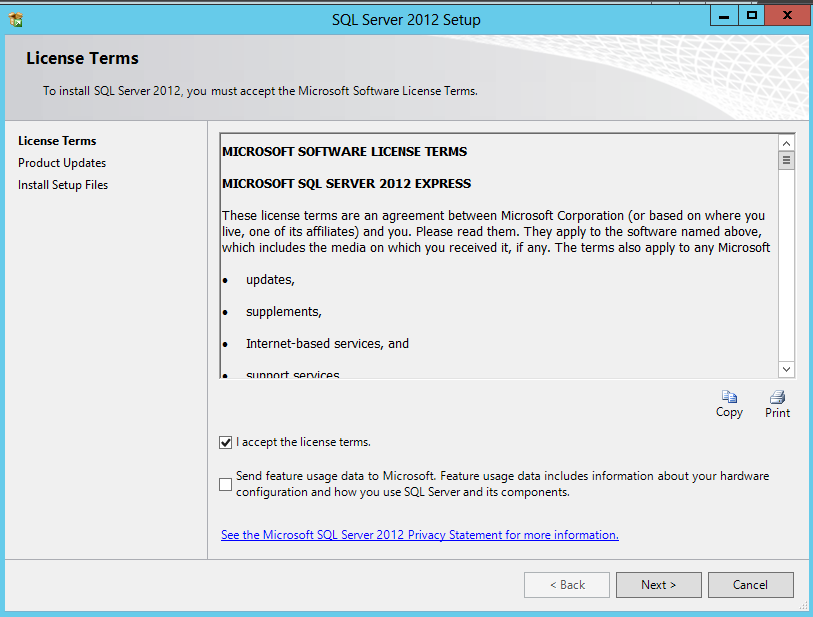
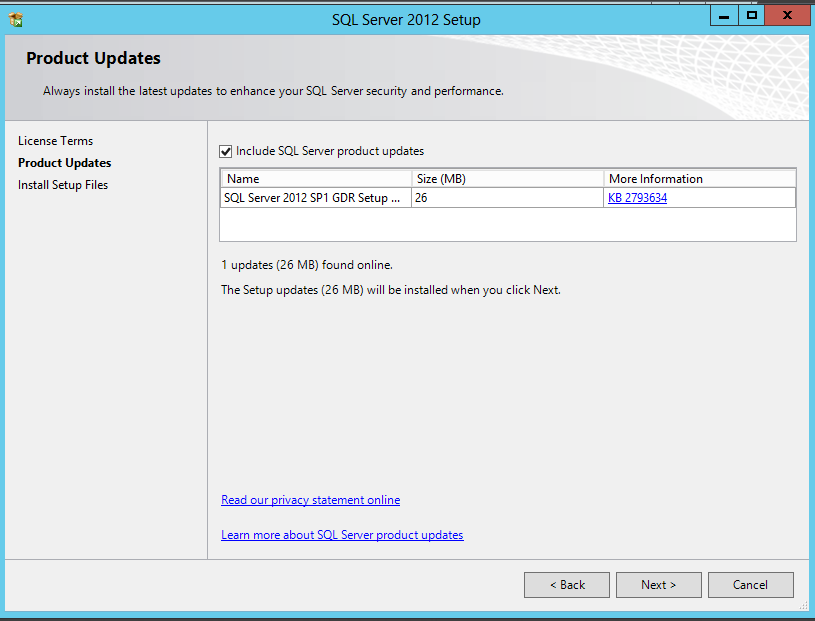
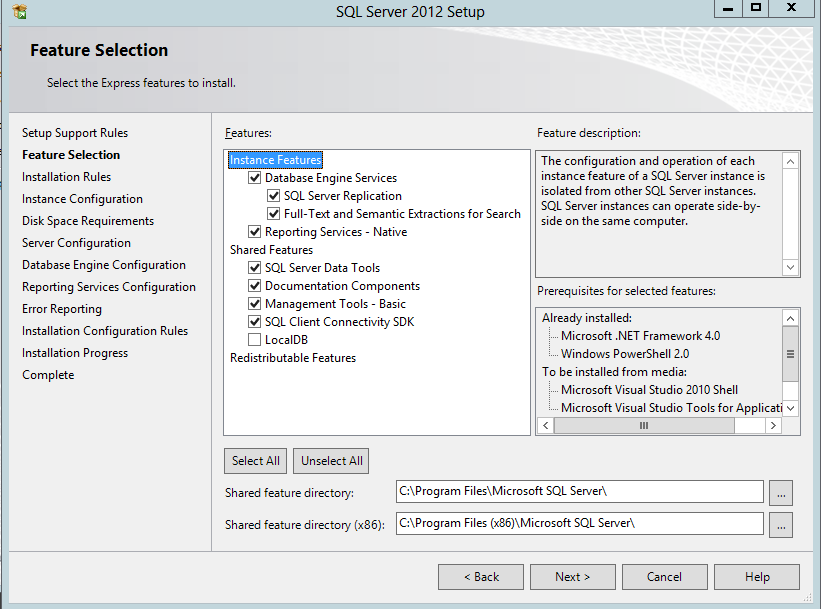
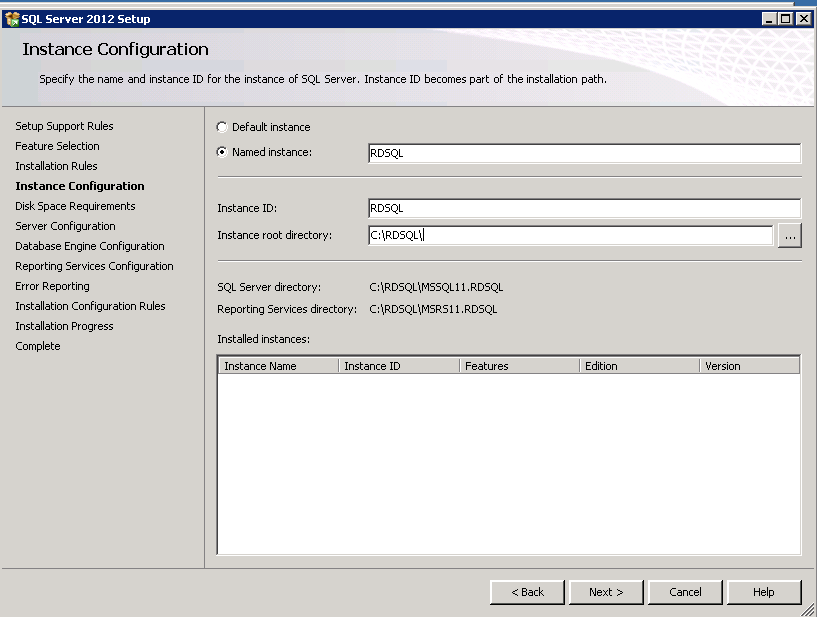
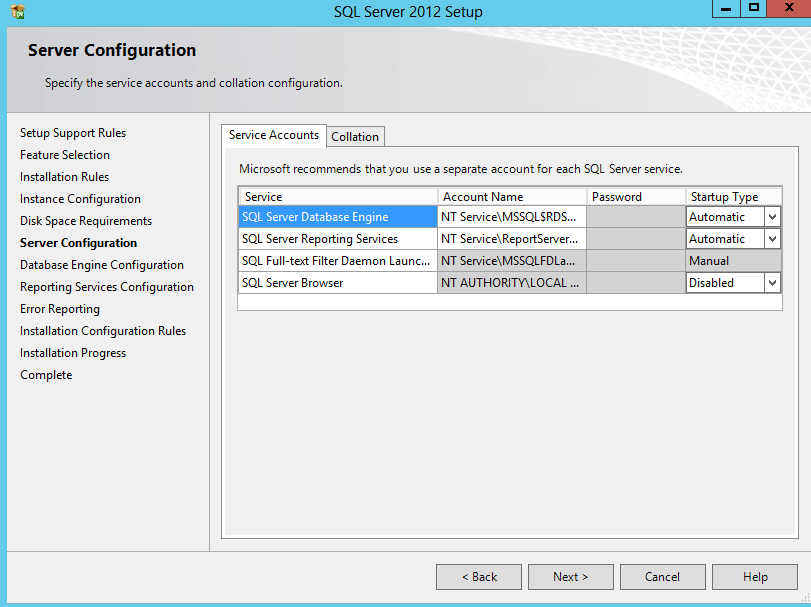
you can set a Service account, for this example i have used the defaults.
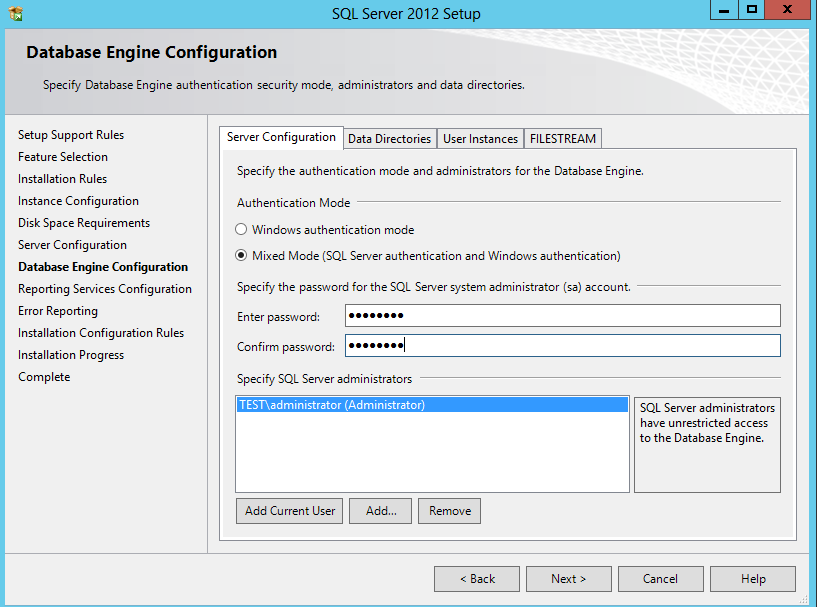
Enter the User names that can access SQL administrator and a SA password.
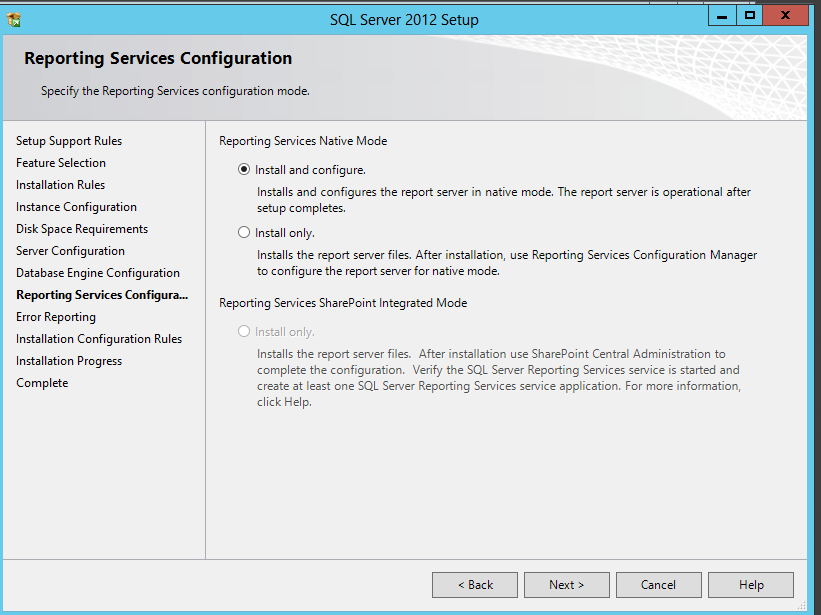
Select default settings for the reporting services.
Configure security permissions
Create a security group and add the RDCB servers as members.
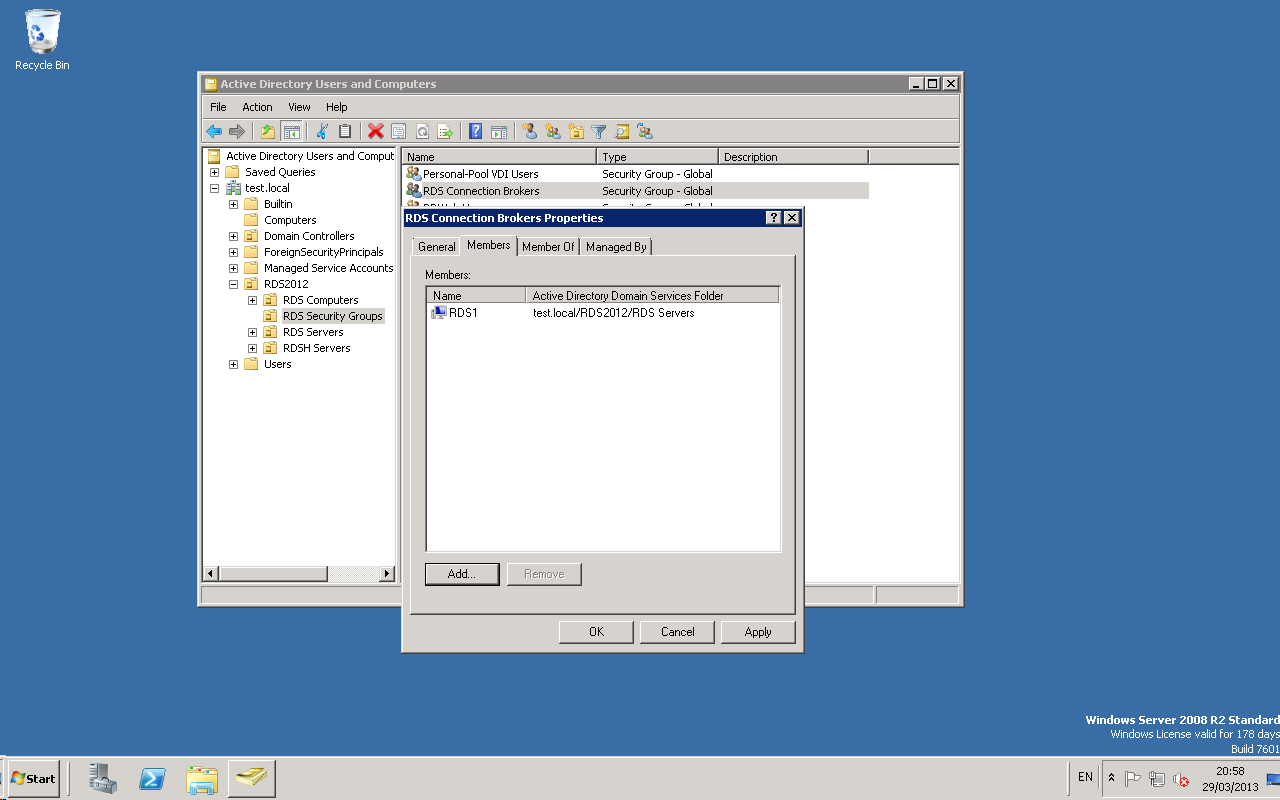
Add all connection brokers into the security Group
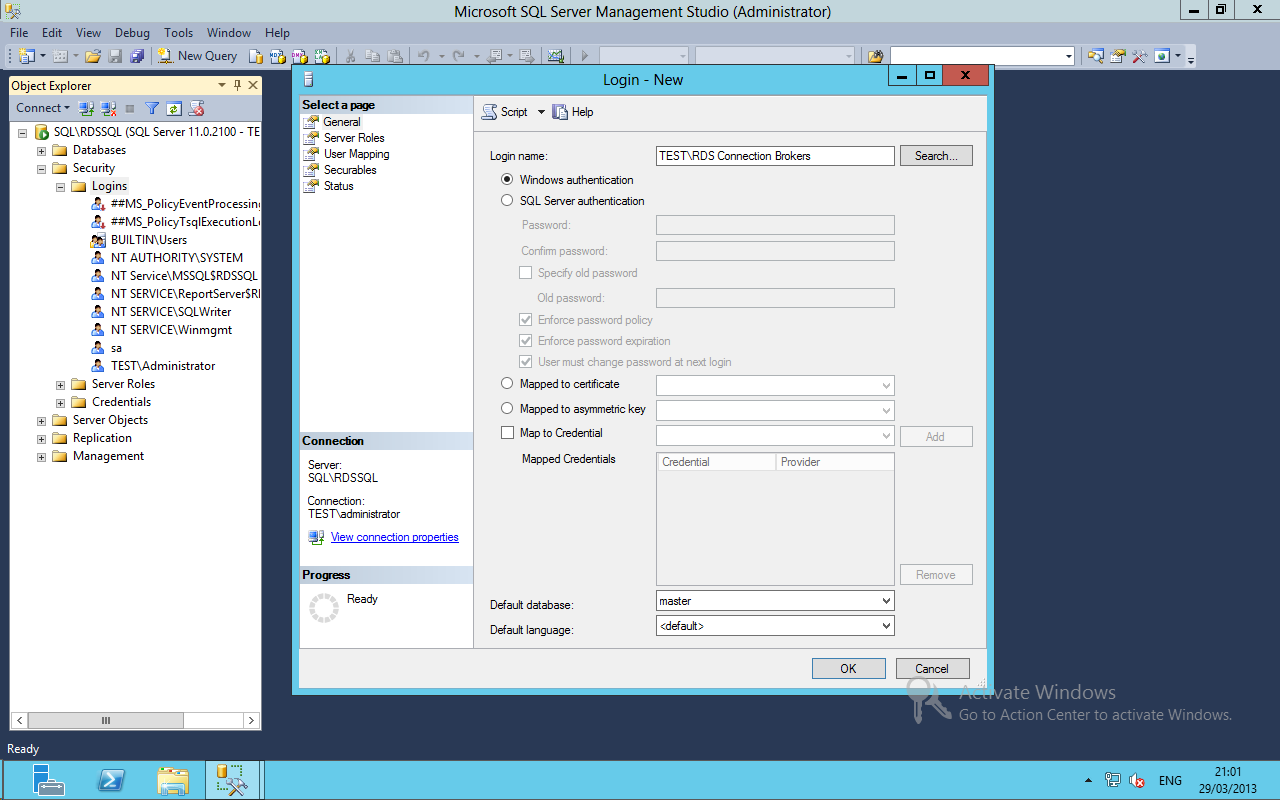
Create a new user and add the Group name to the login name.
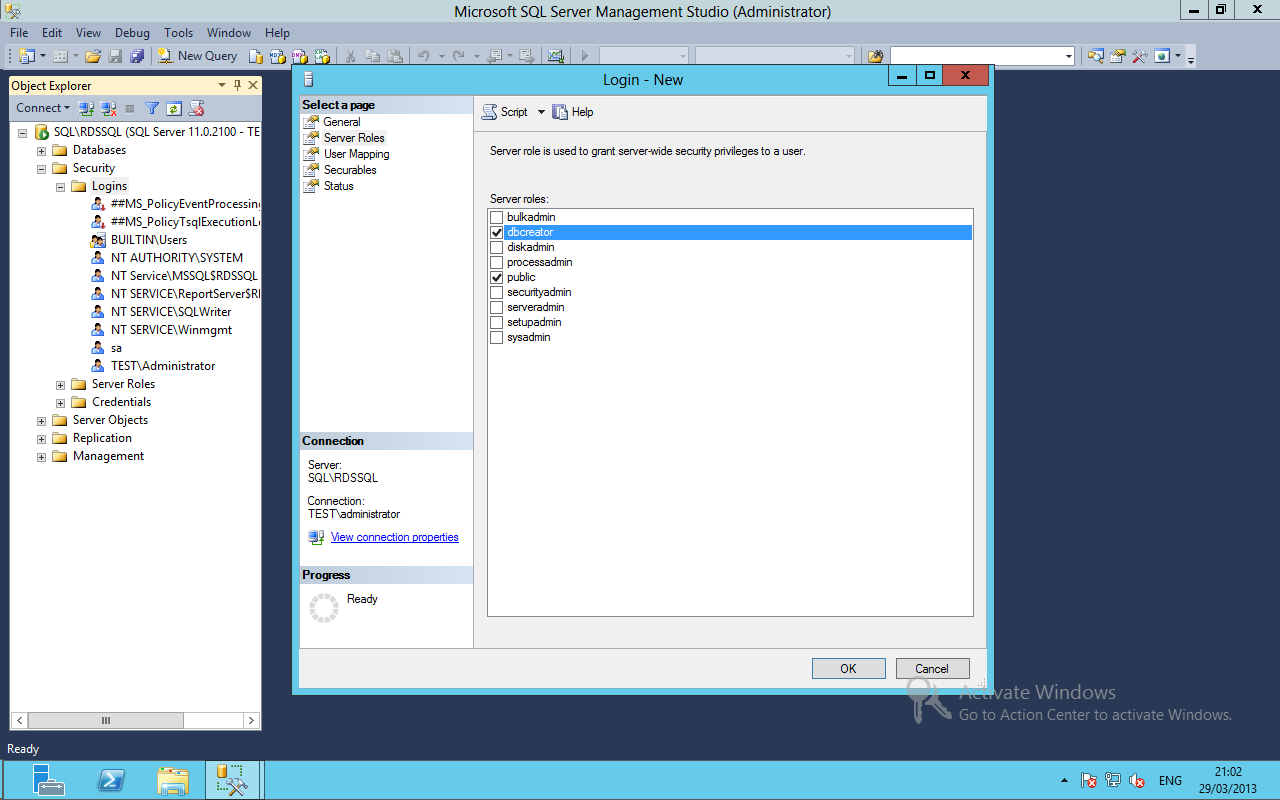
In the Server Roles page select DBCreator, Sysadmin and public.
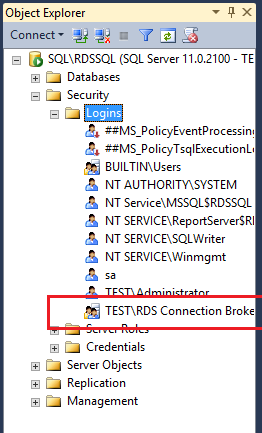
Once you have configured the RDS Connection Broker login, you will see it appear under logins in the security folder for the SQL instance.
Configure a Static SQL Port
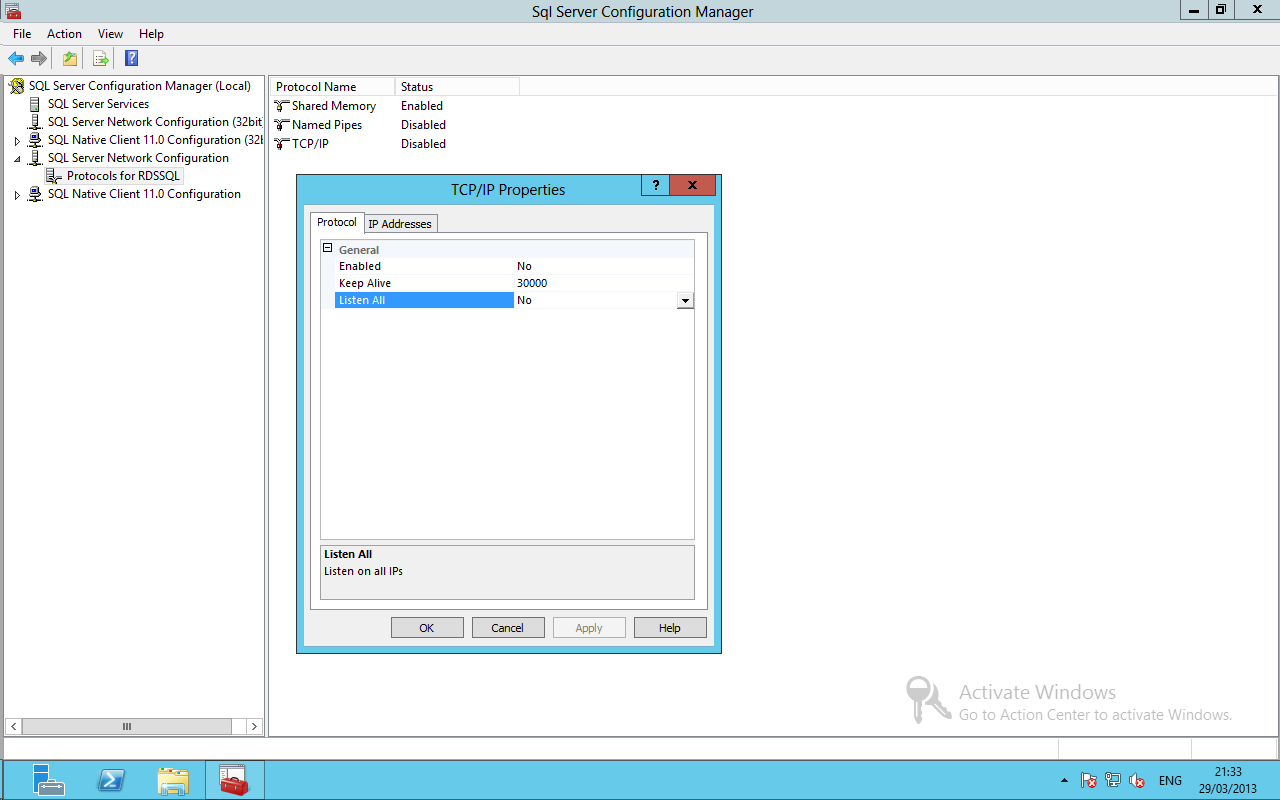
Open the SQL Server Configuration Manager, open the TCP/IP Properties under SQL Network Configuration and set the listen all option to NO.
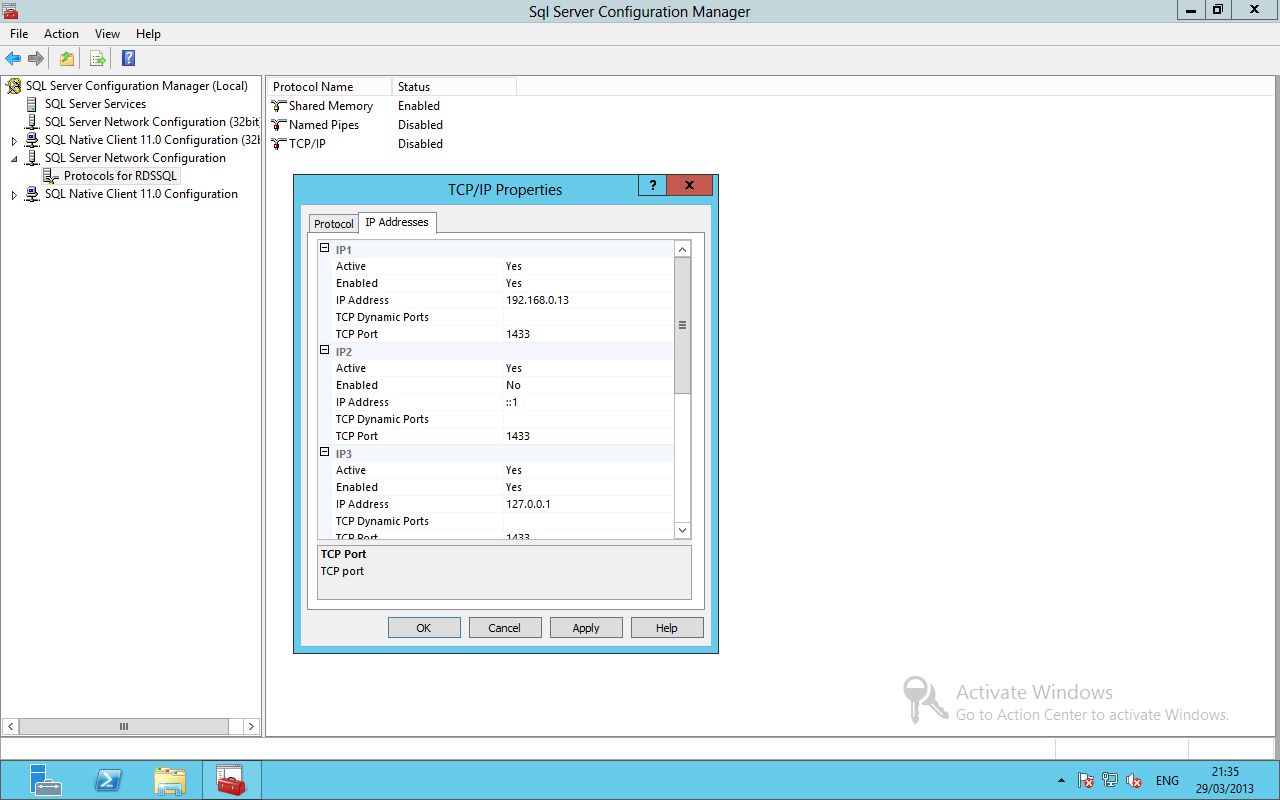
Remove 0 from the TCP Dynamic Ports and add 1433 to the TCP port for all IP address's.
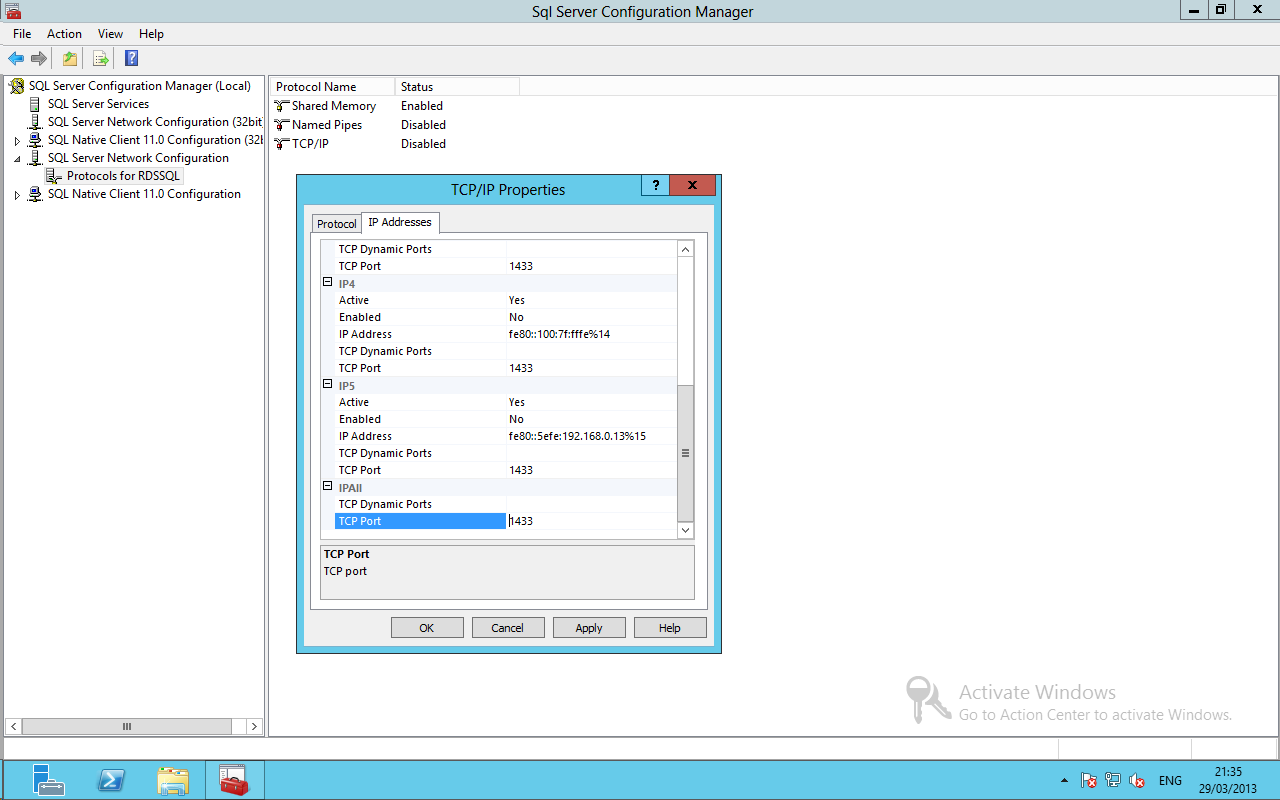
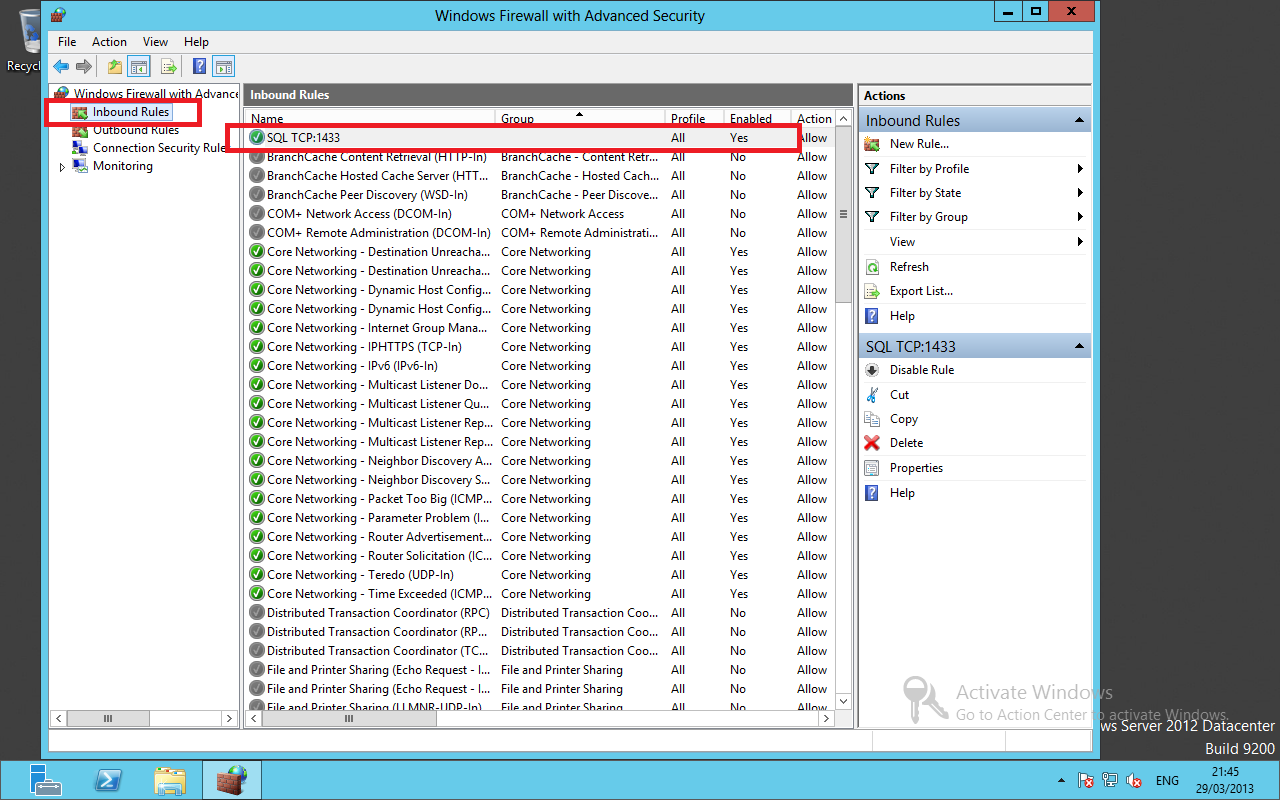
Once you have changed the TCP setting from dynamic to Static you need to create a inbound firewall rule for TCP 1433 allow.
Configuring SQL Native Client on Connection Brokers
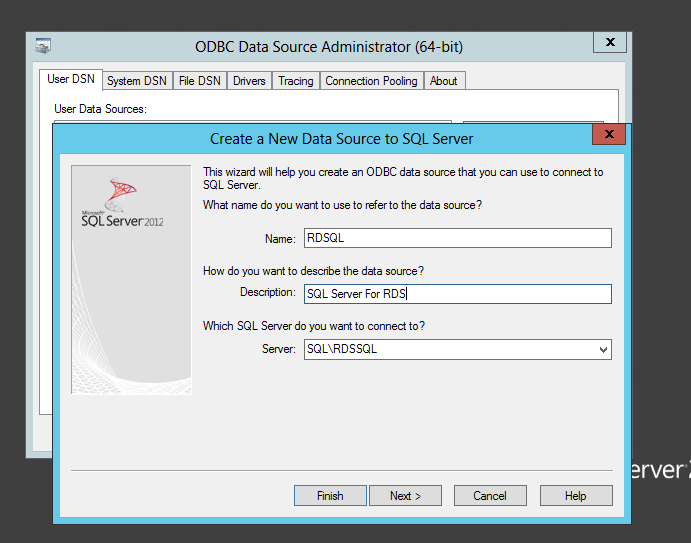
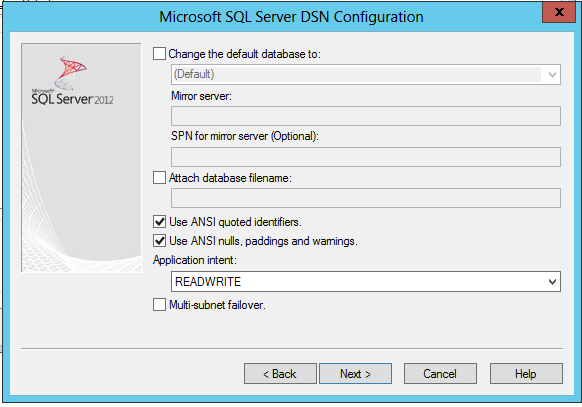
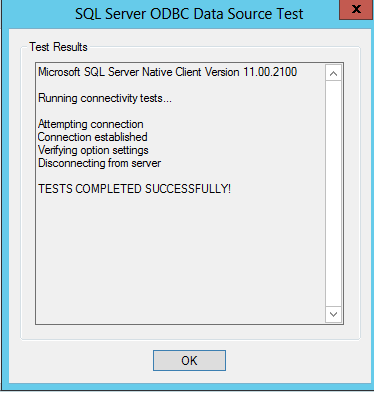
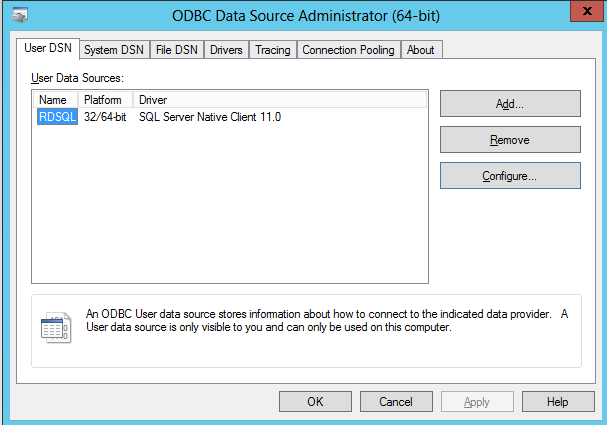
To allow the connection brokers to communicate with SQL you need to configure the SQL Native Client using ODBC.
http://www.microsoft.com/en-gb/download/details.aspx?id=29065