
How to enable RDMS UI tracing in Remote Desktop Services 2012 with a registry change, so management console failures can be diagnosed from the logs.

Open regedit and create the following:
HKEY_LOCAL_MACHINE\SOFTWARE\MICROSOFT\RDMS
Create the following two registry entries under the registry key:◦Entry: EnableDeploymentUILog Data type: REG_DWORD Value: 1
Entry: EnableUILog Data type: REG_DWORD Value: 1
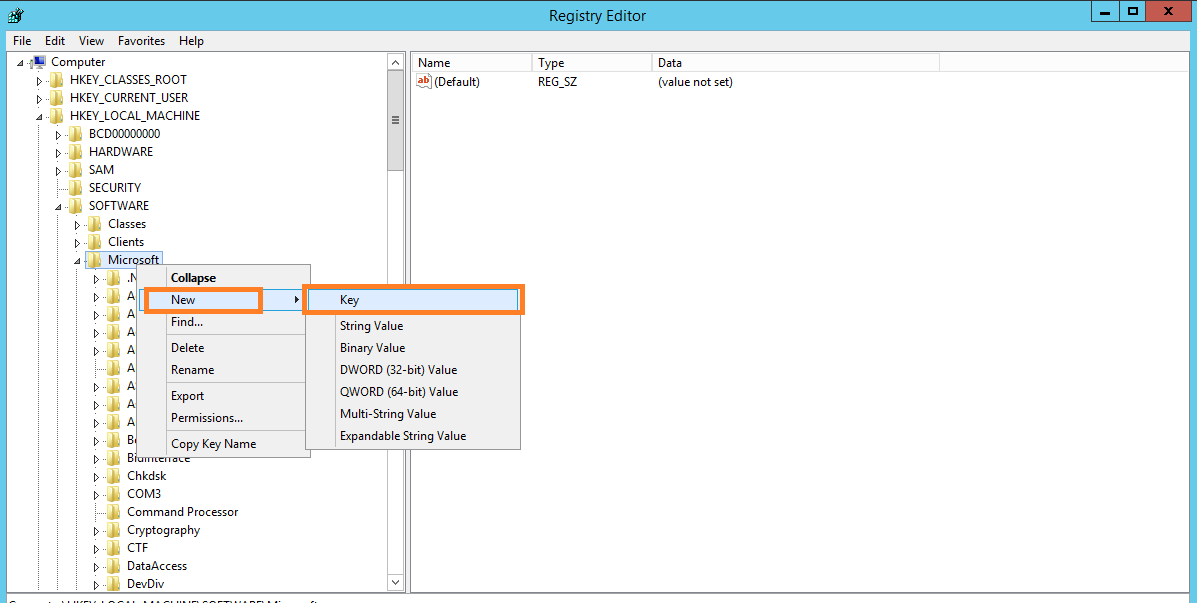
Create HKEY_LOCAL_MACHINE\SOFTWARE\MICROSOFT\RDMS
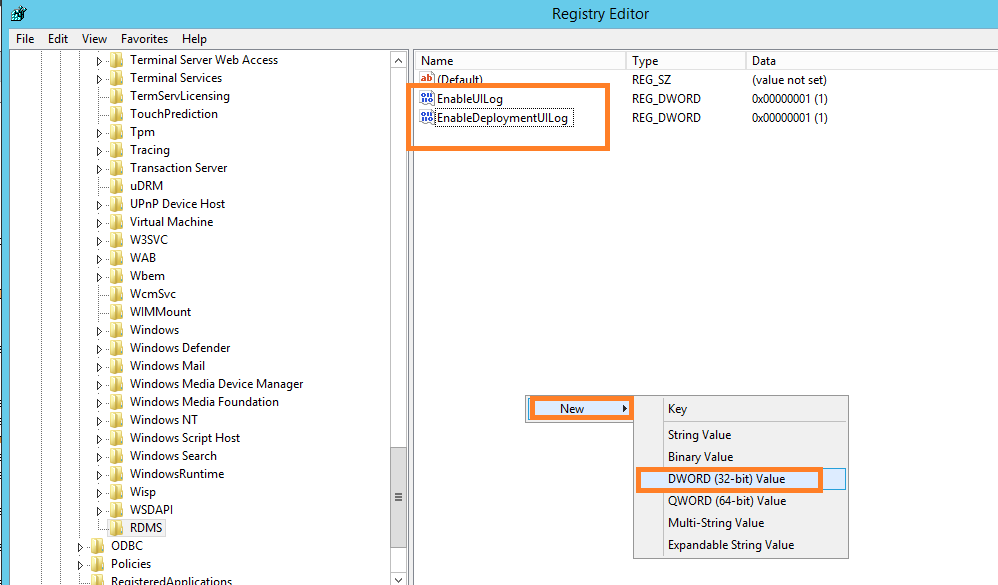
Create the following Entries:
- EnableDeploymentUILog Data type: REG_DWORD Value: 1
- EnableUILog Data type: REG_DWORD Value: 1
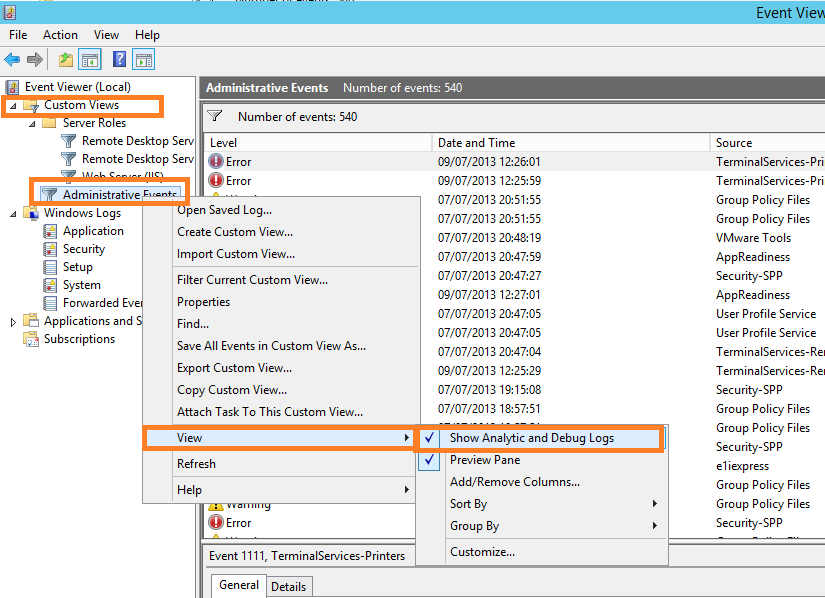
Enable analytic and debug logs
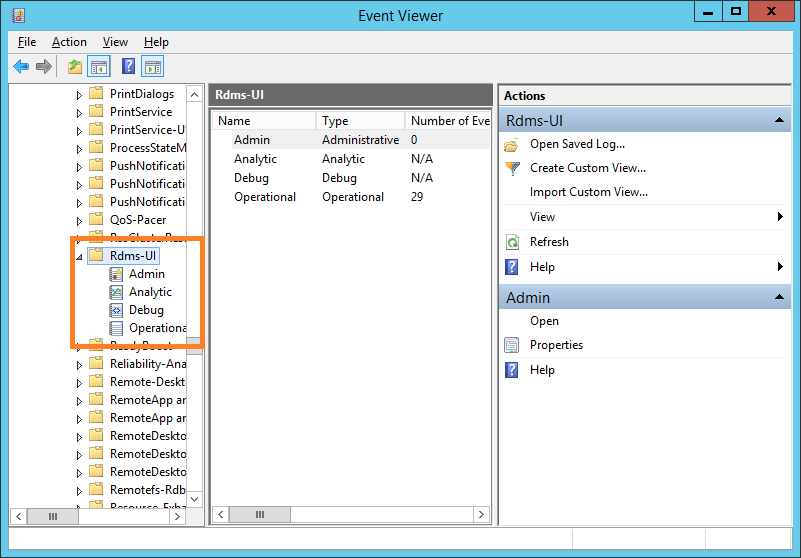
View RDMS-UI Logs
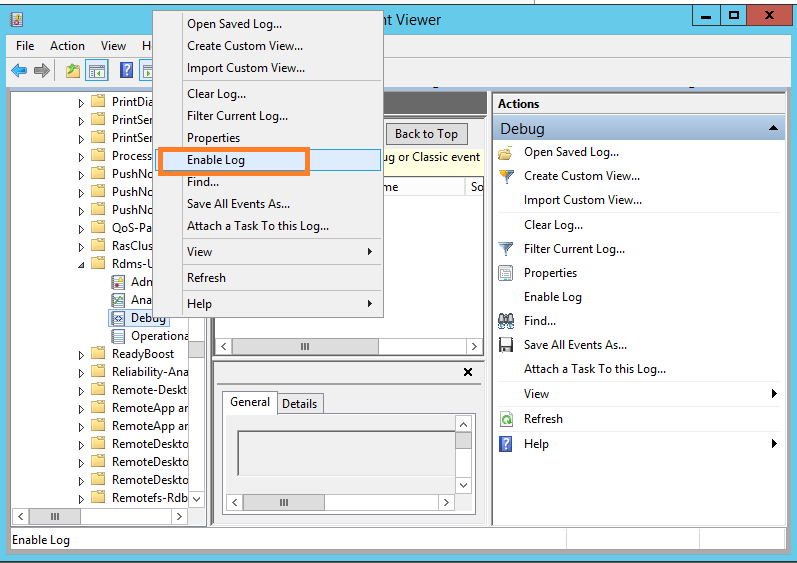
Enable Debug Log
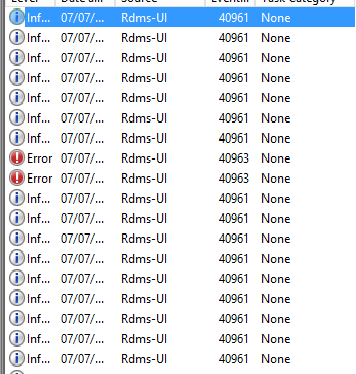
To collect the log files:
To troubleshoot issues during RDS installation and deployment, collect the following RDMS UI log files on the RD Connection Broker server:•RDMSDeploymentUI.txt
This file is located in the %windir%\Logs folder. •RDMSUI-trace.log
This file is located in the %temp% folder. Usually, the path of the %temp% folder is as follows: C:\Users\
For more information: