Part 1 of the Kemp LoadMaster and VMware Log Insight series, covering the deployment of the Log Insight 2.0 master node from the OVF appliance.
Introduction
VMware have created Log Insight to help customers solve problems faster, Find Problems you didn't know you had and get actionable insight into what the messages mean.
This series of articles are going to cover the deployment of VMware's Log Insight Manager infrastructure, configuration of Load Balancing using "KEMP" and configuring VMware's ESXI Hosts to Send logs to Log Insight.
VMware Log Insight and KEMP series guide
This six-part, 2014-era walkthrough follows the deployment from the first Log Insight appliance through load balancing and vSphere log forwarding:
- Part 1: Deploy the Log Insight master node (this article)
- Part 2: Deploy and join the worker nodes
- Part 3: Configure KEMP LoadMaster for Log Insight
- Part 4: Forward ESXi logs with ESXCLI
- Part 5: Forward ESXi logs with the vSphere Client
- Part 6: Forward events with vSphere integration
VMware vCenter Log Insight is a analytics product released last year. Log Insight delivers automated management through analytics, aggregation, and search.
Technical Overview:
Analyse
- Log Insight Can analyse any unstructured time-series data, Configuration etc.
- It automatically identifies structures in the data
- No Need for Databases
Scale
- Central, Scale-out store for all collected logs, SQL is not used.
- Configurable retention and archiving
- Maintenance free
Best for vSphere
- Queries, alerts, fields, charts in the vSphere Content pack
Scale Out Architecture
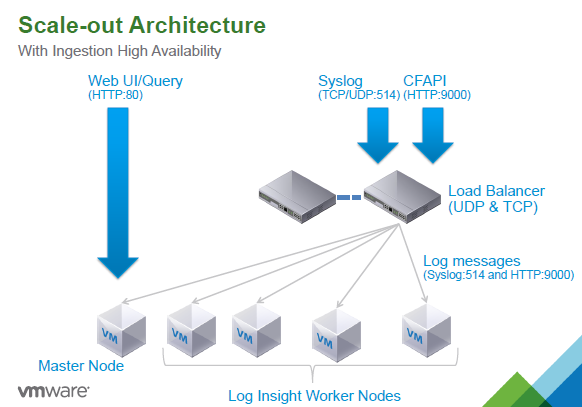
The new 2.0 version of Log Insight brings the following enhancements and features:
- 8x faster data collection
- 2TB of live data (searchable) per node
- High Availability removing a single point of failure for Log ingestion
- Load balancing Log Insight using a third party Load Balancer like "KEMP"
- Single User interface for a central management interface
- Windows OS Support
Log Insight supports ingestion and receipt of Syslog messages that are sent over UDP, TCP, TCP with SSL encryption and via API. We will cover this in more detail later on in the series.
for more information on the features please see the following link:
Deploying Log Insight 2.0
The first step would be to download the Log Insight appliance from VMware.
https://my.vmware.com/web/vmware/login
Once you have imported the OVF and added the basic Configuration (IP address,
Gateway etc), you will then be able to browse to the web portal as shown in the "Welcome to vCenter Log Insight" Screenshot.
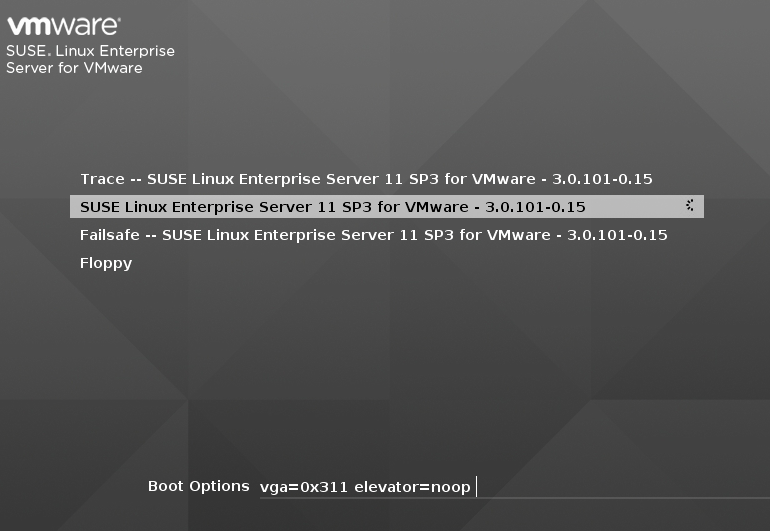
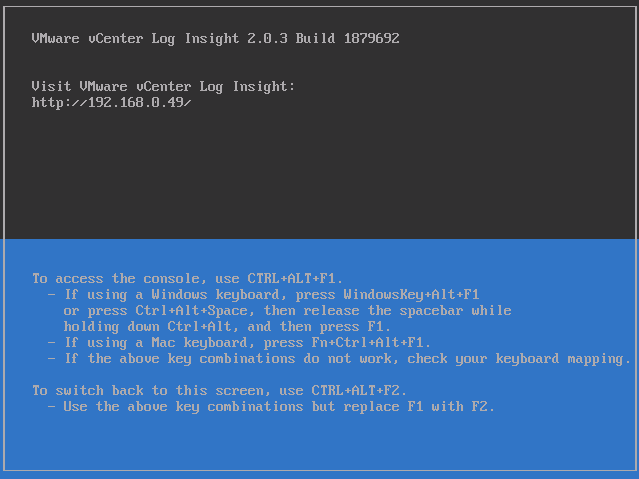
If you have DHCP, then the IP address settings will be done for you as per the screenshot above.
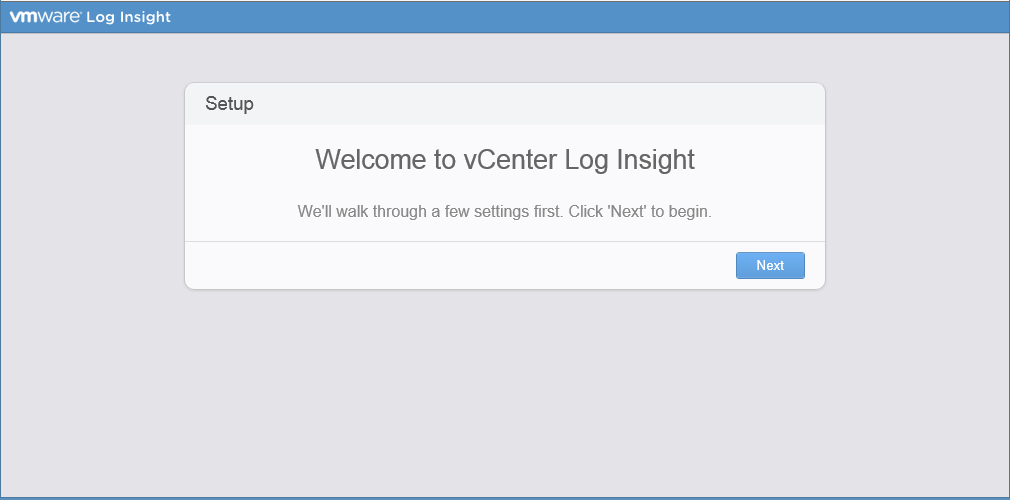
follow the instructions as guided.
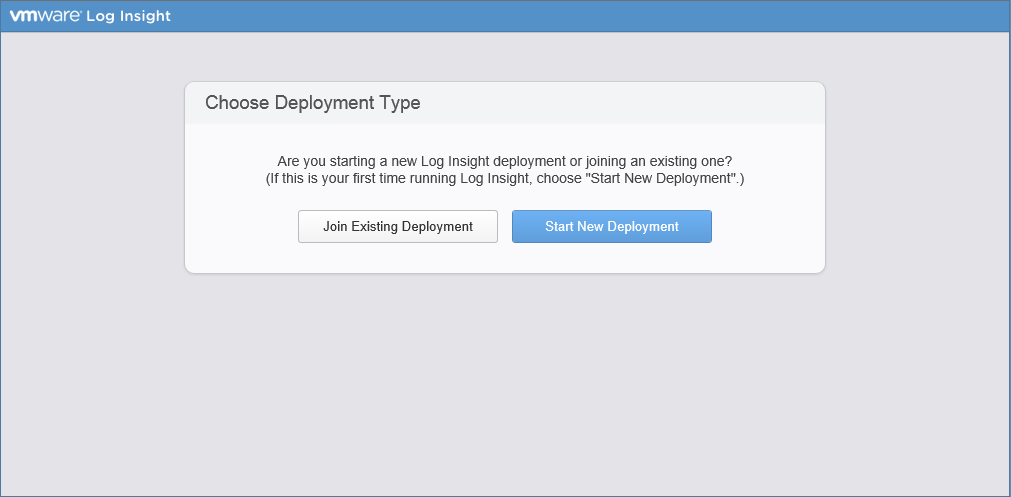
Select "Start New Deployment "
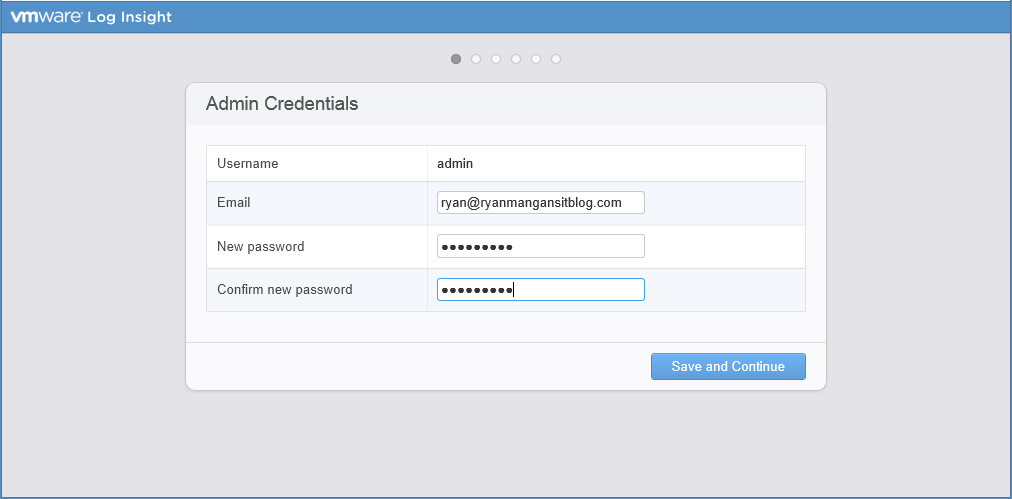
Enter in the Admin Details as shown in the Screenshot
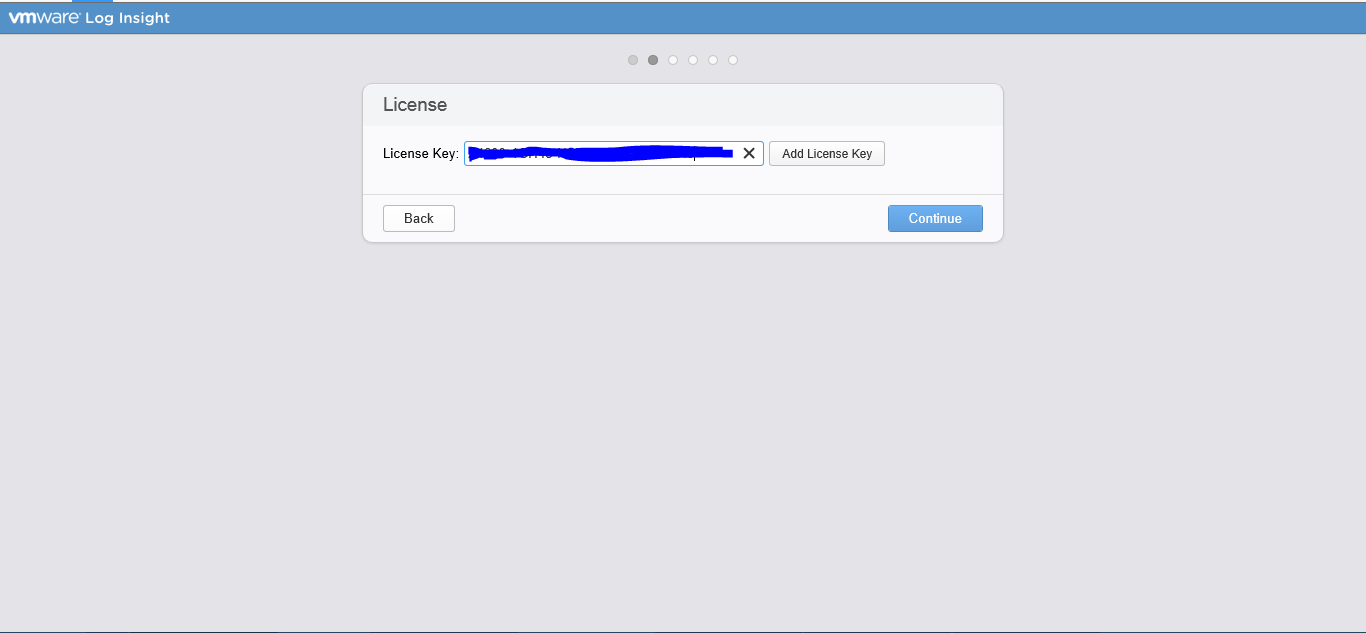 Add your license Key
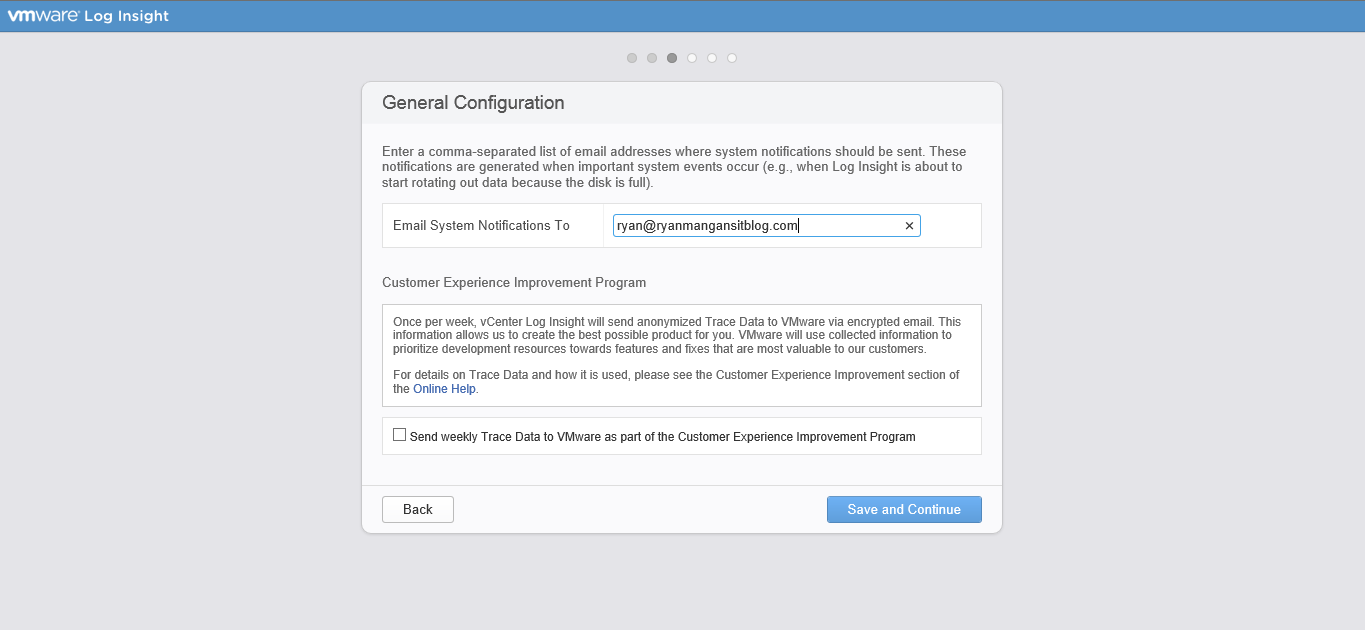
Configure Time, SNMP, and SMTP.
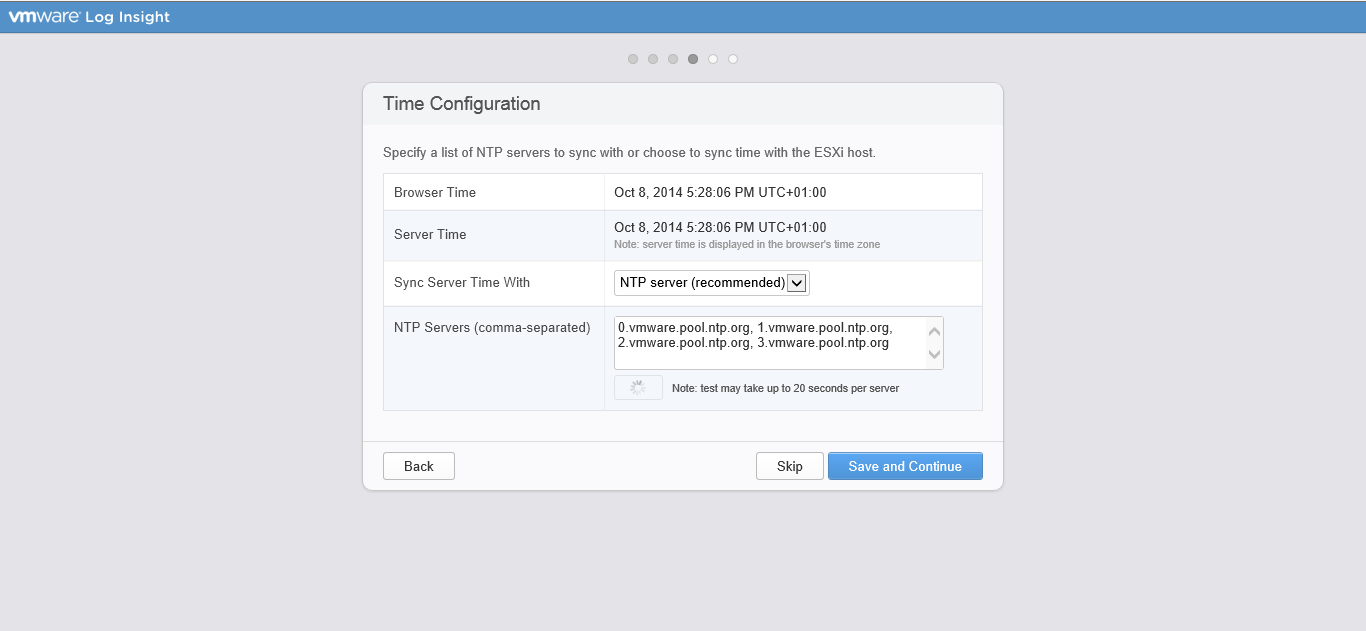
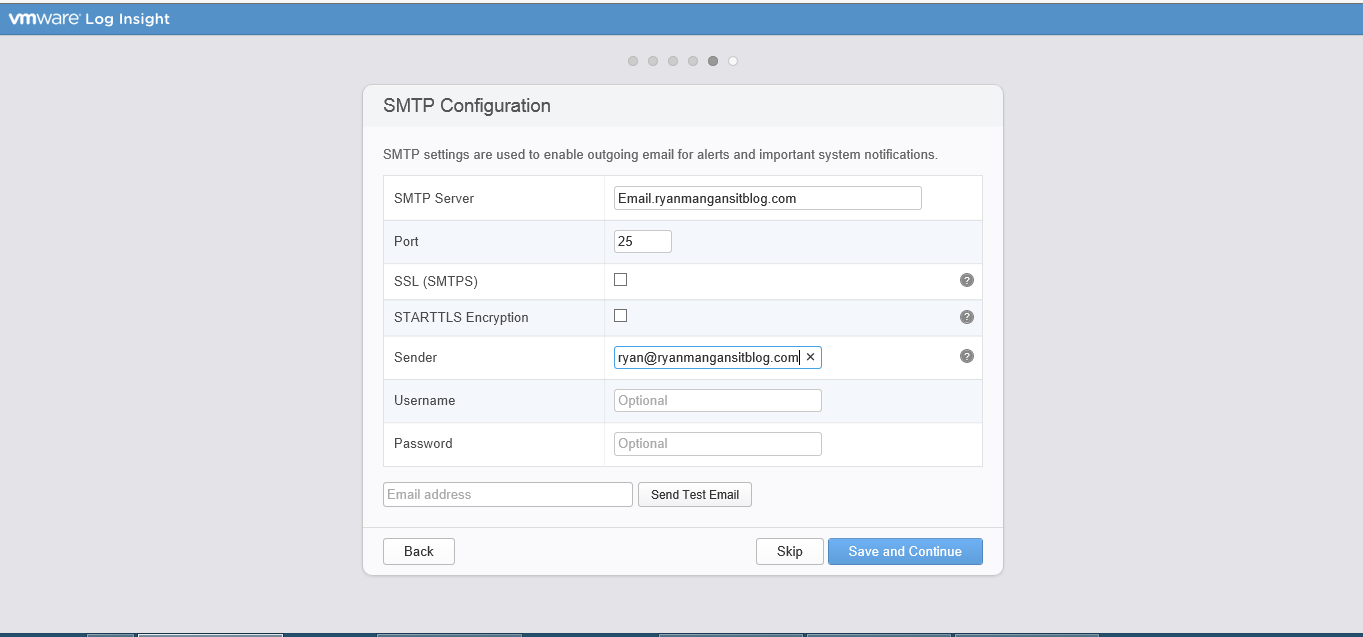
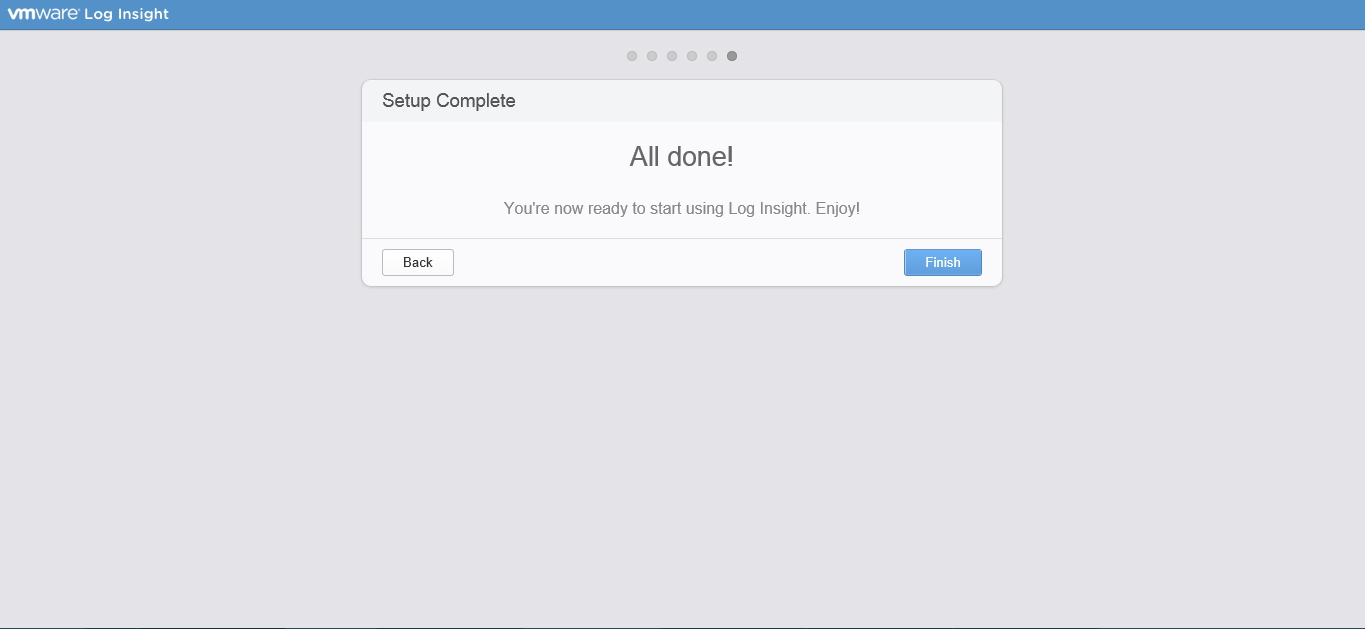
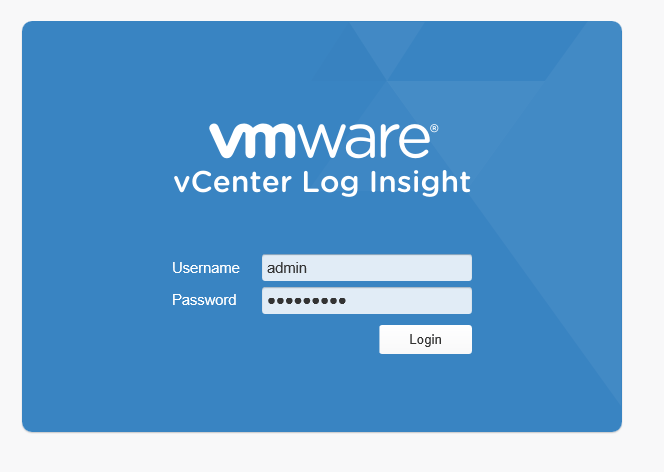
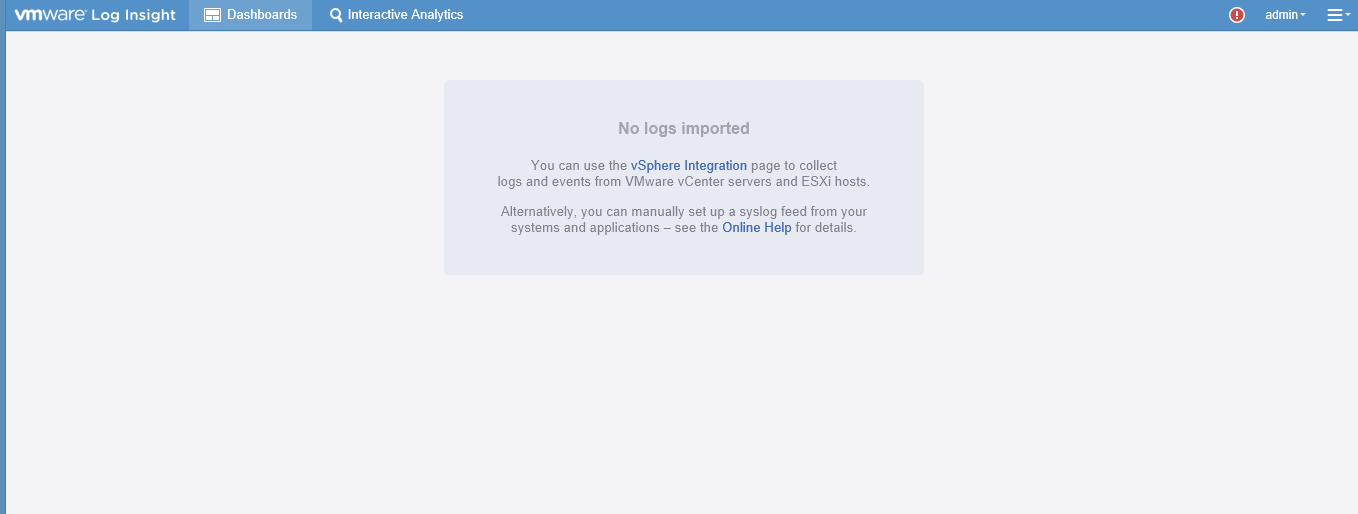
We are now ready to move on to adding Worker Nodes.