Right Click on RD Licensing and add server
Adding RD Licensing Role to RDS Deployment.
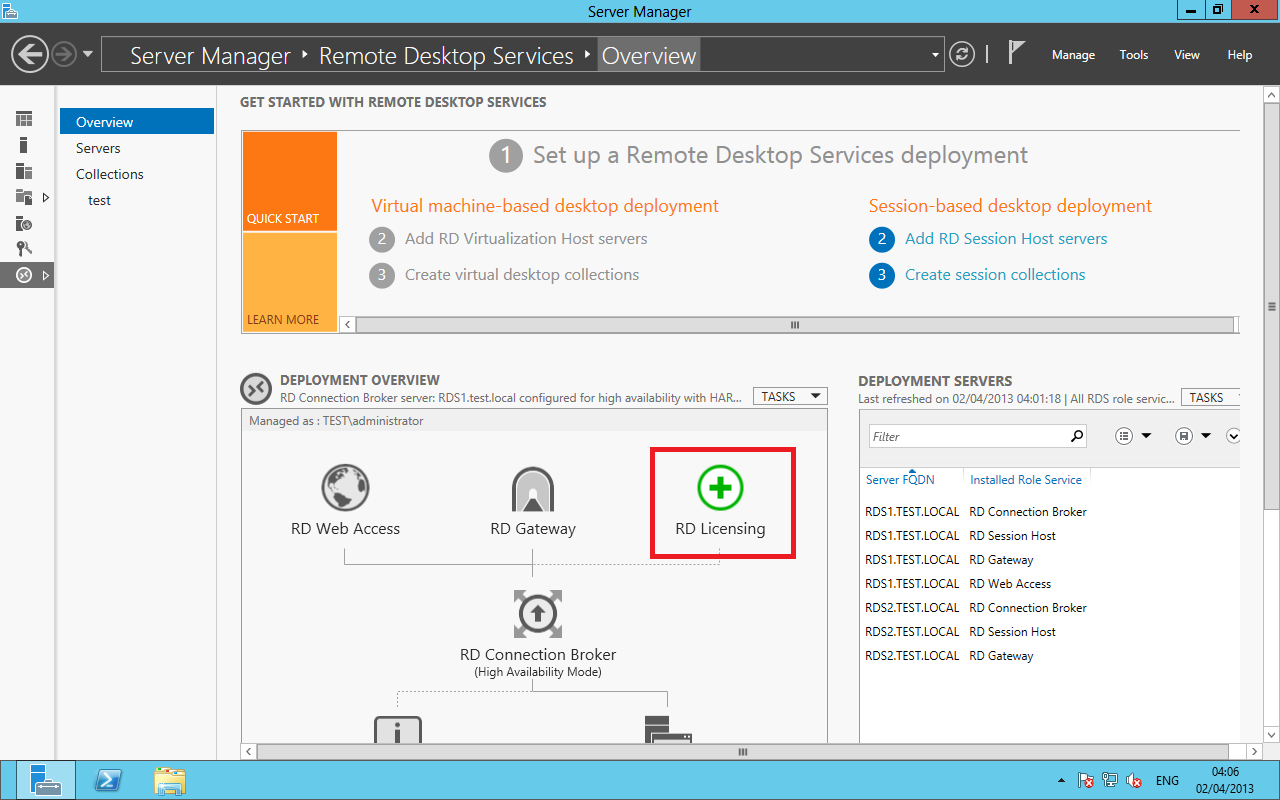
Right Click on RD Licensing and add server
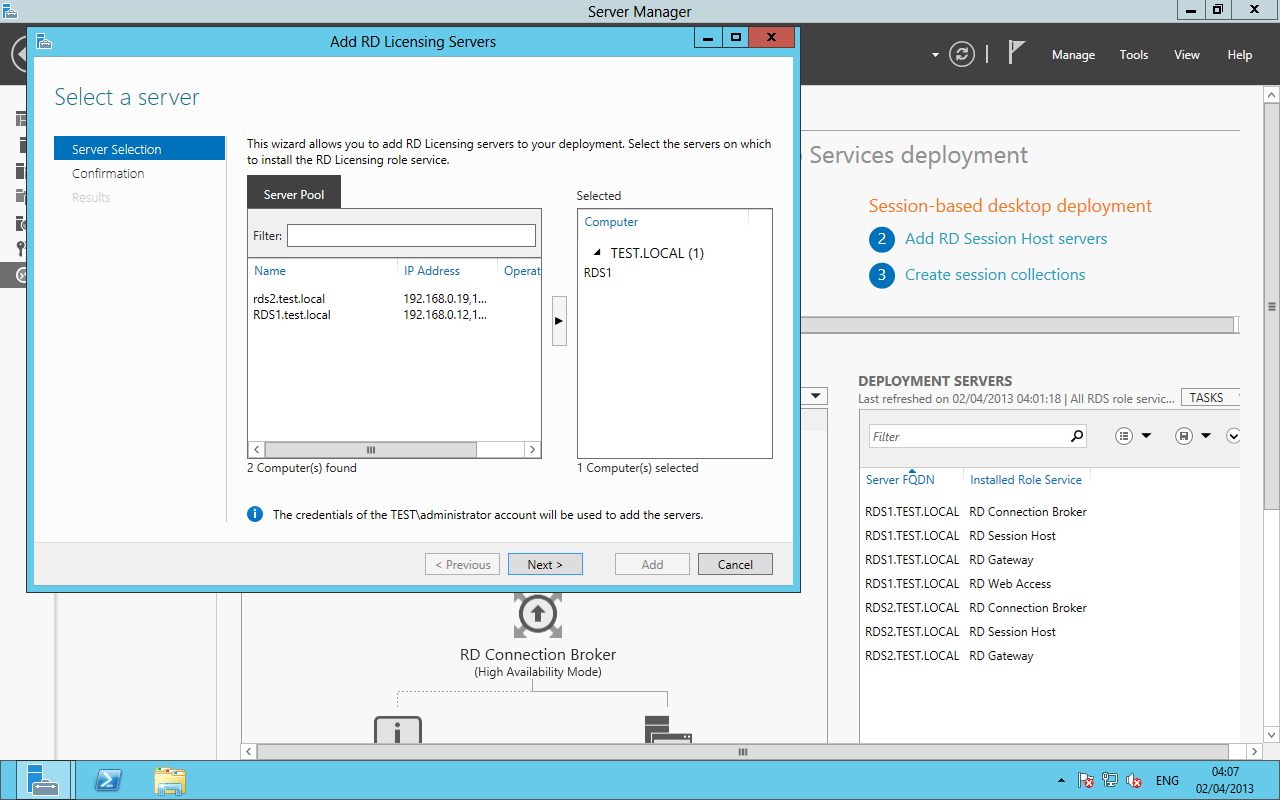
Select the servers you wish to be licensing servers
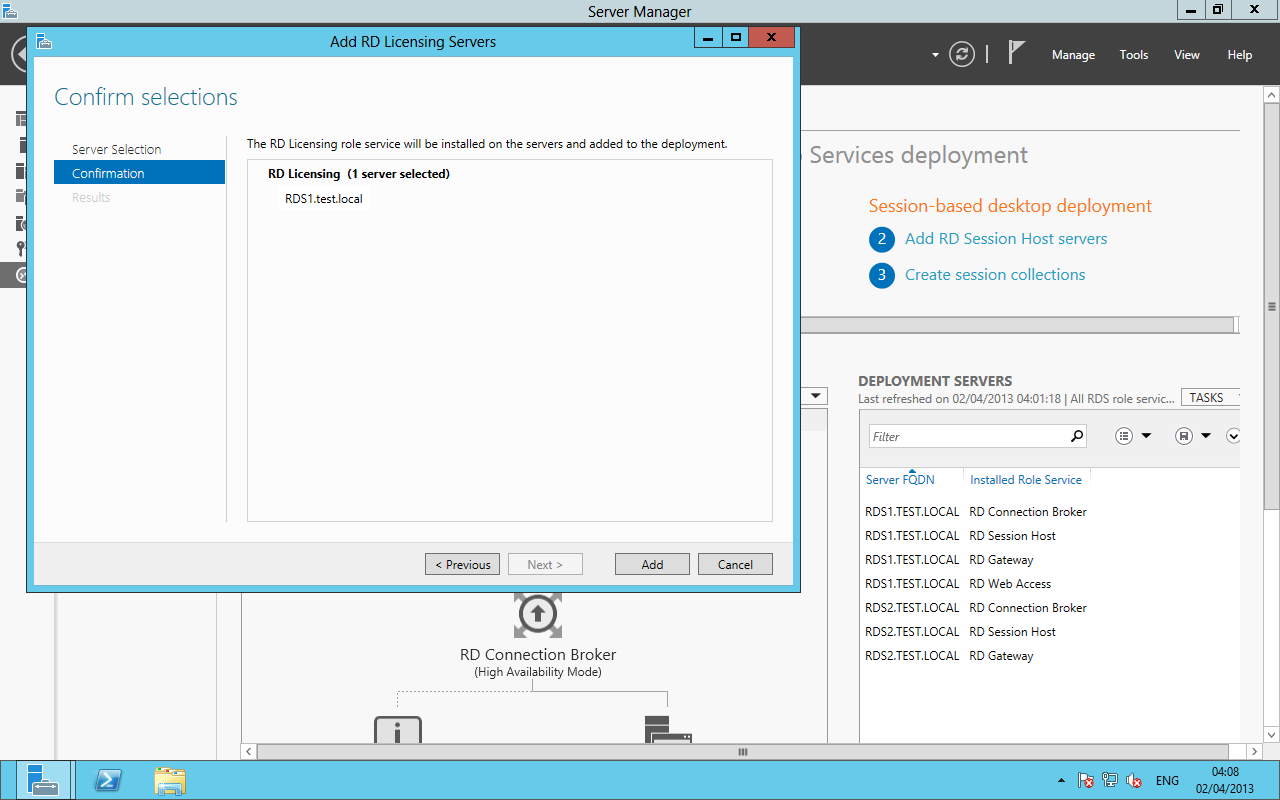
Once you are happy Click Add.
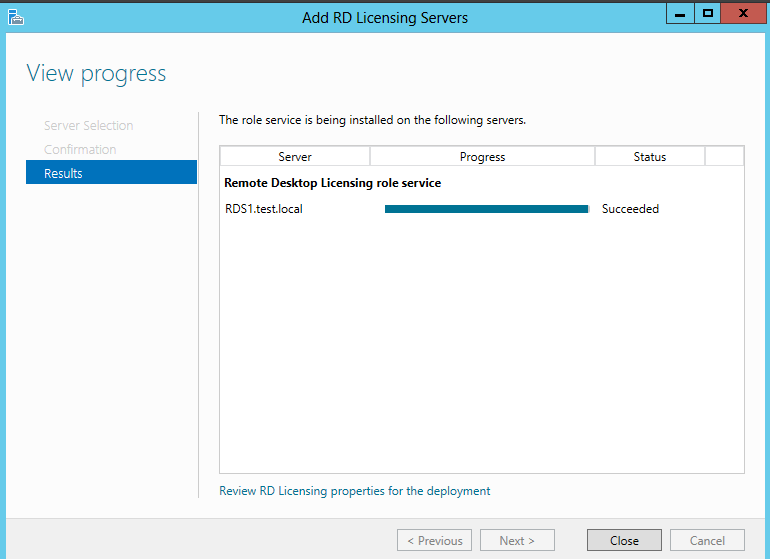
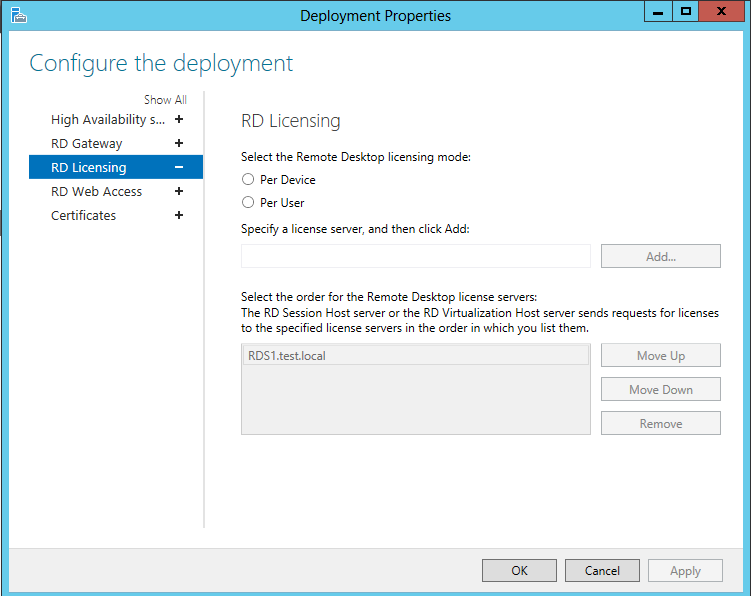
Configure Licensing per Device or per Cal : Please see the following link for more information http://technet.microsoft.com/en-gb/library/cc753650.aspx
The PowerShell Way
set-rdlicenseconfiguration -LicenseServer RDS1.test.Local -Mode PerUser -ConnectionBroker RDS1.test.Local
This will configure the licensing server to use PerUser mode.
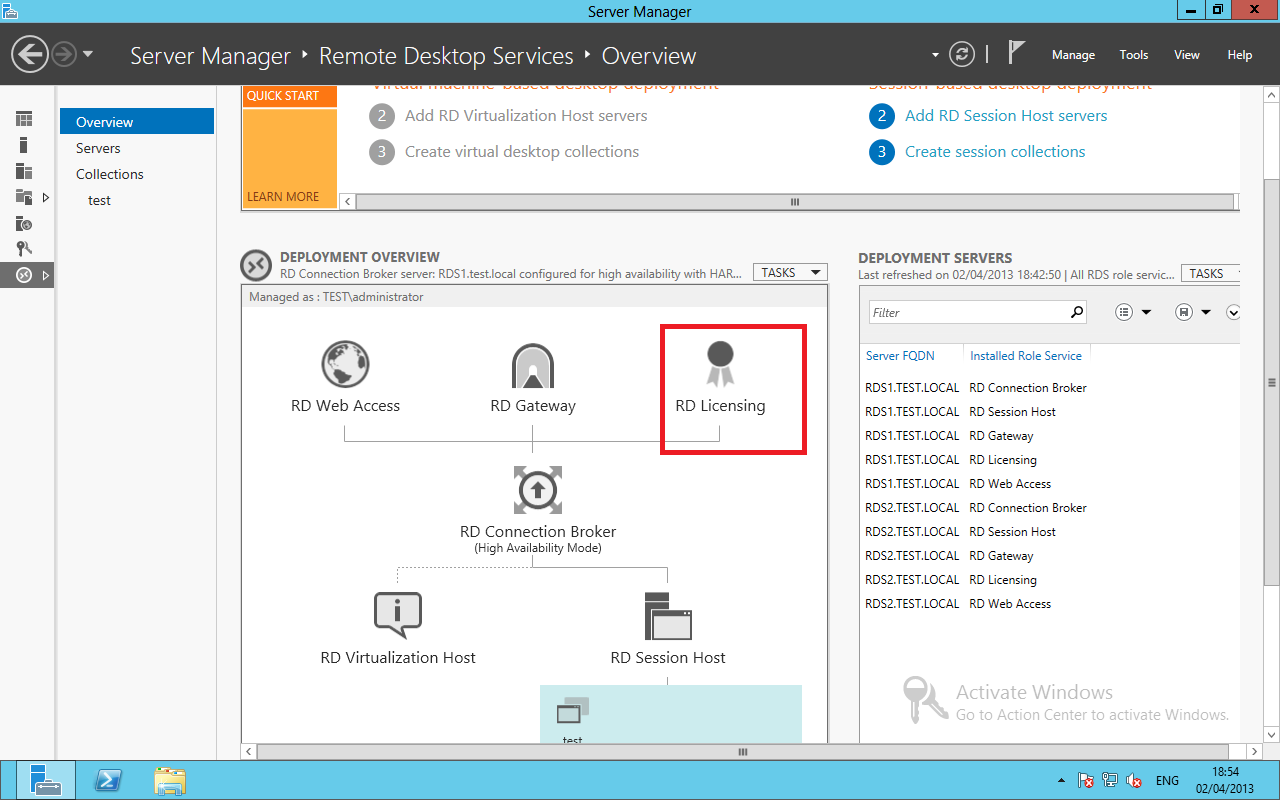
Once the role service is installed, you will see the RD Licensing Icon appear.
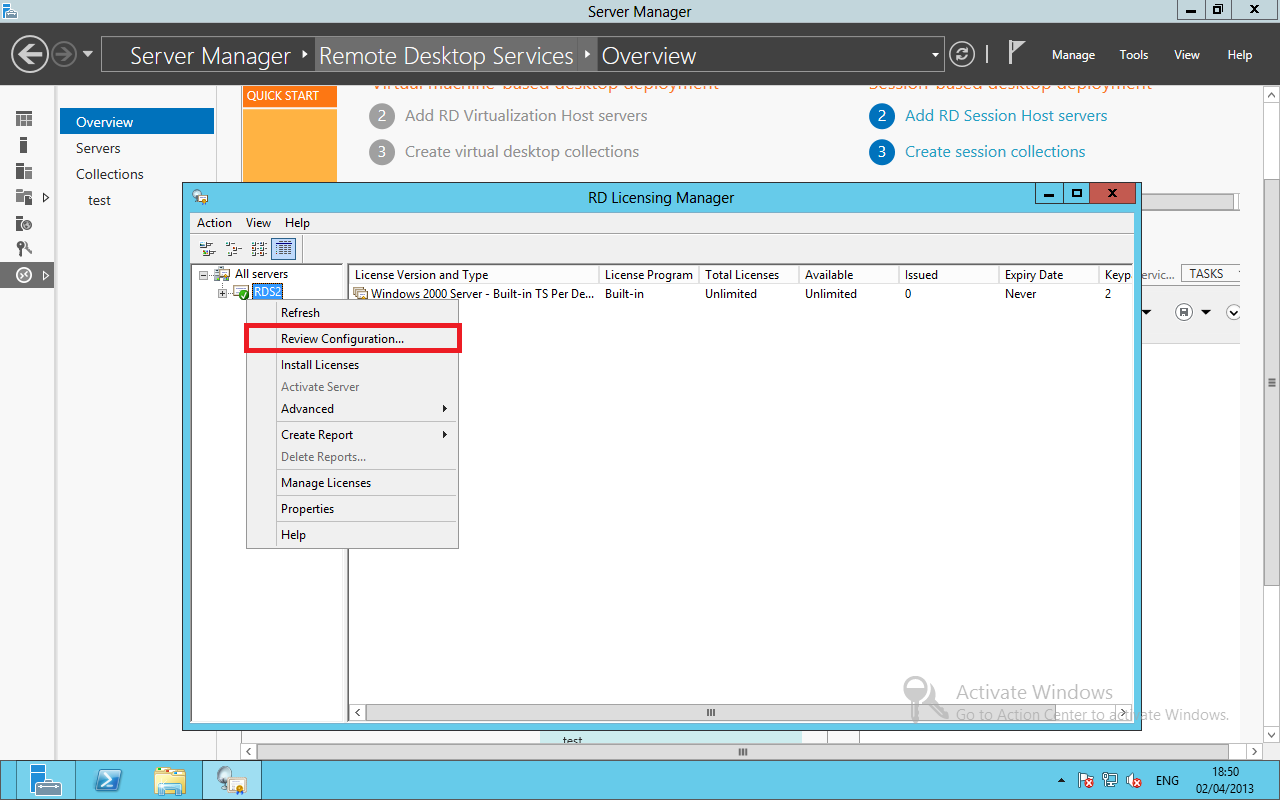
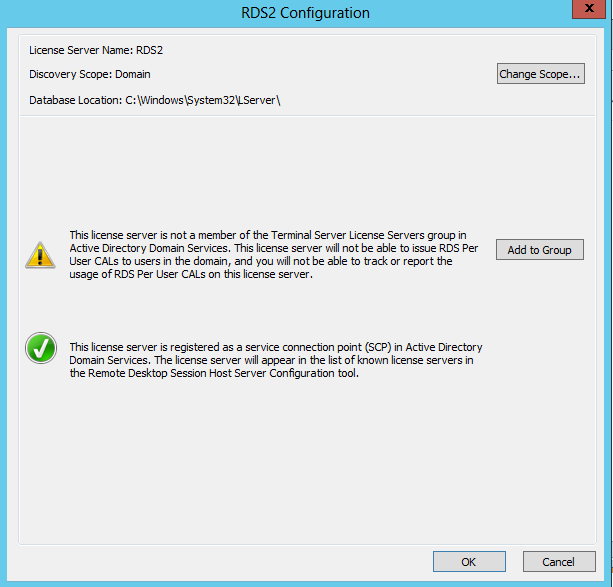
Select Add to Group.
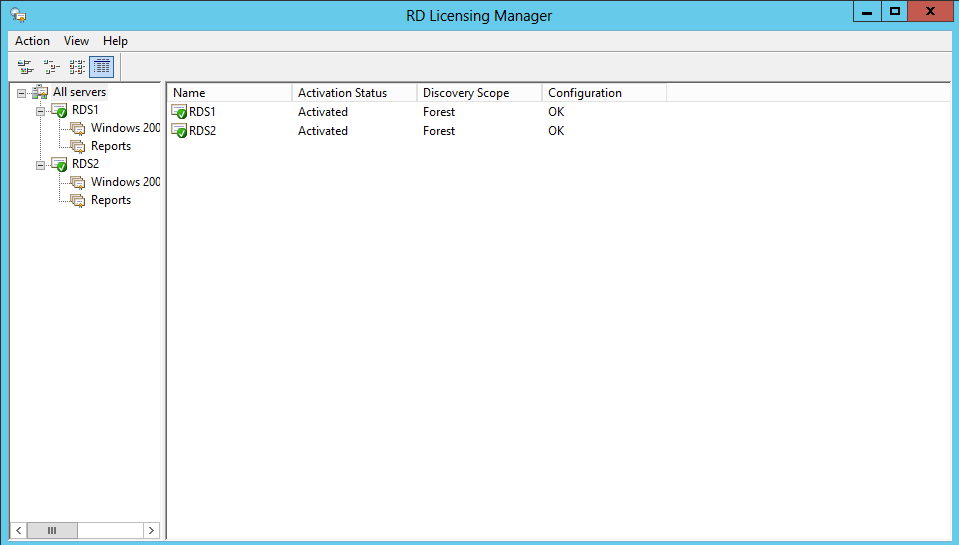
Active the Licensing Server
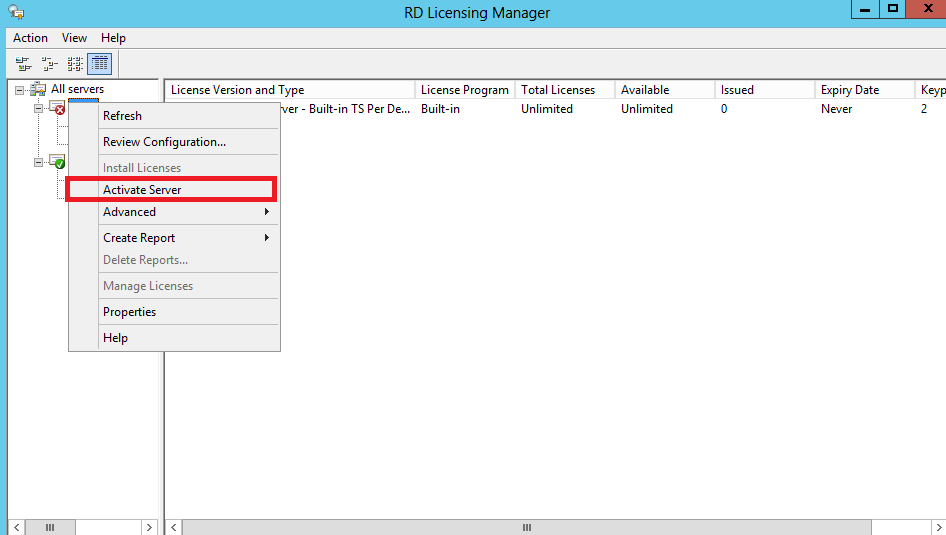
Right Click on the server and select Activate Server
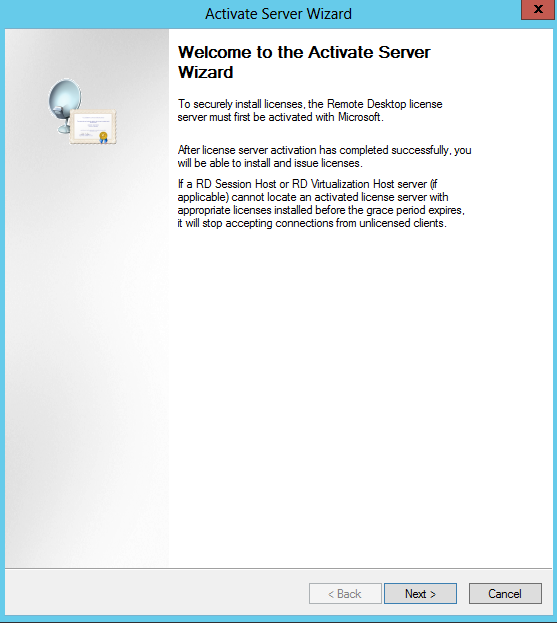
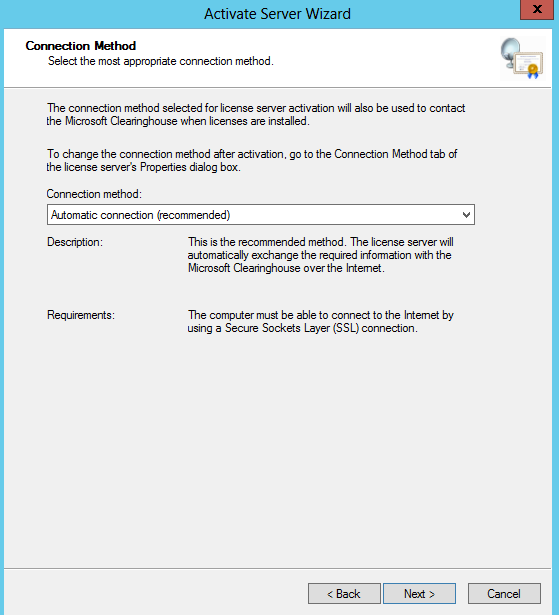
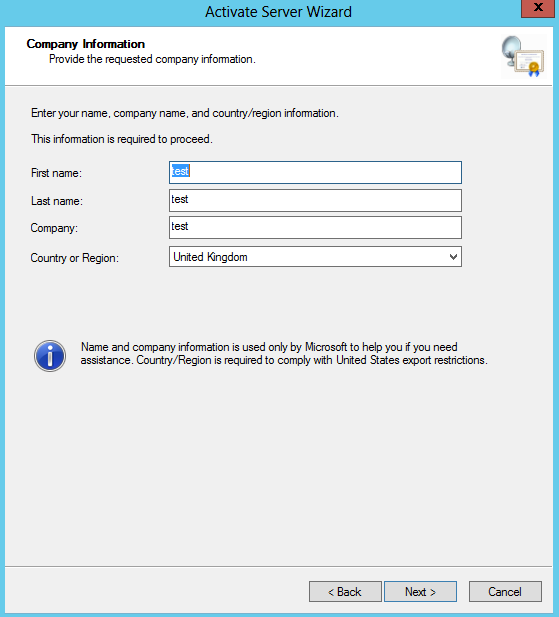
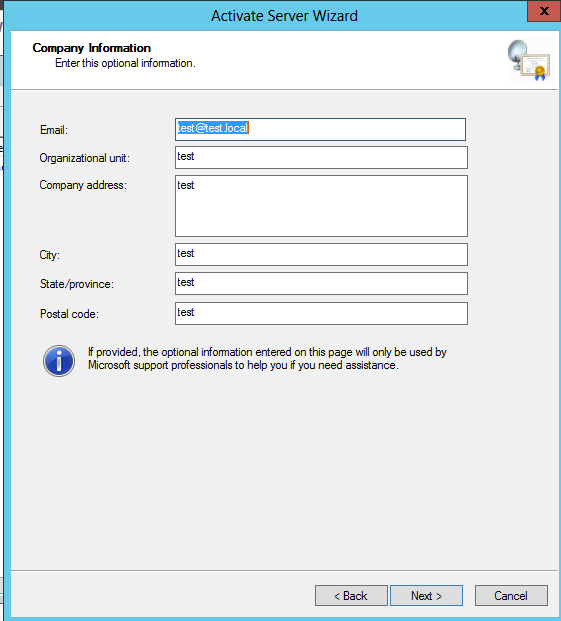
Enter the the company details as required.
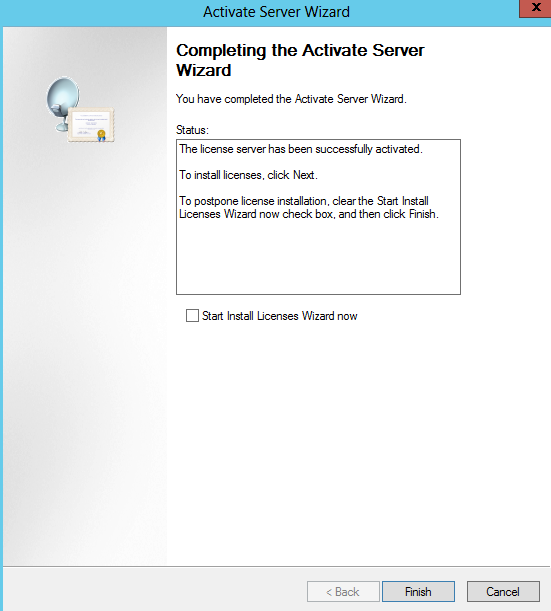
Once you have activated the Licence server, you can than add the licences.
Please see the following links for further reading:
Deploying Remote Desktop Licensing Step-by-Step Guide
Configuring RDS Licensing Server High Availability
Managing RDS licensing using PowerShell on Windows Server 2012