Historical guide for deploying System Center 2012 Data Protection Manager on Windows Server 2008 R2, focusing on planning, prerequisites, storage-pool handling, and the deployment pitfalls that mattered most.
This article now reads as a proper legacy guide instead of a raw install transcript. The original deployment was aimed at a 2012-era Microsoft backup stack, but DPM 2012 and Windows Server 2008 R2 are both long out of support. Keep this post if you are documenting an inherited environment, not if you are planning a new backup platform.
Beginning: define the recovery model before you build the server
The common failure in early DPM projects was not installation. It was poor planning. Administrators often built the server first and only later asked what they were actually trying to protect, how much data loss the business could tolerate, and how long recovery points should be retained.
That order needs to be reversed.
Before the first install wizard, define:
- Acceptable data loss
- Retention range
- Expected recovery speed
- Whether end-user recovery is required
- Which workloads are in scope
- Where recovery data should live
For the original lab, the server was sized like this:
| Server | CPU | Memory | Disk |
|---|---|---|---|
DPM01 | 4 vCPU | 4 GB RAM | 120 GB |
The baseline software stack was:
- Windows Server 2008 R2 Datacenter SP1
- PowerShell 2.0
- .NET Framework 3.5 SP1
- Windows Installer 4.5
- Single Instance Store (SIS)
- Visual C++ 2008 Redistributable
- SQL Server 2008 R2
Middle: the parts of the deployment that actually mattered
1. Design protection groups before adding storage
DPM only becomes predictable when the protection groups are thought through first. In practice that usually meant grouping similar workloads together:
- Exchange DAG members
- File servers
- Domain controllers
That mattered because retention, replica sizing, and recovery-point behaviour followed the protection-group design.
2. Leave storage-pool disks unpartitioned
This was one of the most important operational points in the original guide and it is still worth preserving. DPM expects to own the volumes it creates inside the storage pool. If you hand it pre-partitioned disks, you create unnecessary friction and often end up undoing your own preparation work.
The safe rule was simple: add the disks, then leave them unpartitioned so DPM can carve the required volumes itself.
3. Treat SQL as part of the product, not as an afterthought
In small labs it was common to install SQL locally with the DPM server. That was acceptable for a proof of concept, but the SQL design still mattered:
- Database Engine had to be installed
- Reporting Services had to be present where reporting was required
- Service startup behaviour needed to be predictable
- Collation and instance choices had to match DPM expectations
For small estates a local SQL instance was practical. For anything larger, the conversation should always have moved toward separation, capacity, and operational ownership.
4. Install the DPM prerequisites before launching setup
The original build regularly stalled on missing prerequisite components. Two steps in particular were easy to miss:
- Run
SQLPrepInstaller_x64.exefrom the DPM media. - Install the Visual C++ 2008 Redistributable.
The other common issue was the SIS filter prerequisite. If setup reported the SIS filter problem, the fix was:
start /wait ocsetup.exe SIS-Limited /quiet /norestart
That command was not optional once the prerequisite check failed. Run it from an elevated command prompt, then retry the installation.
5. Complete the DPM install with the account model and update posture agreed up front
During setup, make deliberate choices about:
- Whether the SQL instance is local or remote
- The local DPM service accounts and their passwords
- Whether Microsoft Update is enabled for servicing
Those are not cosmetic settings. They determine how maintainable the deployment will be after day one.
6. Deploy agents only after the core server is healthy
Agent rollout was the point where the installation either became a real protection platform or stayed as an unfinished lab. Before pushing the agent, make sure the DPM server itself is healthy, the database is reachable, and the storage pool is configured correctly.
For bare-metal recovery scenarios, Windows Server Backup also needed to be present on the protected server.
7. Extend Active Directory only if you really need end-user recovery
The schema extension step was often misunderstood. It was not required for every DPM task. It was specifically tied to end-user recovery integration. If that feature mattered, the typical workflow was to copy DPMADSchemaExtension from:
C:\Program Files\Microsoft DPM\DPM\End User Recovery
...to a domain controller and run it there with appropriate administrative rights.
End: what still matters from this old deployment
The valuable parts of this guide are not the product versions. They are the operational lessons:
- Plan recovery objectives before building the server
- Design protection groups before allocating storage
- Leave storage-pool disks unpartitioned
- Treat SQL and prerequisites as first-class deployment decisions
- Only extend the schema when the feature set requires it
Those ideas still apply even though the exact product generation does not.
Closing thoughts
DPM 2012 reflected a period when Microsoft wanted one backup platform to cover disk, tape, application workloads, and end-user recovery in a single operational model. That made sense in its time. Today the product versions in this post belong to the archive, but the planning discipline still holds up. Keep the lessons. Replace the platform.
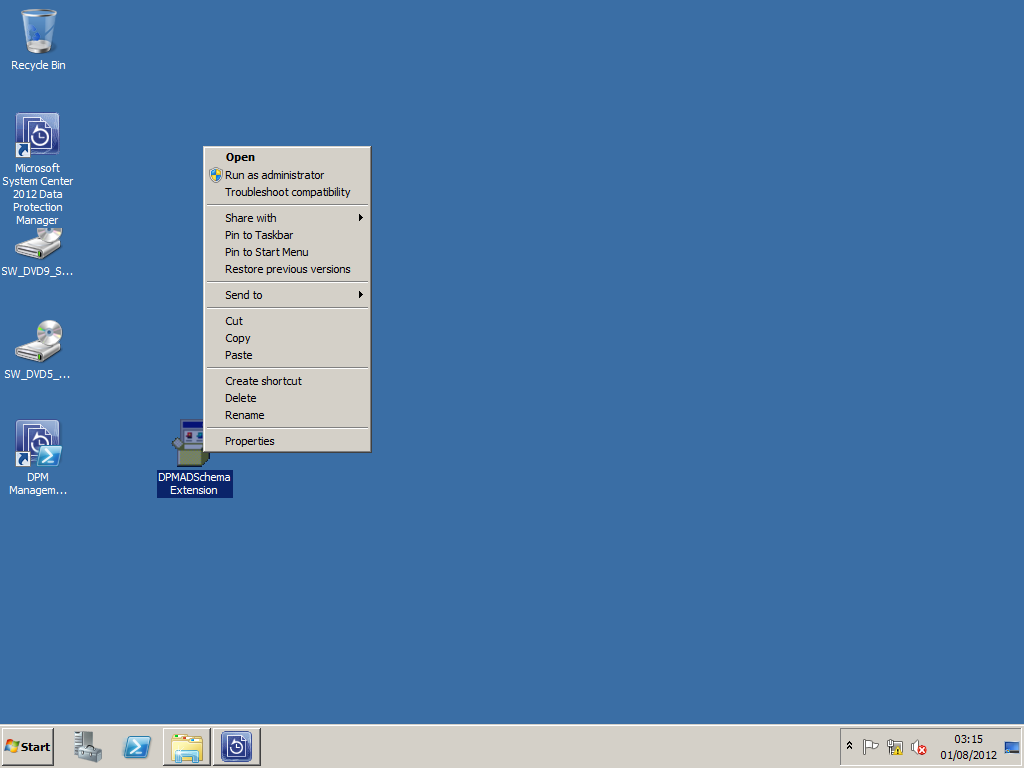
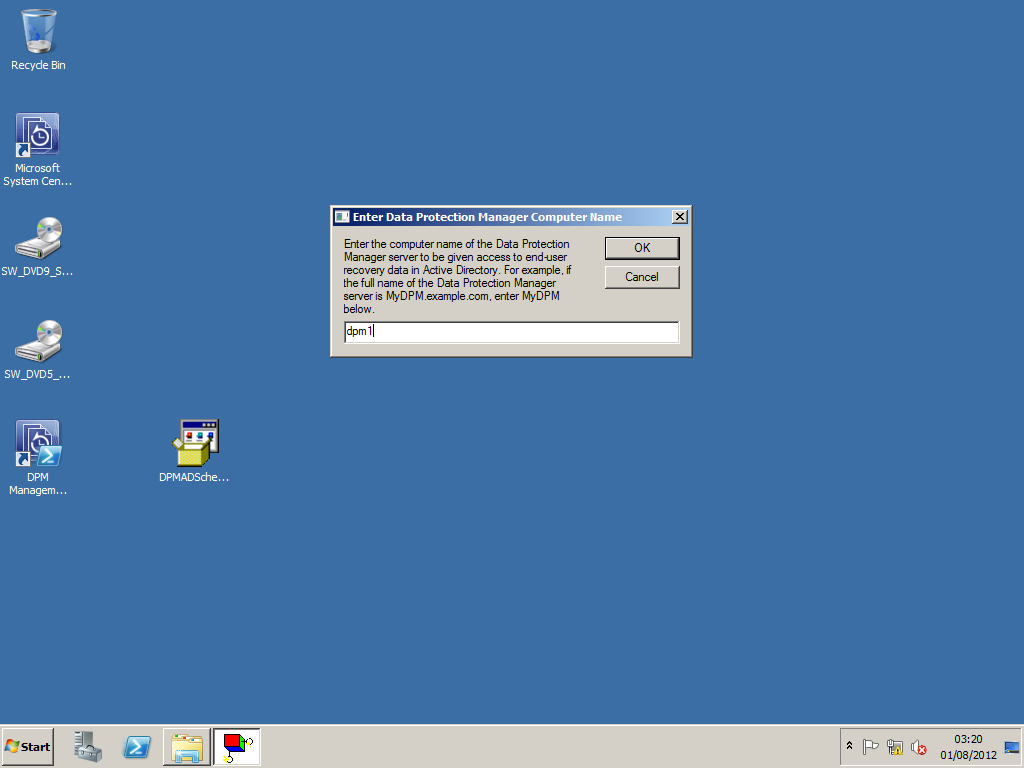
Enter the DPM server's name
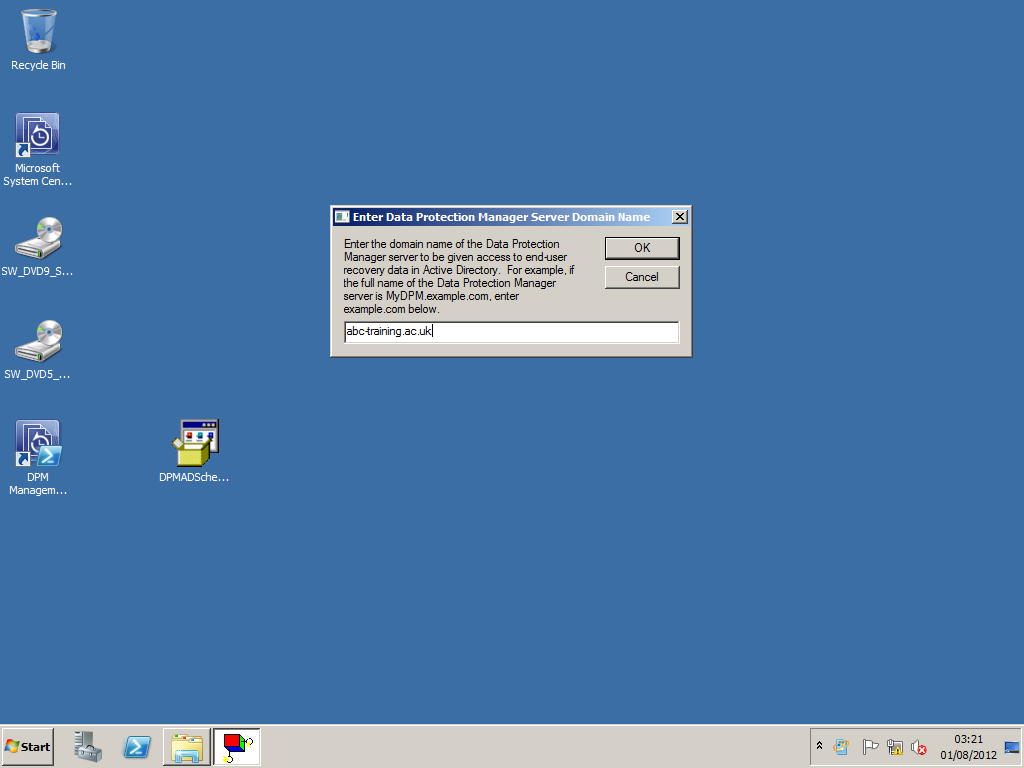
Enter the Domain Name
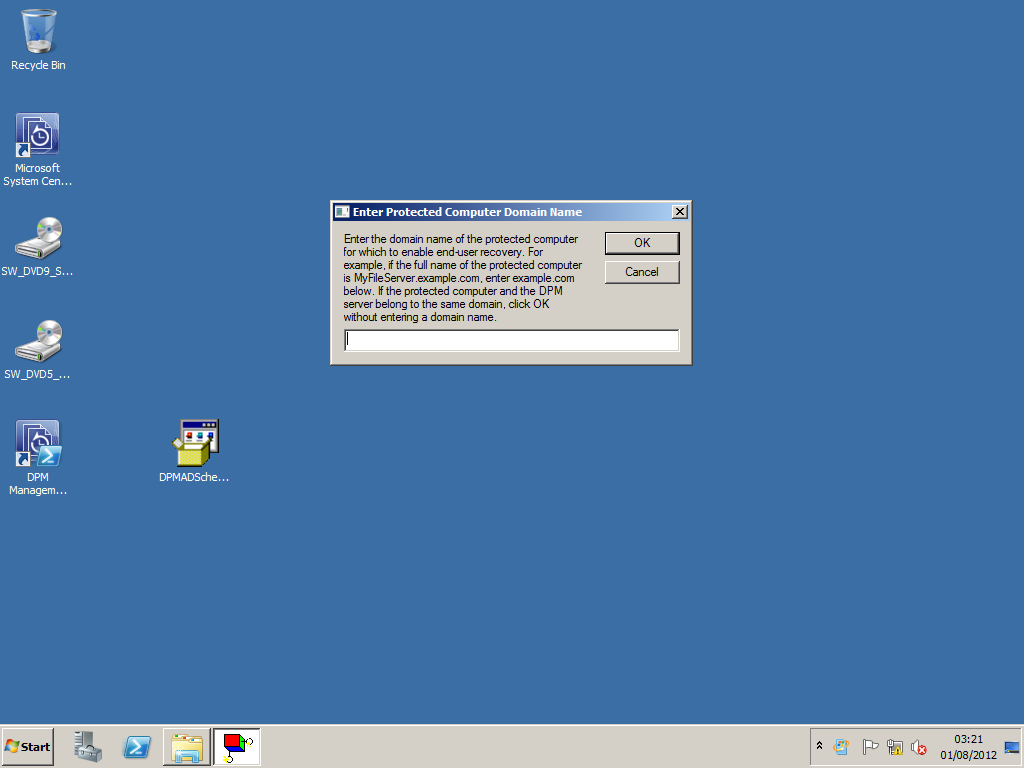
Leave blank and select OK.
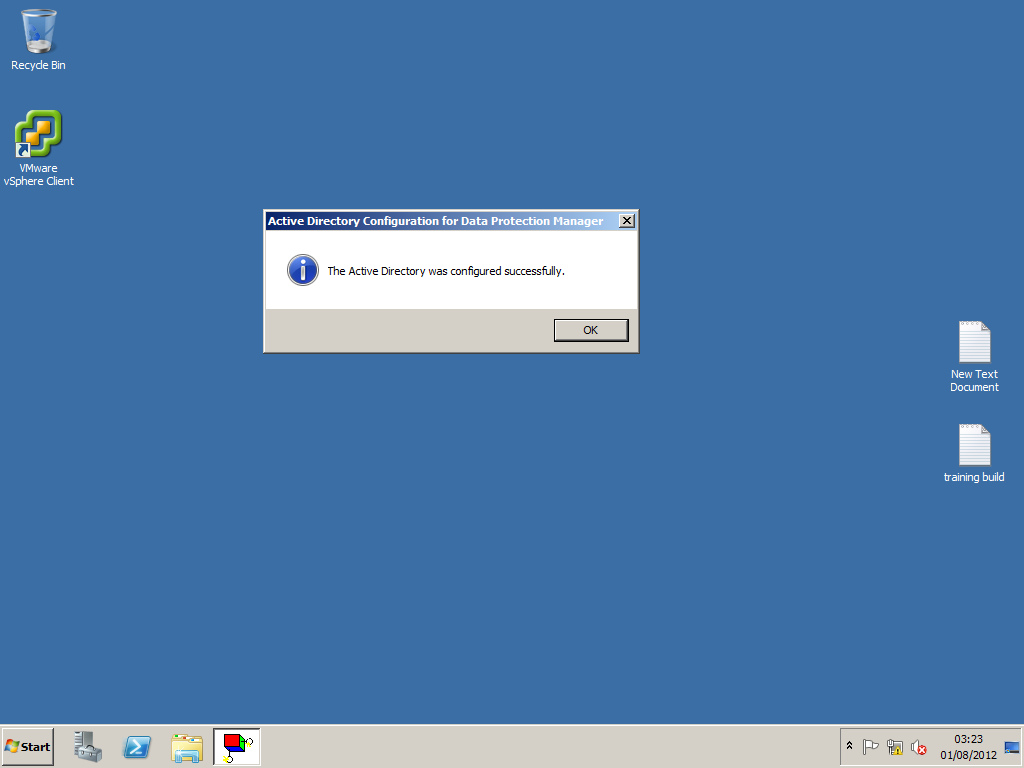
Active Directory's Schema has been extended.
Configuring Storage Pools
When allocating storage you need to ensure that the disks remain un partitioned.
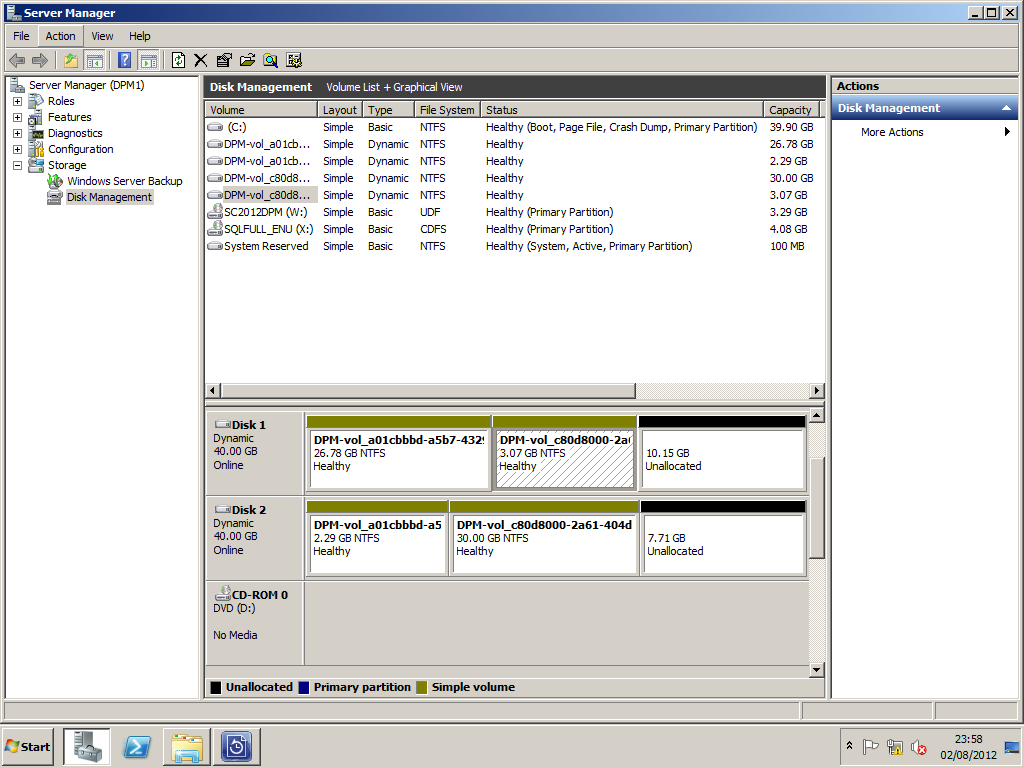
DPM requires storage volumes to be un partitioned and as shown in the Screen shot above.
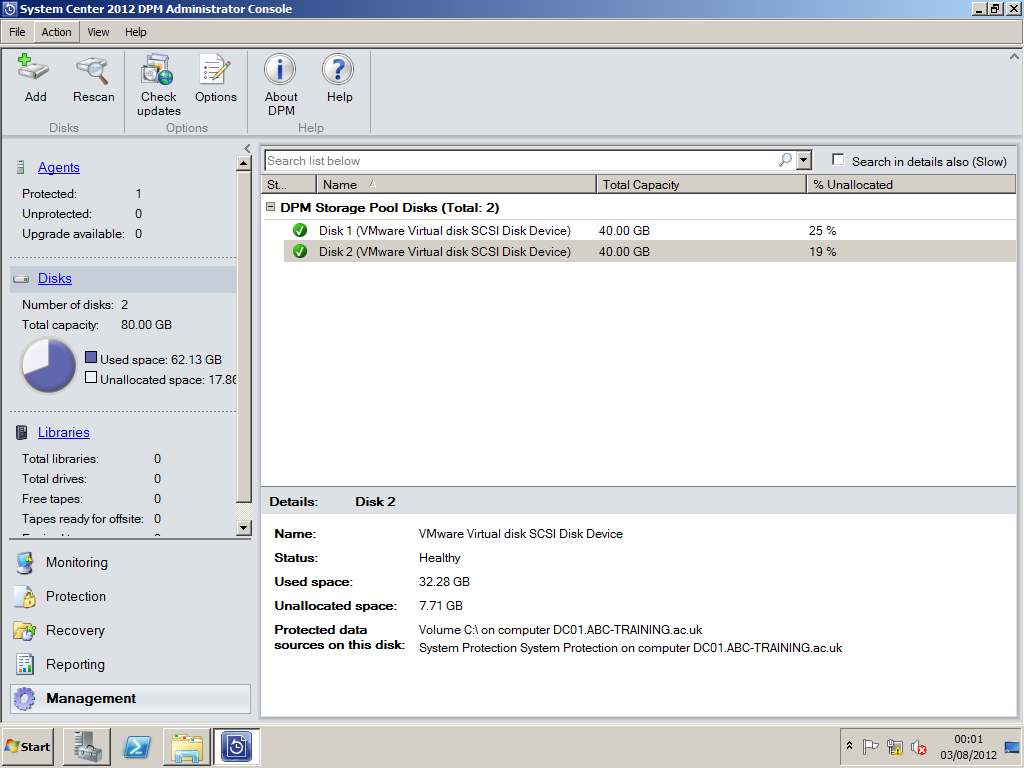
Select Management and Disks. Select ADD to add storage pools.
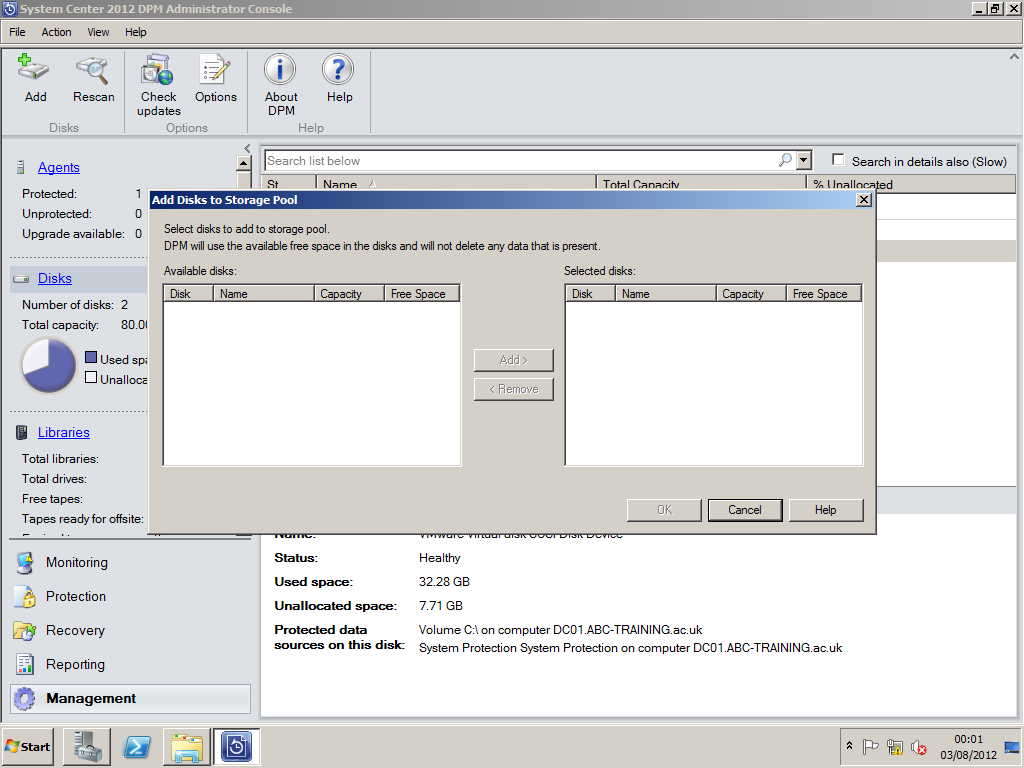
Select the Disks you would like to add to the Storage pool.
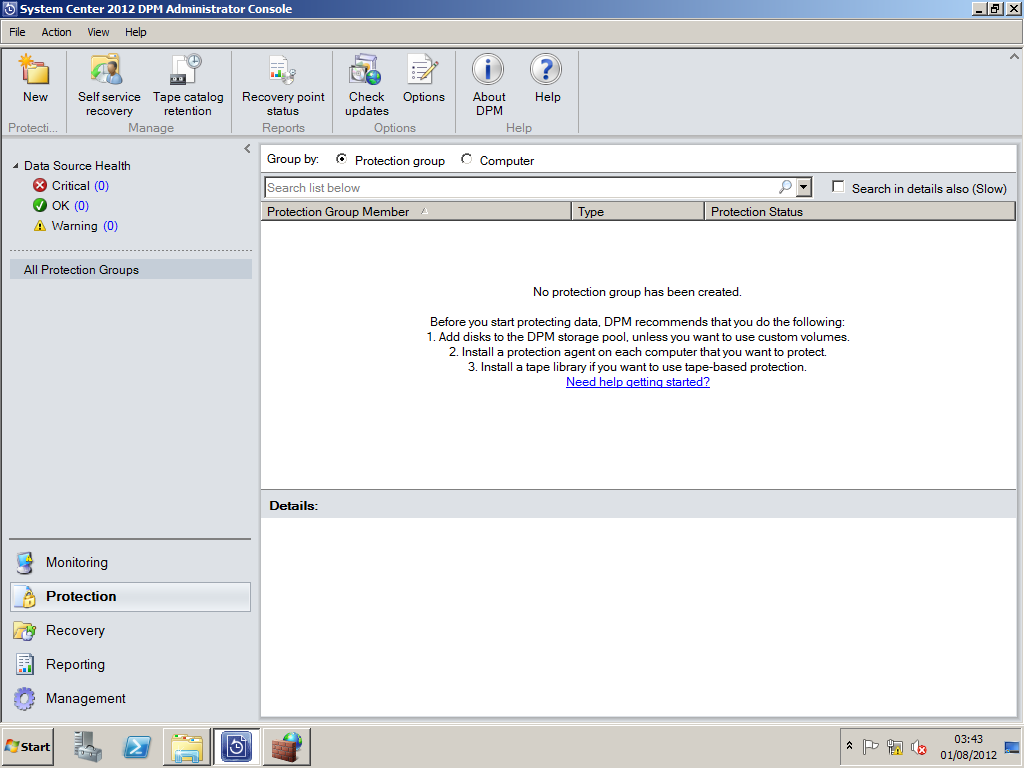
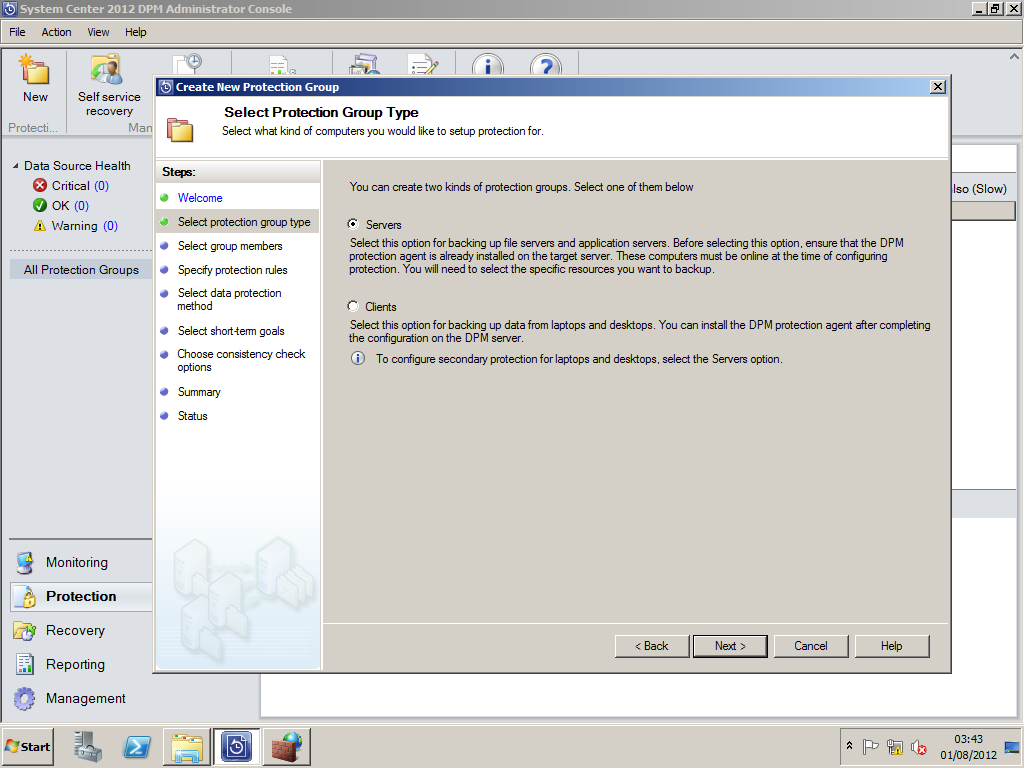
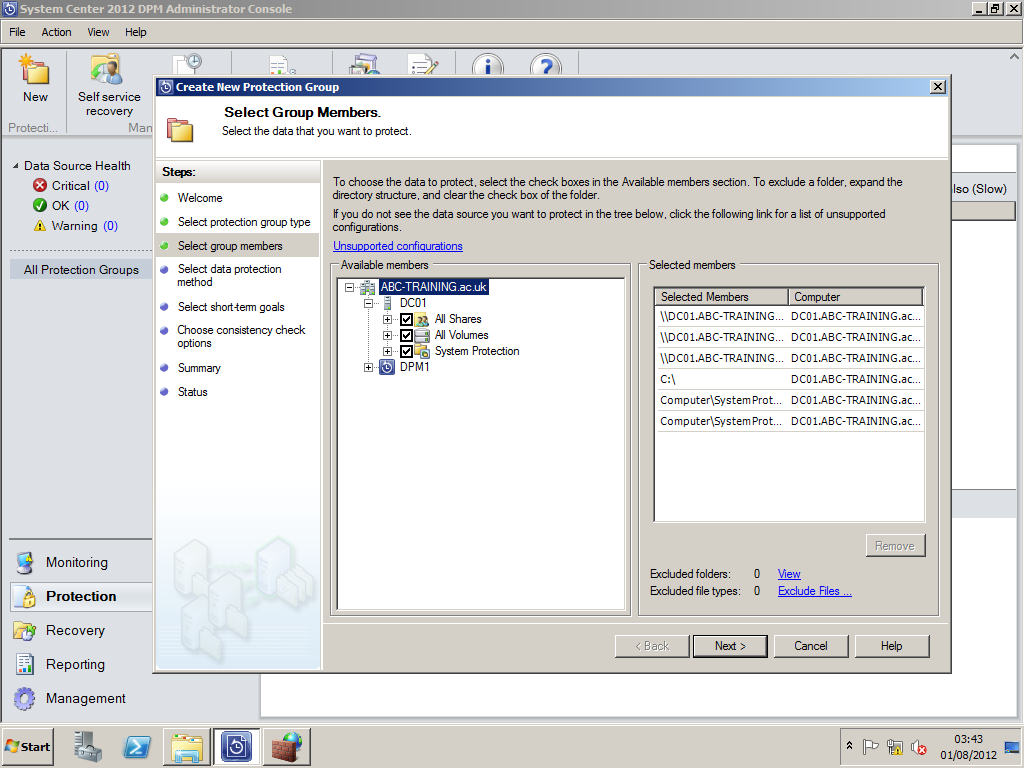
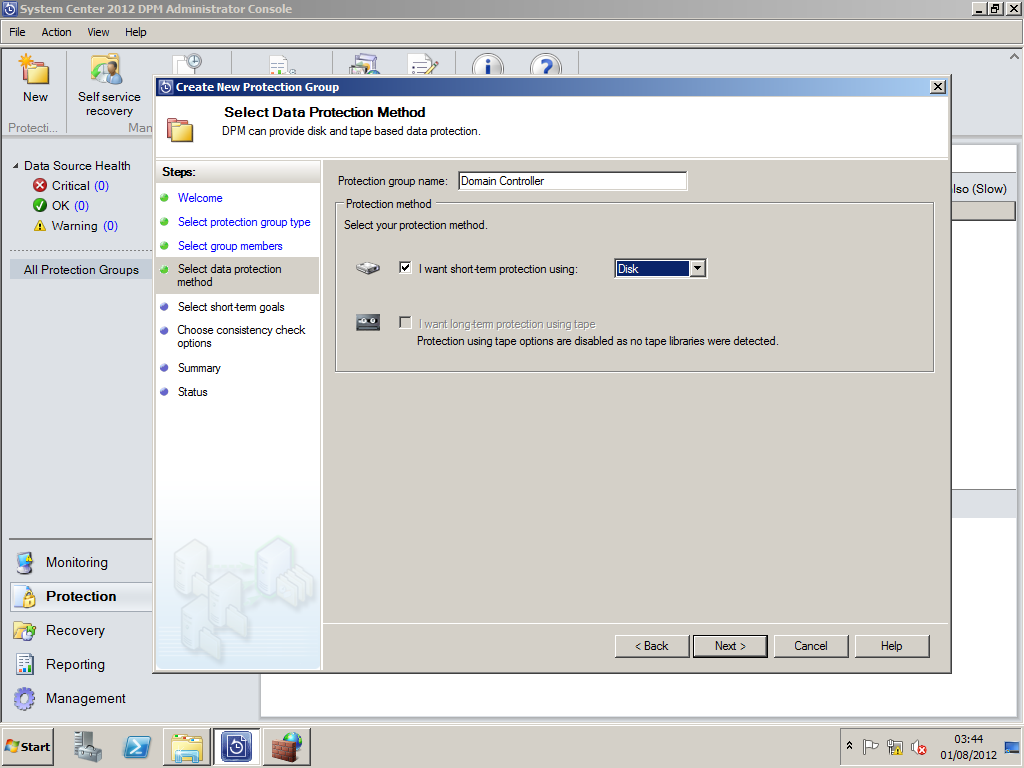
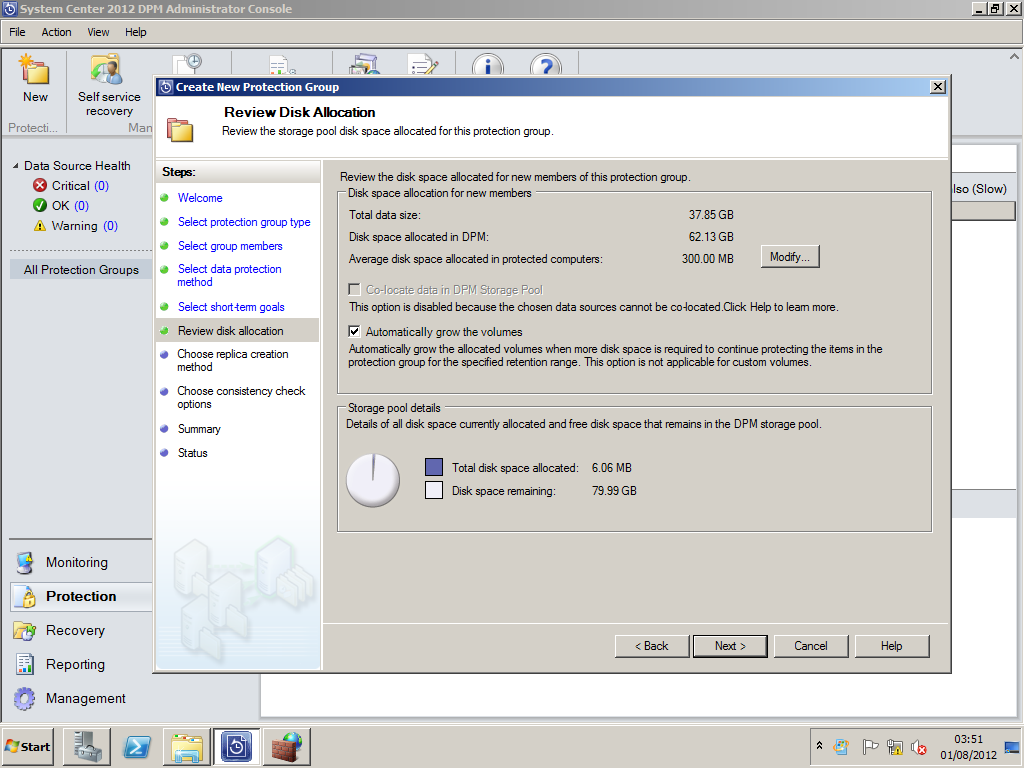
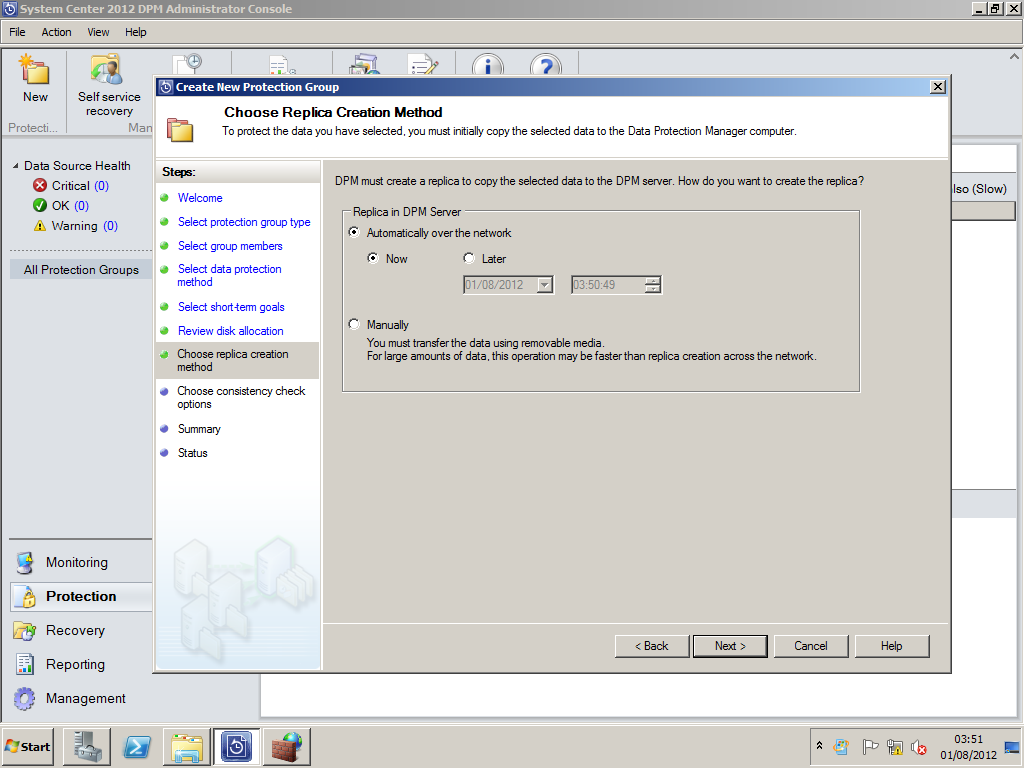
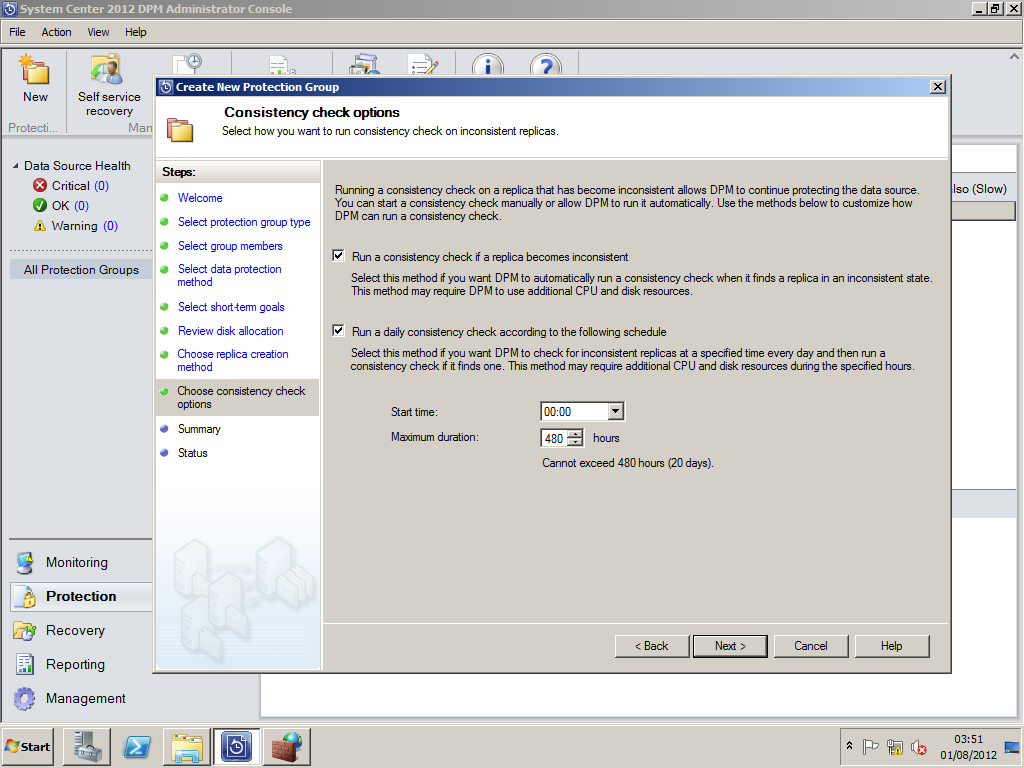
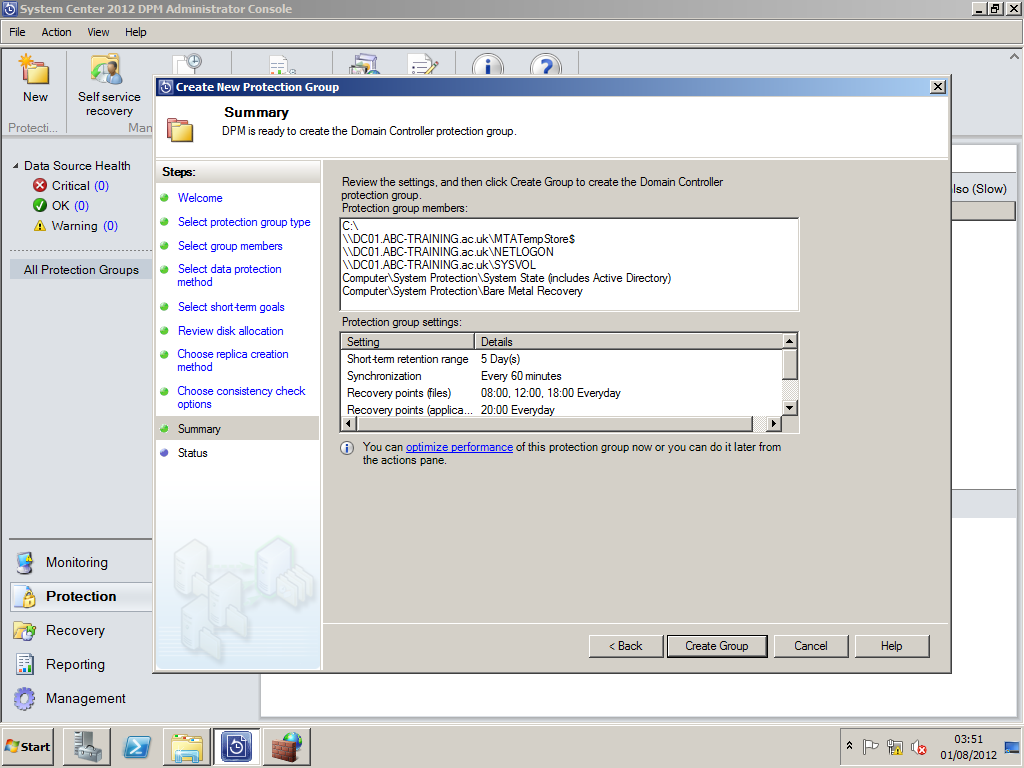
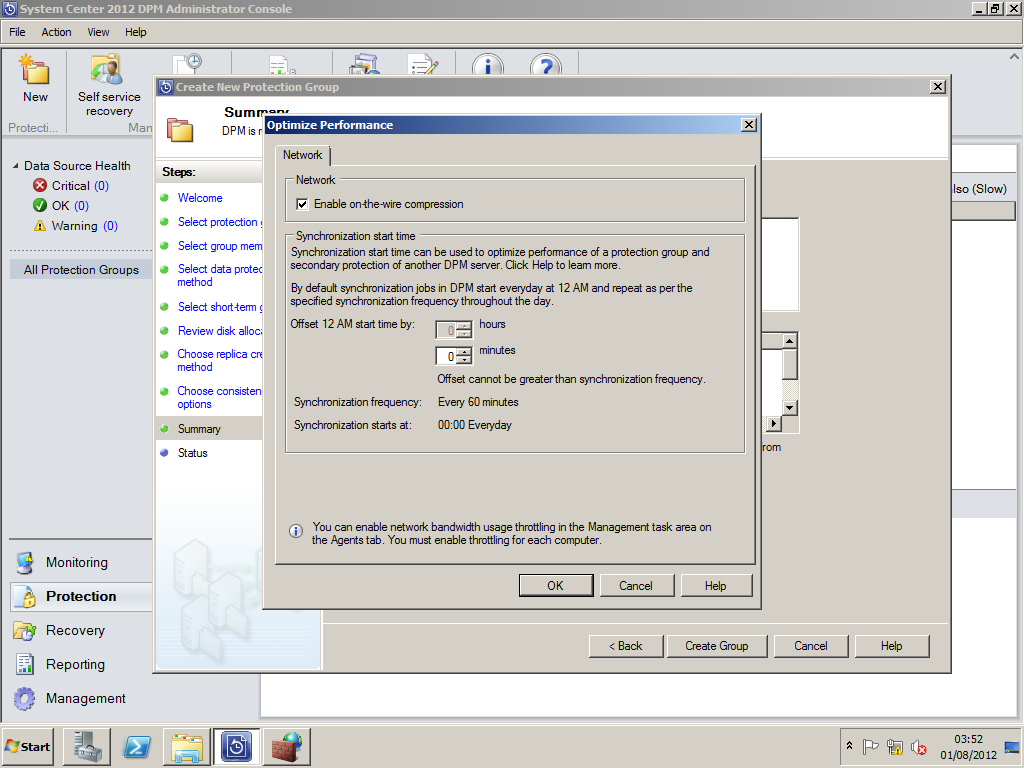
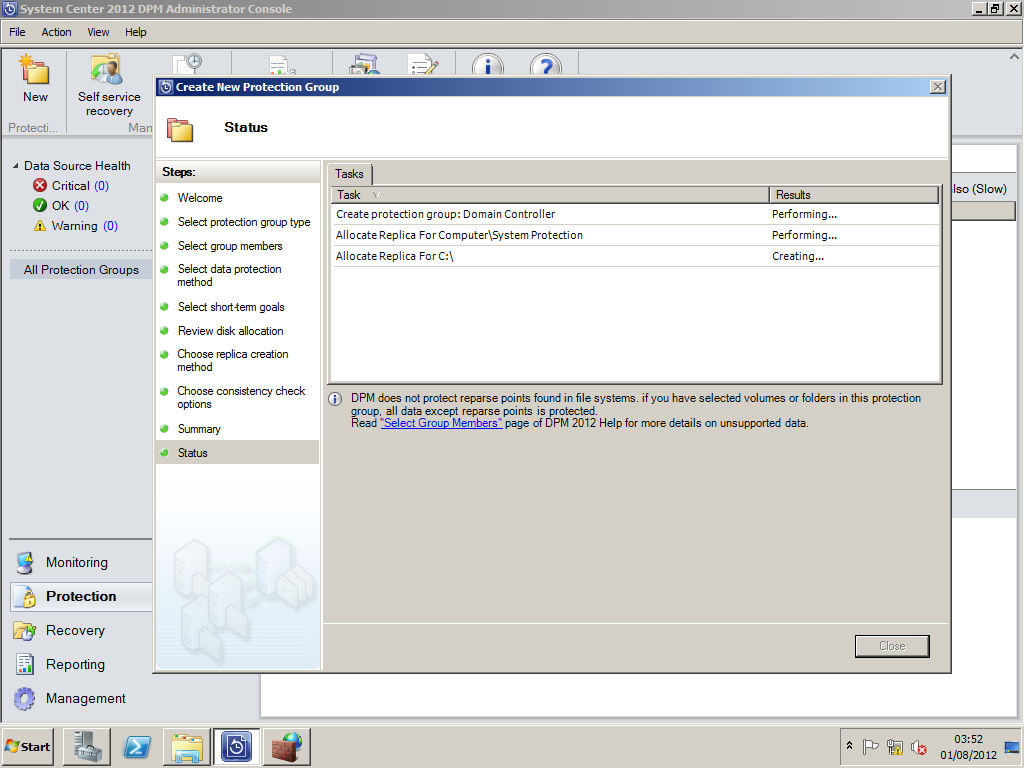
Create Protection Groups
Protection Groups are groups of servers that are configured to backup at certain times. This allows you to segregate server types and backup systems in various groups.
DPM Error Codes
If you come across any issues with the installation I have included a link to Microsoft's DPM error codes.
http://technet.microsoft.com/en-US/library/hh859398.aspx
DPM Troubleshooting
I have also including the link below to assist with troubleshooting any issues you may come across.
http://technet.microsoft.com/en-US/library/hh872921.aspx
Management Pack
DPM's Management pack is located on the root of the DPM CD, after importing the management pack to Operations manager, you will be able to monitor backups from the Operations Manager console.
References
Microsoft. (2012). System Center Technical Documentation Library. Available: http://technet.microsoft.com/en-us/library/cc507089.aspx. Last accessed 15 July 2012
Chris Amaris, Rand Moriomoto, Pete Handley, David E. Ross (2012). Microsoft System Center 2012 Unleashed. USA: SAMS. 664-760.
Microsoft. (2012). Microsoft System Center 2012. Available: https://web.archive.org/web/20210125153234/http://www.microsoft.com/en-us/server-cloud/system-center/default.aspx. Last accessed 24 July 2012.