Historical deep dive into reverse connect in the original Windows Virtual Desktop release, updated with the current Azure Virtual Desktop transport story.
Introduction
One of the core differences between traditional Remote Desktop Services and Windows Virtual Desktop is they way clients connect to (RD/WVD) resources. Microsoft have introduced a new mechanism within Windows Virtual Desktop called Reverse Connect.
The concepts in this article still stand up well. The main changes are naming and transport options. Windows Virtual Desktop is now Azure Virtual Desktop, reverse connect is still the core session-establishment model, and Azure Virtual Desktop now supports RDP Shortpath over UDP in supported scenarios.
Traditional Remote Desktop Services (RDS) connectivity:
Clients would typically connect to a RD Gateway for external access to RDS resources. The RD client would connect to the RD gateway over TCP 443, authenticate with Active Directory, and then the Gateway would establish a secure inbound session to the selected/chosen resource (RemoteApp/Desktop). In more recent versions of windows, the RDS Gateway can also use the UDP port 3391 (when configured) to enable dual transport for improved connection quality compared to the traditional TCP method. UDP does provide significant improvements over higher latency/unreliable networks.
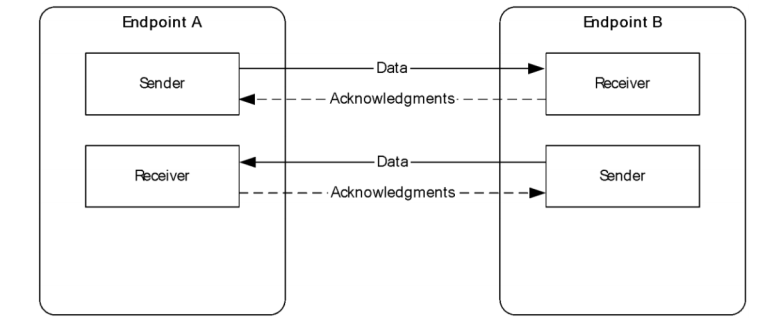
UDP bidirectional endpoints connection
You can read more on deploying a 2012 RD Gateway here: /blog/deploying-remote-desktop-gateway-rds-2012
You can also read more information on the Terminal Services Gateway Server Protocol here and Remote Desktop Protocol: UDP Transport Extension here
WVD Reverse Connect:
There is no requirement for a traditional inbound RDP listener to be exposed to the internet in order to establish a standard Azure Virtual Desktop session. This is one of the most useful security properties of the platform. The session host reaches out to the Azure Virtual Desktop infrastructure using outbound HTTPS, rather than waiting for a direct inbound client connection.
Reverse connect also works neatly with modern identity and access controls such as Conditional Access policies. For example, you can control access by user, app, location, authentication strength, or sign-in conditions without publishing a traditional gateway to the public internet.
How Reverse Connect works:
- A user launches the RD Client, they enter in their credentials and authenticate with Azure AD. on successful sign in, Azure AD returns a token to the RD Client.
- The RD Client then presents a token to the Web Access component, the Broker service then query's the SQL Database to determine the available and authorised resources for that user.
- The user selects and clicks on the chosen resource and connects to the Gateway.
- The broker service then orchestrates the connection from the host agent to the Gateway.
- The User is then able to access and use resources requested (Desktops/Apps).
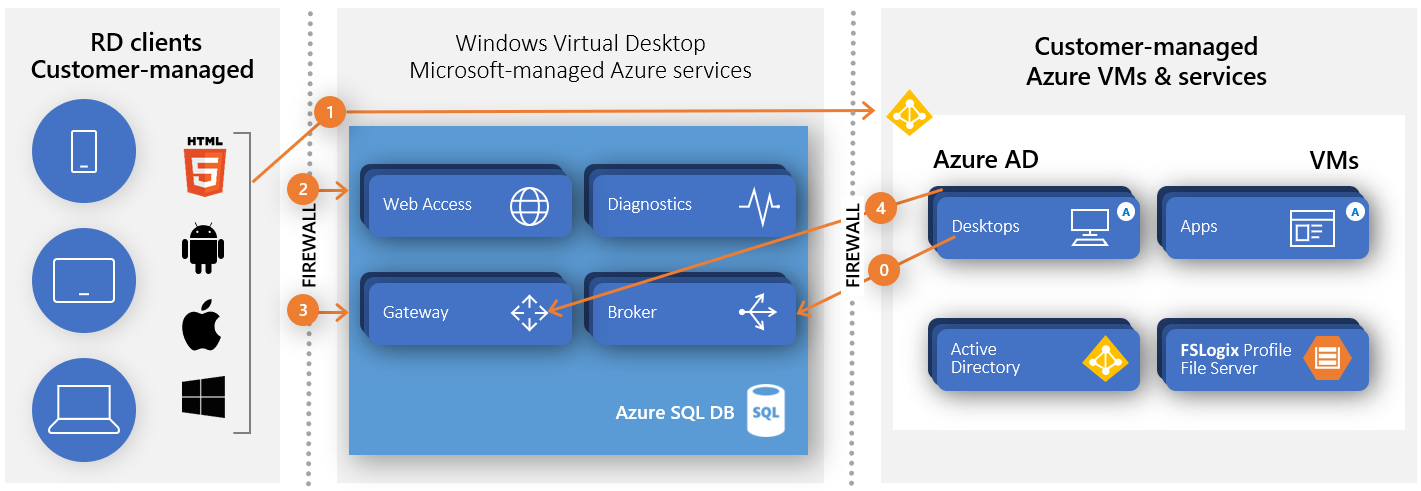
Diagram showing connection flow for WVD
As you can see from the diagram above, resources connect from the inside of Azure to the gateway. meaning that Desktops and Apps will only ever connect to the Microsoft managed Azure services and will not connect directly out to the public network/s. The RD client authenticates and connects to the RD gateway component, and the desktop/apps (Azure VM's) connect to the gateway. All communication and session connectivity is managed at the gateway.
That core model is still accurate today. The detail worth adding in 2026 is that Azure Virtual Desktop starts with TCP-based reverse connect transport, then attempts to improve the session path with UDP-based RDP Shortpath where the client, host, and network conditions support it.
Shadowing:
I have noticed that Shadowing is currently not supported out of the box however you are able to use third party tools to enable shadowing. You can also deploy a Jump server to the WVD Host/s vnet/s and using MSTC commands to shadow. Further to this, you could also Connect local client devices or deploy a small host pool for WVD Management enabling admins to shadow large WVD deployments. Please note you would need to script the output of IDs for multiple servers or run qwinsta on each VM.
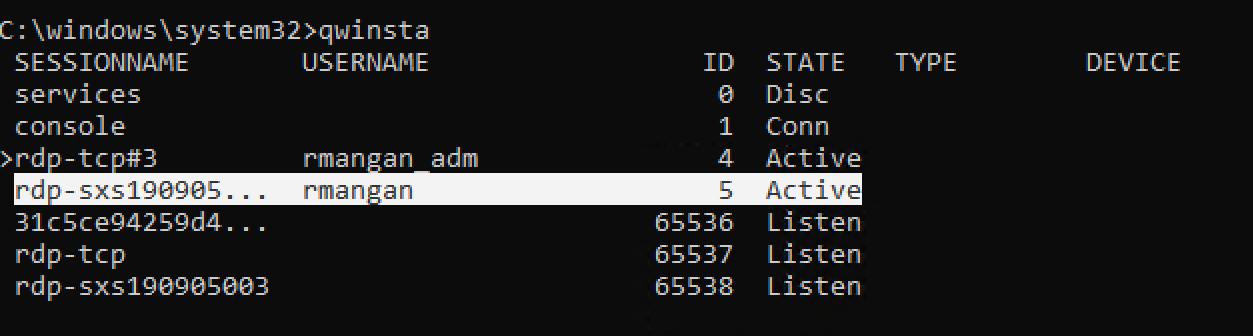
qwinsta lists the sesssion id's and state.
qwinsta

Once you have the session ID, you are then able to use mstsc /shadow to connect to the session in question.
The following command will allow you to shadow and control the session.
mstsc /v:rdsh01 /shadow:5 /Noconsentprompt
mstsc /v:rdsh01 /shadow:5 /control
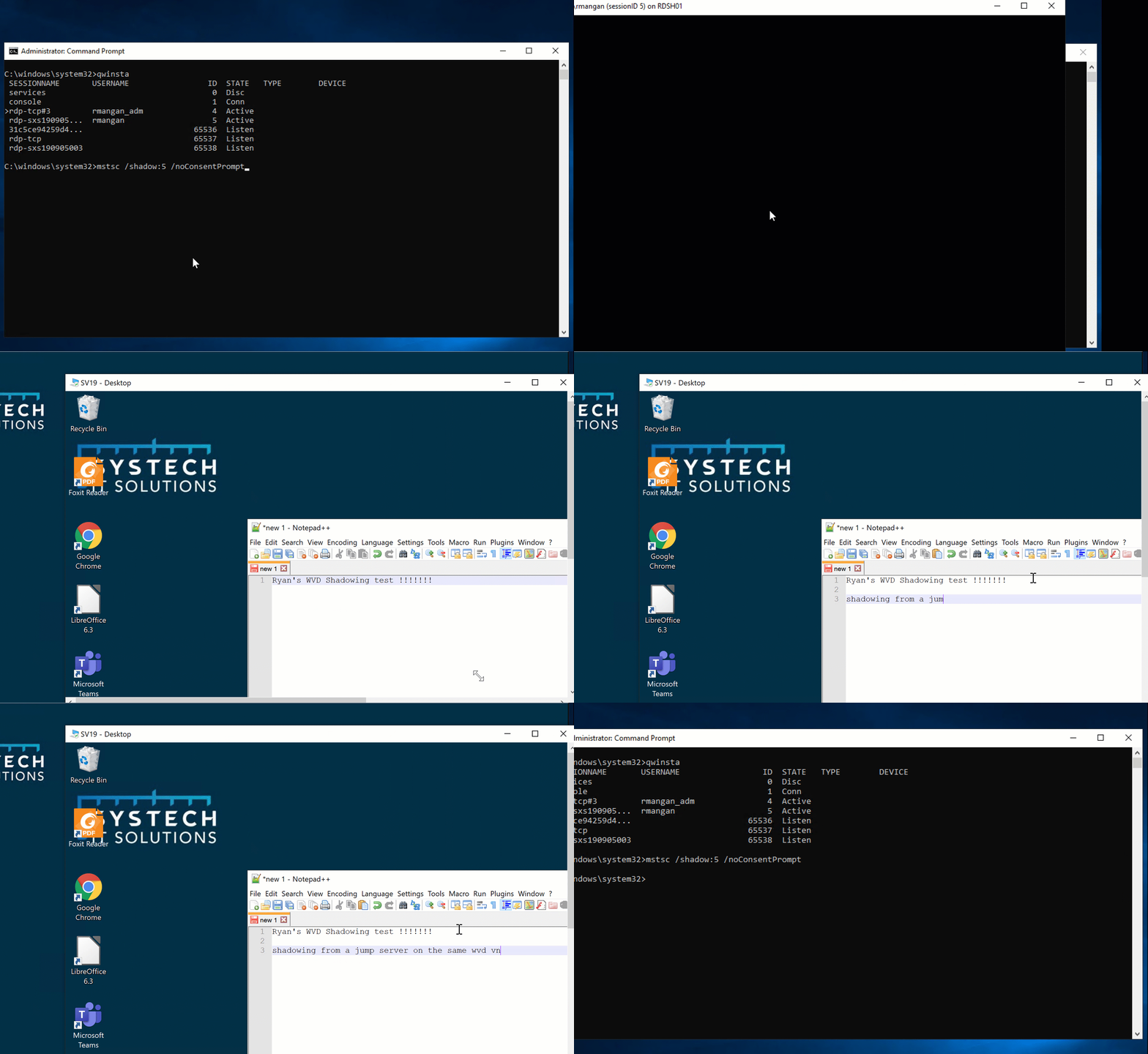
The above video shows you a jump server connecting and shadowing a session in Windows Virtual Desktop.
At the time this post was first written, native shadowing was not a built-in Azure Virtual Desktop workflow. I am leaving the jump-host method here because it is still useful operationally when you need to inspect or assist a live session from within the environment.
Looking at Reverse connect on the client and Host VM:
When taking a closer look at connectivity, you can see on both the client and Session host/VM, they are both using TCP 443.
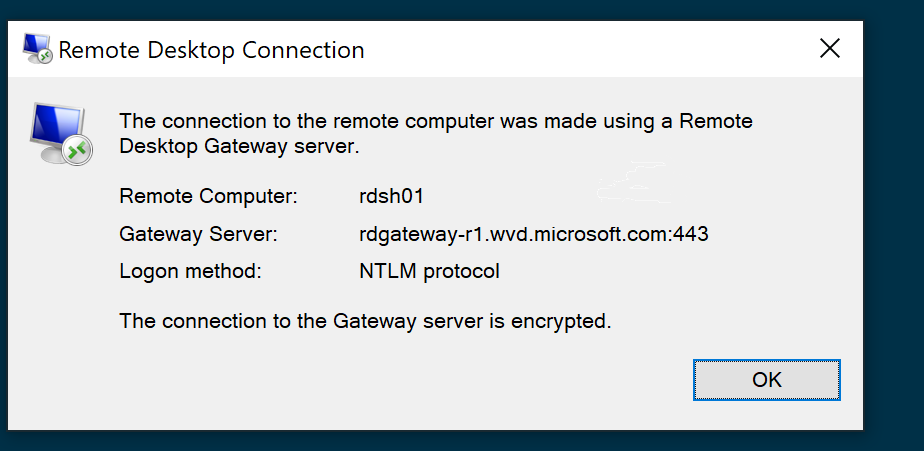
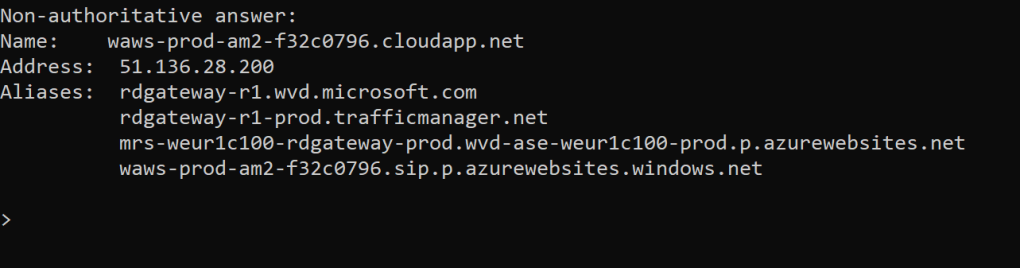
Client Connection to RD Gateway in Windows Virtual Desktop:
As show in the screenshot, you can see the client (msrdc.exe) has connected to the WVD gateway IP 41.136.28.200 on https 443.

Session Host connection to RD Gateway in Windows Virtual Desktop:
Same again, you can see from the screenshot below, that the host (RDSH) is connected to the WVD Gateway on 51.136.28.200 on https 443.

as shown using Remote Display Analyser, The Active transport protocol is "TCP (Reverse-Connect)"
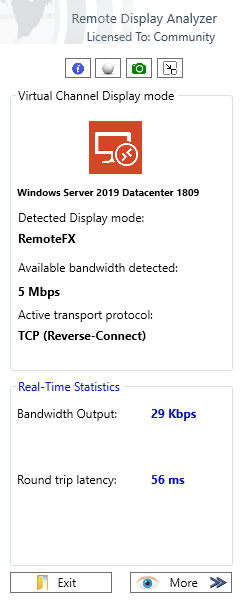
Remote Display Analyzer showing a Round Trip Latency of approximately 56 ms
Beware of Network Latency:
This is the section that has changed the most since 2019. At the time of writing the original article, Azure Virtual Desktop used reverse connect over TCP only. Today, Azure Virtual Desktop can also use RDP Shortpath to establish a UDP transport over managed networks or public networks, which improves reliability and user experience for latency-sensitive workloads.
That does not remove the need to think about geography, latency, and routing. It just means the platform now has a better transport story than it did when WVD first launched.
Please see the link for Windows Virtual Desktop Experience Estimator to see the round trip time (RTT) in ms across available regions.
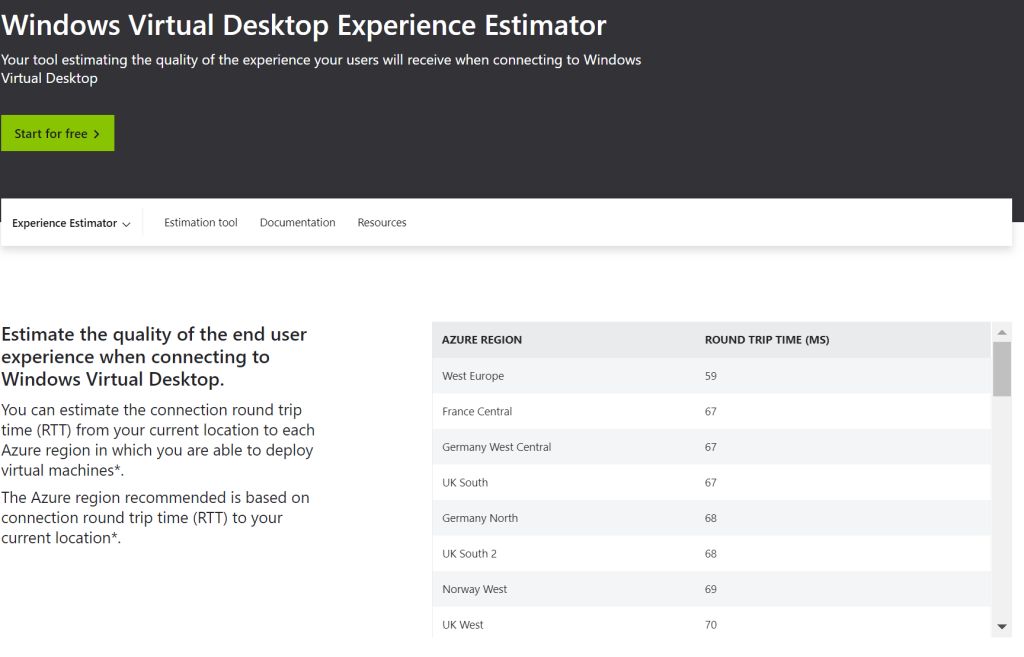 Windows Virtual Desktop Experience Estimator showing an example of Round Trip Time (RTT).
Summary
Reverse Connect remains one of the strongest design decisions in Azure Virtual Desktop. It reduces the need to publish inbound RDP access, works cleanly with Microsoft Entra and Conditional Access controls, and keeps session establishment anchored in the Microsoft-managed service plane.
What changed since the original article is transport. UDP is no longer missing from the story. RDP Shortpath can now improve performance and resilience where supported, while TCP-based reverse connect remains the broad-compatibility fallback. That is a much stronger architecture than the one we had on day one.
As shown in this blog post, you can shadow WVD users, you just need some though on the best way you like to manage this.
As always, any questions, feel free to add them to the comments section.