Historical walkthrough for configuring the original Windows Virtual Desktop feed, with notes on the current Azure Virtual Desktop client approach.
Introduction:
This is a quick post to show you how to configure the RDP feed for WVD. I will also detail how to automate the feed deployment using GPO.
This is one of those posts that is still useful as a historical trick, but not as the main design recommendation anymore. The method below uses RemoteApp and Desktop Connections (RADC) on Windows to surface published resources in the Start menu. That was never an officially supported Azure Virtual Desktop method and should now be treated as archive material.
For current deployments, the clean approach is to assign users to an Azure Virtual Desktop workspace and have them connect with Windows App or the current supported Remote Desktop client experience instead of pushing the old Control Panel feed workflow.
Getting Started: 1 - Manual Method
The steps below show the original manual RADC method from the WVD era.
Navigate to:
Control Panel\\All Control Panel Items\\RemoteApp and Desktop Connections. Then Click on the Access RemoteApp and desktops.
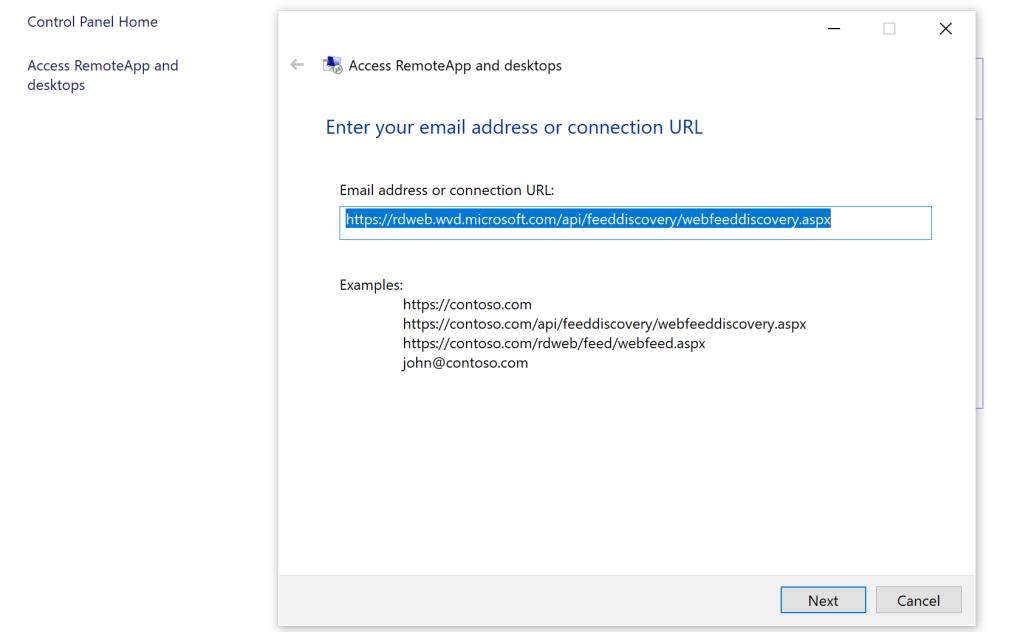
You will then need to enter the WVD Feed details: https://rdweb.wvd.microsoft.com/api/feeddiscovery/webfeeddiscovery.aspx
You can also find this information by viewing the settings in the RD Client for WVD also shown in the screenshot below.
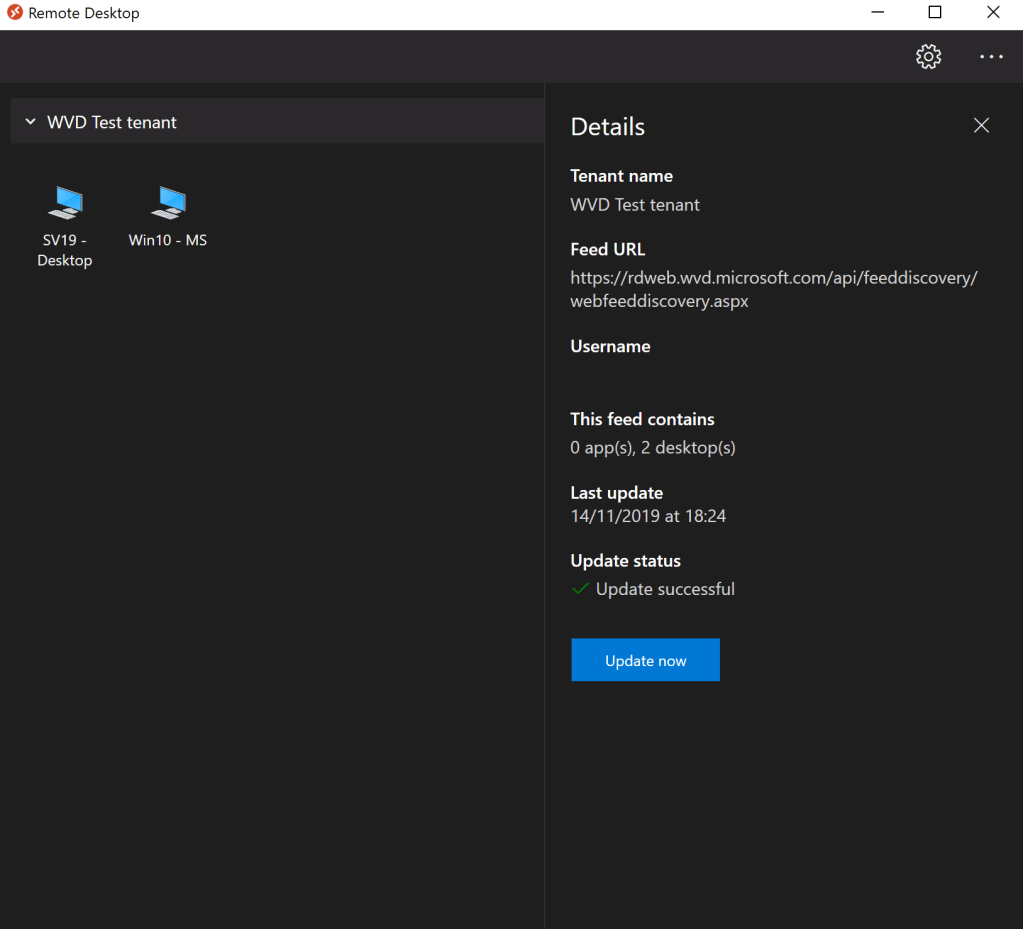
Once the feed has been entered and you have selected next, you will then be asked to authenticate, if Multi factor authentication is in use, you could also be prompted for a pin code or authentication app approval.
Once completed you will see the following:
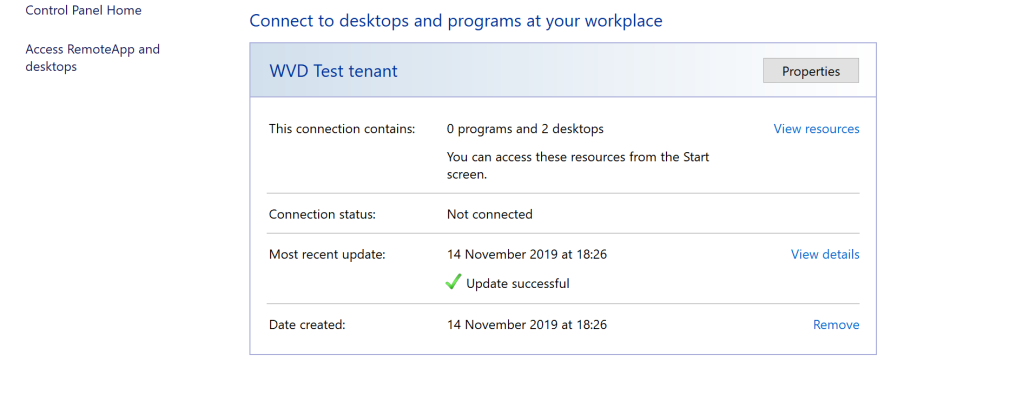
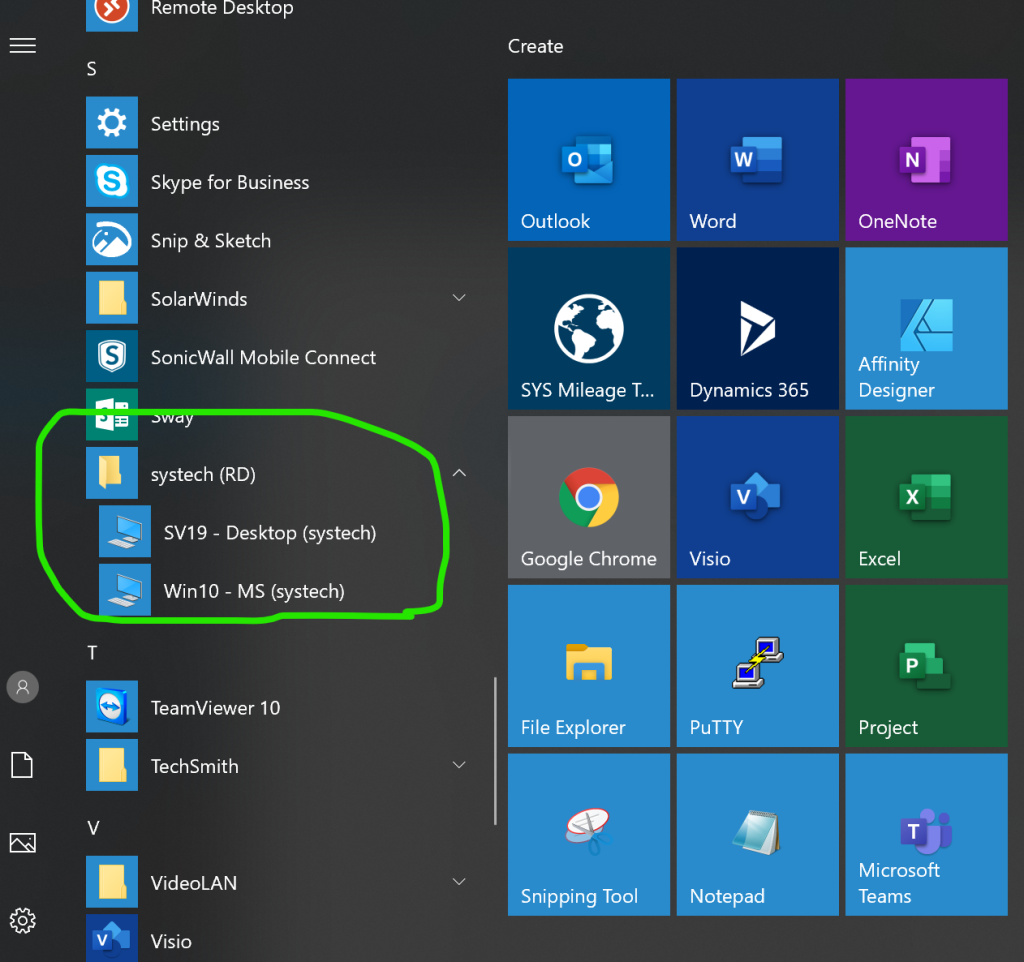
You will note when configured that the expierence is seemless and local and remote resources co-exist. Meaning you will be able see these resources in the start menu and search within, for any RemoteApps or Desktop.
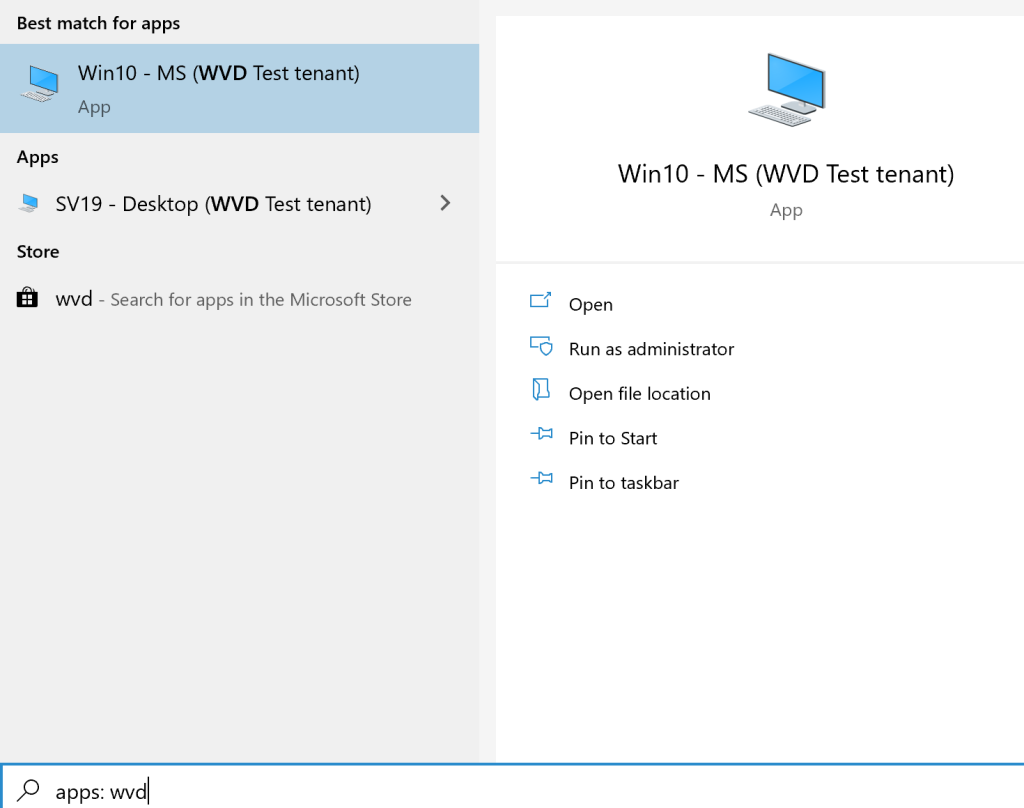
As you can see from the screenshot below, Just typing WVD, brings up all the desktops published from the RDP feed.
Current path
If you are deploying Azure Virtual Desktop today, I would frame the user-connection story like this:
- Publish desktops or RemoteApps into an application group and associate that group with a workspace.
- Assign users to the application group.
- Have users connect through Windows App or the supported Remote Desktop client workflow, which subscribes to the workspace directly.
- If you need automation, prefer the supported client subscription methods over the old RADC Control Panel integration.
Automating the feed:
If you are still using the old RADC method in a lab, the GPO below is the historical way to push the feed URL. I would not build a new production onboarding flow around it now.
- Open the Group Policy Management Editor on the domain controller and create a new GPO.
- Go to User Configuration -> Policies -> Administrative Templates -> Windows Components -> Remote Desktop Services -> RemoteApp and Desktop Connections.
- Double click the Specify default connection URL key and enable it. Enter the feed URL in the Default Connection URL field.
- Click OK.
- Roll out your new GPO to your domain.
Summary:
Using the RDP Feed enabled desktops and RemoteApps on demand straight from the Windows Start Menu and search. That was clever at the time, and it did create a seamless experience for users who wanted resources to feel local.
In 2026, the bigger takeaway is different: keep the RADC method as a workaround or archive reference, but use Windows App and the supported Azure Virtual Desktop workspace model for new deployments.
Quick Video to show the seamless experience:
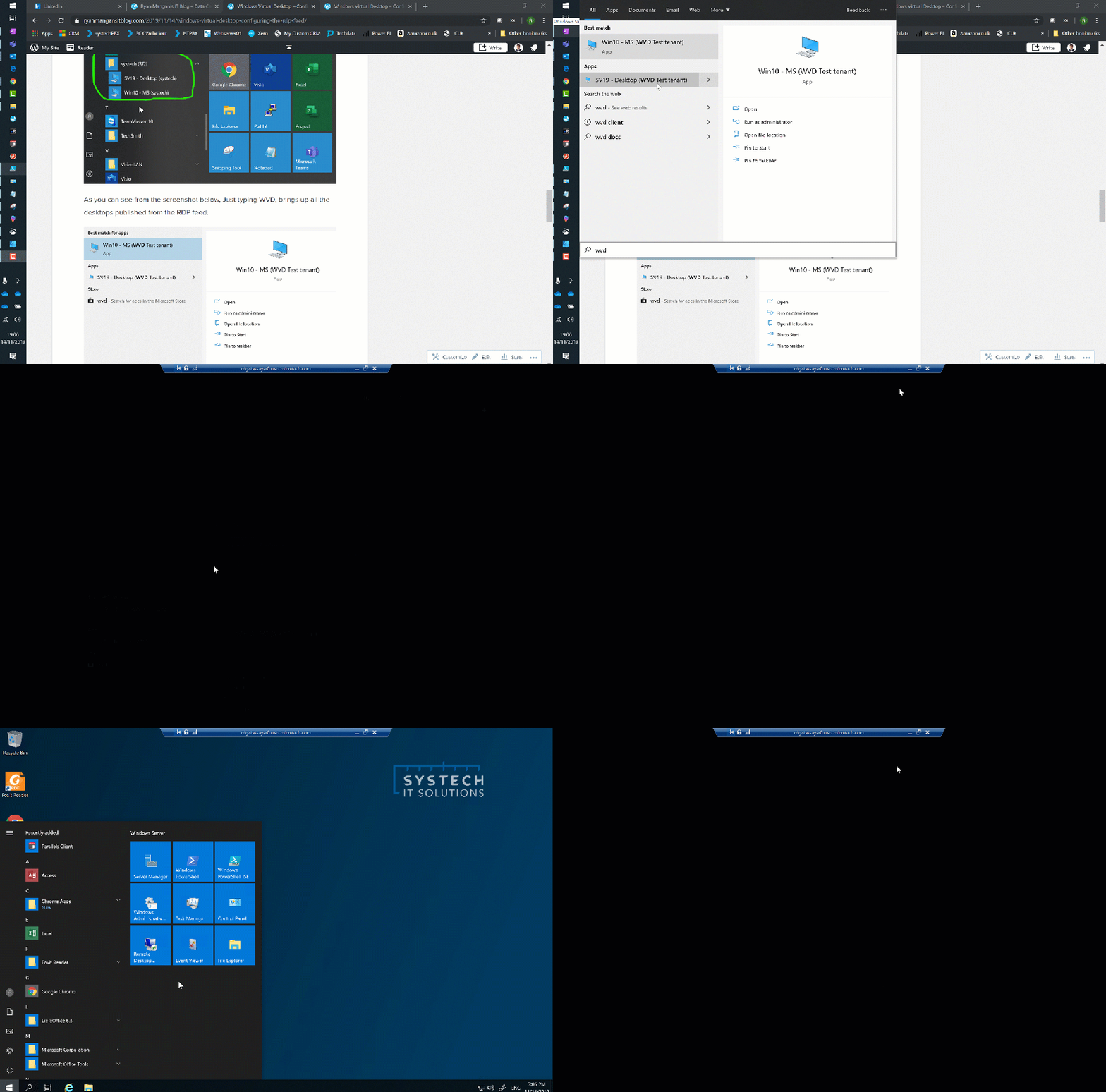
Update: RADC is not officially supported, please note there is no support, use at your own risk.
https://twitter.com/fberson/status/1197805255767011329
As always, any questions, use the comments box.