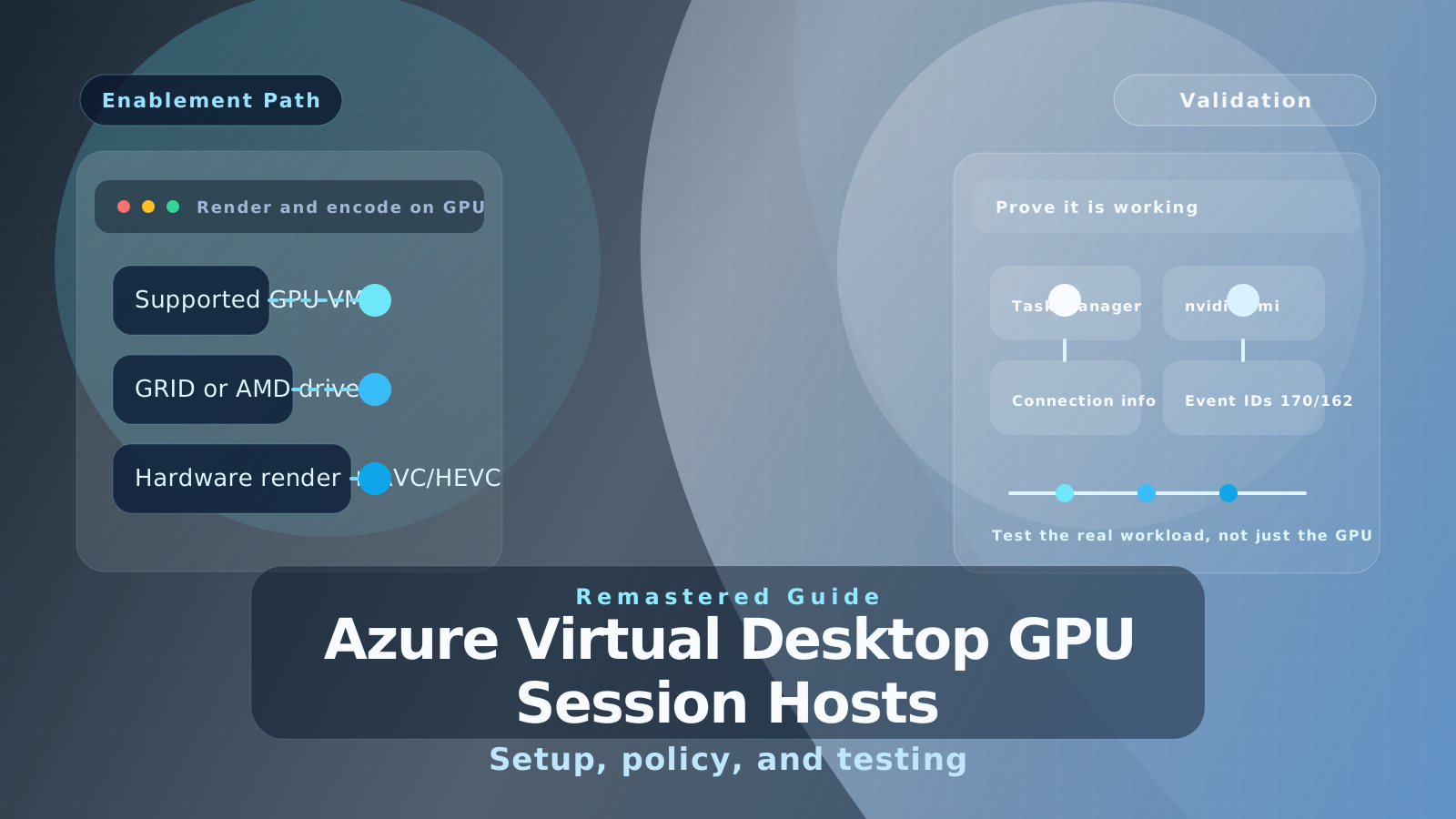
A remastered guide to choosing, enabling, and validating GPU acceleration on Azure Virtual Desktop session hosts with current VM, driver, and RDP graphics guidance.
The original version of this article was written during the early Windows Virtual Desktop launch period and used a Standard_NV6 VM with an NVIDIA Tesla M60 GPU.
The core lesson still holds: if users run graphics-heavy applications, you need to configure both the GPU and the remote graphics stack correctly. What changed is the platform guidance around it. In 2026, Microsoft documents supported Azure Virtual Desktop GPU VM series, driver requirements, H.264 and HEVC policy settings, and validation steps far more clearly than we had in 2019.
What changed since the original post
Three parts of the old article need modern context before anyone follows it.
First, Windows Virtual Desktop is now Azure Virtual Desktop.
Second, the original Standard_NV6 example belongs to the older NV family and should be treated as archive history, not the default recommendation for a new deployment.
Third, Azure Virtual Desktop now has a specific set of supported GPU-optimized session host sizes. If you are designing this today, start with Microsoft's current support matrix and regional availability rather than assuming the original NV6-era sizing still makes sense.
That matters even more in 2026 because some of the later GPU families people moved to after NV6, such as NVv3 and NVv4, are themselves now on a retirement path. The safe modernization move is simple: choose from the currently supported Azure Virtual Desktop GPU list and validate the region, driver, and codec support before you build at scale.
When a GPU session host is worth the premium
GPU-backed session hosts are most defensible when the user experience depends on one or more of these workload patterns:
- 3D modeling and CAD/CAM
- video editing or high-frame-rate playback
- visualization, mapping, and simulation workloads
- WebGL-heavy or design-focused applications
- specialist users who clearly benefit from hardware rendering and hardware frame encoding
For standard office productivity, line-of-business apps, and many lighter knowledge-worker personas, a non-GPU host pool is still often the better commercial choice.
That was one of the useful conclusions in the original testing, and it still holds up well.
The modern configuration path
The cleanest way to think about Azure Virtual Desktop GPU enablement now is:
- Choose a supported GPU session host size.
- Install the correct Azure-supported driver.
- Enable GPU rendering and frame encoding.
- Restart the host and validate with live workload testing.
1. Choose a supported GPU VM size
Microsoft's current Azure Virtual Desktop guidance lists supported GPU-optimized session host sizes rather than leaving you to infer support from the wider Azure catalog.
The decision point is no longer just "do I need a GPU?" It is:
- which GPU series is supported for Azure Virtual Desktop
- which codec path you want to use
- whether the size is available in your target Azure region
- whether the workload really needs GPU-backed rendering, or just better CPU and memory
For most architects, the important takeaway is to avoid treating old WVD sizing screenshots as design guidance for a fresh deployment.
2. Install the right driver
This is the first place older guidance goes wrong.
For NVIDIA-backed Azure Virtual Desktop session hosts, Microsoft documents that you should use the Azure-distributed GRID driver, not a generic CUDA-first approach, if you want proper GPU acceleration for most applications and the Windows user interface.
If you prefer automation, the NVIDIA GPU Driver Extension is usually the cleanest way to standardize the install across session hosts. If you install manually, stick to the versions Microsoft redistributes for the target VM family and operating system.
For AMD-backed GPU session hosts, use the Azure-provided AMD driver guidance rather than mixing in generic workstation assumptions.
Historic screenshots from the original post are still useful here because the verification pattern has not changed:
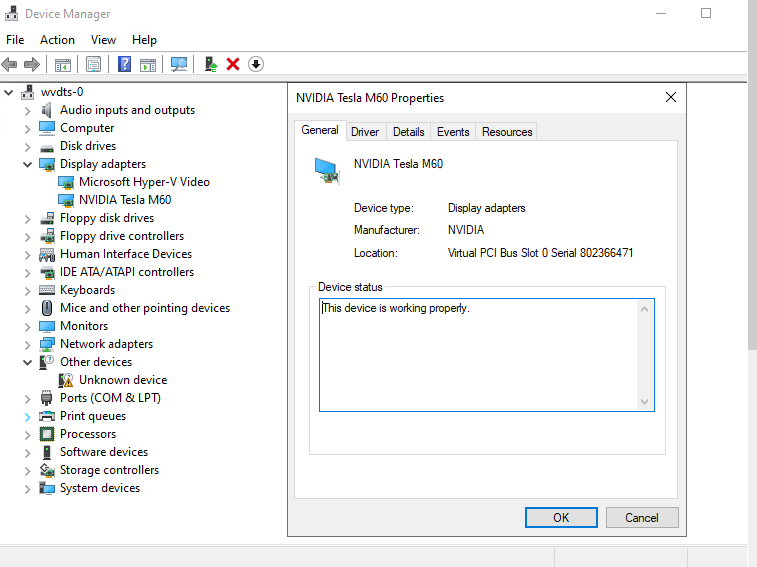
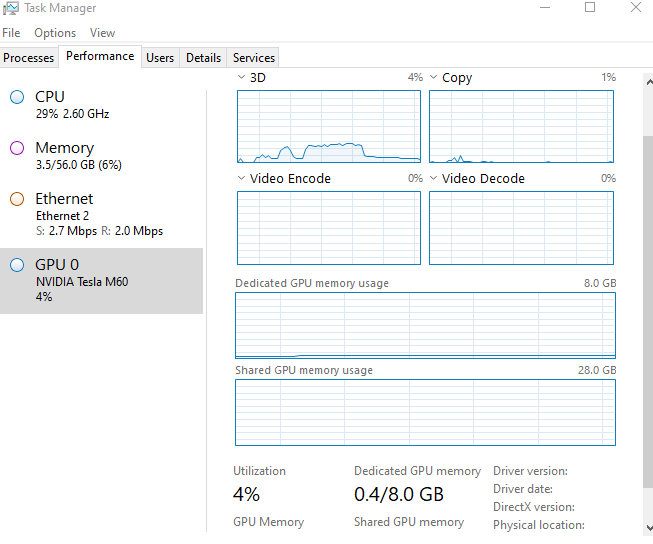
If the GPU is missing from Device Manager or Task Manager, there is no point moving on to policy tuning yet.
3. Enable GPU rendering and frame encoding
This was the key value in the original article, and the logic is still correct.
By default, Azure Virtual Desktop sessions render with the CPU and do not automatically use an available GPU just because the VM has one attached. You need to explicitly enable the graphics path.
For Group Policy, the relevant path is:
Computer Configuration > Policies > Administrative Templates > Windows Components > Remote Desktop Services > Remote Desktop Session Host > Remote Session Environment
For a modern AVD build, I would deliberately configure these settings:
- Use hardware graphics adapters for all Remote Desktop Services sessions
- Configure H.264/AVC hardware encoding for Remote Desktop Connections
- Prioritize H.264/AVC 444 Graphics mode for Remote Desktop connections
That third item matters more than many teams realize. If you prioritize H.264 graphics mode without also enabling hardware encoding, you can end up with software CPU-based encoding, which defeats much of the benefit.
If your environment meets the newer prerequisites for HEVC/H.265, Azure Virtual Desktop also supports:
- Configure H.265/HEVC hardware encoding for Remote Desktop Connections
That path has extra constraints, including client support, codec support on the local device, and Azure Virtual Desktop-specific prerequisites. It is worth using when the workload justifies it, but it should be a deliberate design choice rather than an assumption.
The original post correctly highlighted that rendering and encoding are separate concerns. That is still the most important implementation detail to remember.
4. Restart and verify
After the driver and policy settings are in place, restart the session host and validate with an actual graphics workload.
I still like the same verification layers the original article used, but I would order them more carefully:
Task Manager
Open Task Manager > Performance and confirm that GPU activity appears when a graphics-heavy application is running.
nvidia-smi
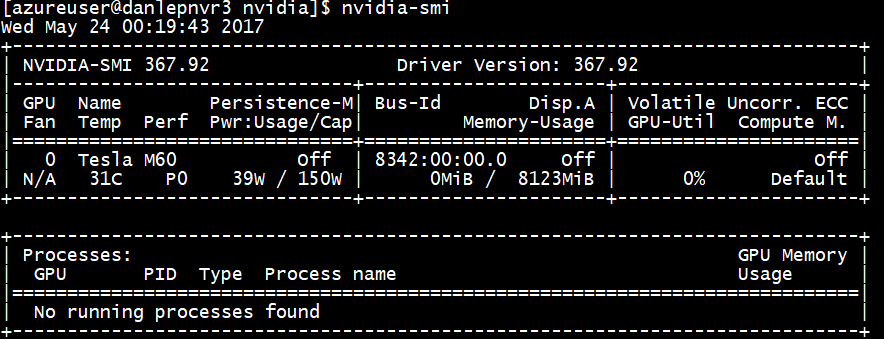
For NVIDIA-based hosts, nvidia-smi is still the quickest sanity check.
cd "C:\Program Files\NVIDIA Corporation\NVSMI"
.\nvidia-smi
Historic screenshot from the original post:
Connection Information and Event Viewer
For current Azure Virtual Desktop environments, Microsoft's guidance adds two useful checks the original post did not have:
- open Connection Information and inspect the graphics details
- use Event Viewer to confirm hardware encoding events such as Event ID
170and the active profile events under Event ID162
That gives you better proof that the remote session is using the codec path you intended, rather than simply proving that a GPU exists in the VM.
Testing strategy: use a real workload first
The original article used WebGL, FurMark, and application comparisons to show the difference between GPU and non-GPU hosts. That still has value, but I would position synthetic tests as supporting evidence, not the main design input.
My preferred testing order now is:
- Test the real production application first.
- Compare the same workflow on a GPU and non-GPU session host.
- Measure whether hardware encoding reduces CPU pressure during active graphics use.
- Use a synthetic test only to prove the host is capable of driving sustained GPU load.
This historic screenshot still illustrates the point well:
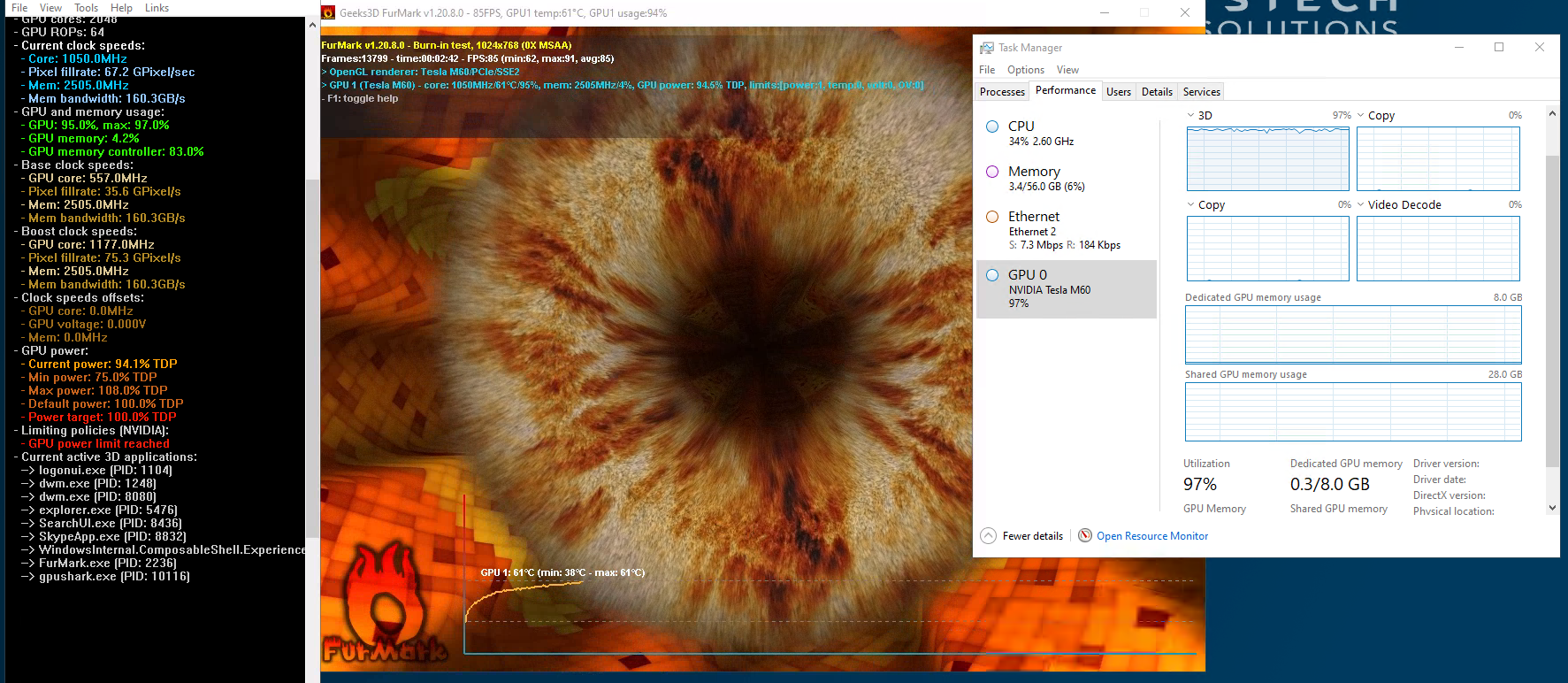
If the real user workload is CAD, Adobe Creative Cloud, video, mapping, or a browser-based visualization app, that is the test that should drive the purchasing decision. A synthetic benchmark can confirm the host is functioning, but it should not define the architecture by itself.
What still holds up from the original tests
The old article made two practical points that are still useful.
The first is that GPU-backed session hosts clearly improve the experience for graphics-intensive workloads. If the user is rotating 3D models, rendering, or working with high-motion visual content, the difference is normally obvious.
The second is that not every desktop needs a GPU. Some lighter design and 2D creative applications may still be acceptable on a non-GPU host, especially if the user density is controlled and the VM size is sensible.
That is why I would still split the design by persona:
- standard host pools for general productivity users
- GPU host pools for users with a proven rendering or encoding requirement
My recommendation now
If you are reading this as a historical WVD article, the useful part to keep is the implementation principle:
- install the right driver
- enable hardware rendering
- enable hardware encoding
- test with the real workload
What you should retire is the assumption that the original NV6 example is the correct default starting point.
Azure Virtual Desktop GPU enablement is much better documented now. Use the current support matrix, supported drivers, current policy settings, and explicit verification steps, then decide whether the user persona really justifies the extra GPU cost.
That gives you a much cleaner answer than simply asking whether "GPU works on AVD." It does. The real question is whether it improves the workload enough to earn its place in the design.